The refund orders page in Subotiz provides a structured way to track and manage all returned payments. Each refund order is directly linked to a completed trade order, providing clear visibility into full and partial refunds. This keeps billing records consistent with actual transaction outcomes and maintains transparency in customer reimbursements.
Refund Order Creation
A refund order is automatically generated after a refund request is submitted. Refund orders are always linked to successful trade orders and cannot be created directly from invoices. Refund orders are generated in the following cases:
- Manual refund: A merchant manually issues a refund from a trade order detail page.
- Automatic refund: The system processes an eligible refund automatically, such as after a subscription cancellation or billing adjustment.
Each refund order is updated in real time based on the response from the payment provider.
Refund Types
Subotiz supports two types of refunds:
- Full refund: Returns the entire payment amount. Only one full refund can be issued per trade order.
- Partial refund: Returns a portion of the original payment. Multiple partial refunds are allowed, provided the total refunded amount does not exceed the original charge.
Refund Order Statuses
Each refund order includes a status that reflects its current processing stage or outcome:
- Processing: The refund request has been sent and is awaiting settlement by the payment provider.
- Failed: The refund request was rejected or did not complete. The refund can be retried or followed up with the payment provider.
- Successful: The refund has been processed and the amount has been returned to the customer's original payment method.
Relationship with Invoices
Refund orders are not created from invoices. However, once a refund is confirmed, the related invoice updates automatically:
- Full refund: The invoice status updates to Refunded.
- Partial refund: The invoice status updates to Partially refunded.
- Failed refund: The invoice status remains unchanged.
Viewing Refund Orders in the Admin
Access Refund orders: Go to Transaction > Refund orders in the Subotiz admin. The list displays refund order ID, original trade order, channel refund ID, customer, and refund amount.
From this page, merchants can:
- Search refund orders: Search by refund order ID, trade order ID, channel refund ID, customer name, customer email, or customer ID.
- Filter by status: Filter by Processing, Failed, or Successful.
- Select a date range: Use the calendar to apply a start and end date filter.
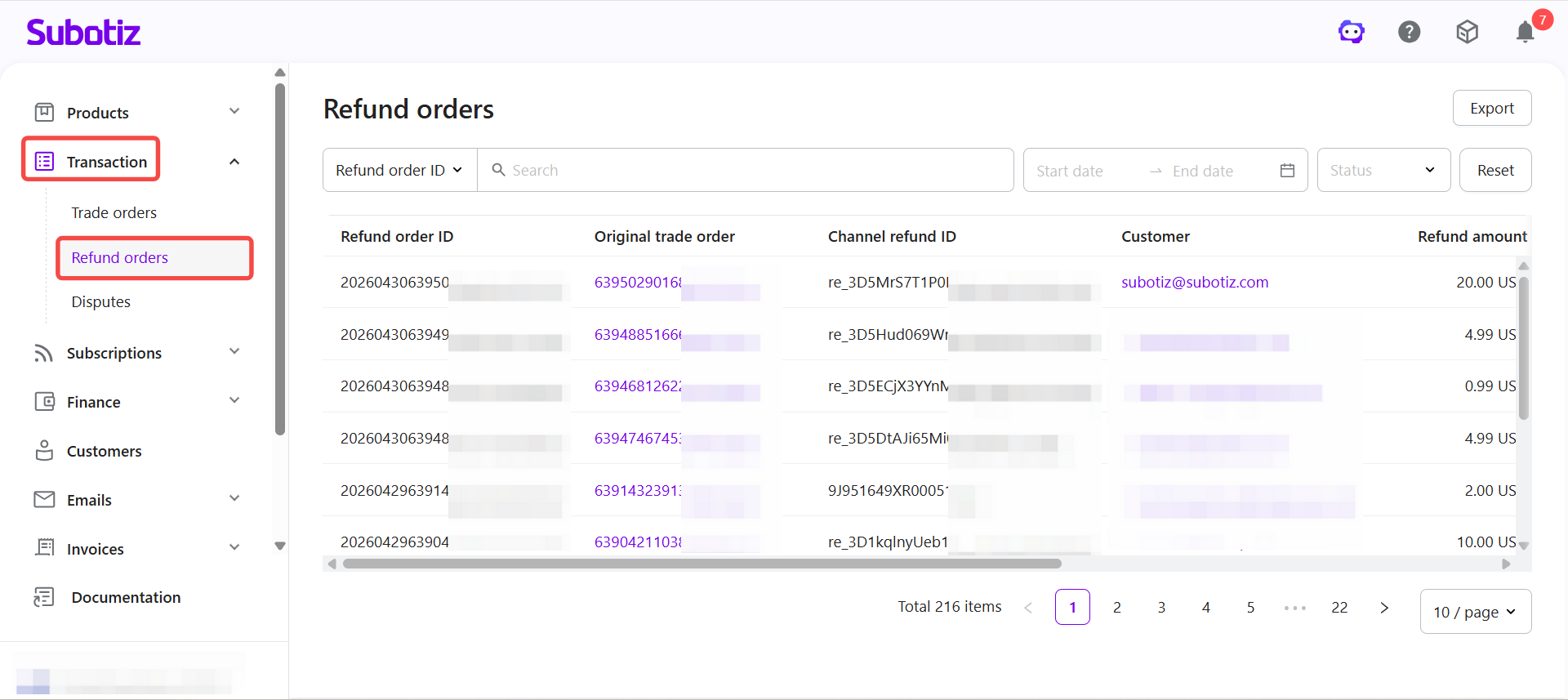
The refund orders page gives merchants clear visibility into all refund transactions. Use this page to track refund progress, confirm outcomes, and ensure invoices reflect the correct refund status.