The trade orders page in Subotiz assigns a real-time payment status to each transaction based on responses from the connected payment provider. These statuses apply to all order types, including one-time payments, subscription activations, and renewals. By reviewing and responding to specific statuses, merchants can quickly identify payment issues, reduce failure rates, and keep customer accounts in good standing.
Viewing Status Overview
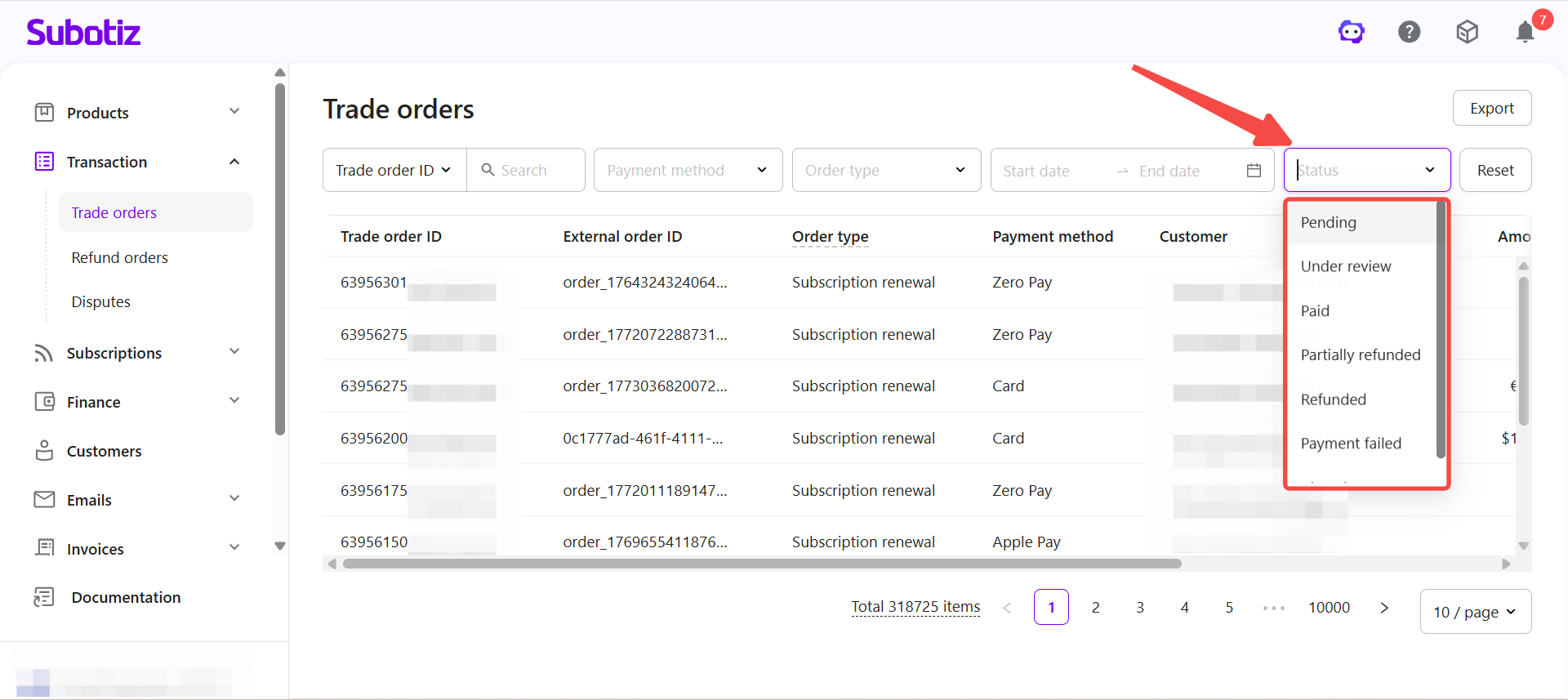
Each trade order is automatically assigned a real-time status based on payment provider feedback. The following statuses are supported:
- Pending: The trade order has been created, but payment confirmation has not yet been received.
- Under review: The payment provider is validating the transaction before final confirmation.
- Paid: The payment has been successfully processed and funds have been settled.
- Partially refunded: A portion of the original payment has been returned to the customer.
- Refunded: The full payment amount has been returned to the customer.
- Payment failed: The payment request was declined by the provider, for example due to insufficient funds, failed verification, or fraud controls. The customer can retry the payment.
- Closed: The trade order is closed after repeated renewal failures or when no payment result is received within 7 days. Closed orders cannot be paid again.
Troubleshooting by Status
- Pending
- Current state: The trade order has been created, but payment confirmation is still pending.
- Recommended actions:
- Wait briefly for the payment provider to return a result.
- Verify the transaction in the provider dashboard using the external order ID.
- Retry the payment if necessary.
- Under Review
- Current state: The payment request has been submitted and is being validated by the provider.
- Recommended actions:
- Monitor the order until validation is complete.
- Contact the payment provider if the status does not update for an extended period.
- Paid
- Current state: The payment has been successfully captured and settled.
- Recommended actions:
- No further action is required unless a refund is needed.
- Initiate a refund from the trade order detail page if required.
- Partially Refunded
- Current state: A portion of the payment has been refunded.
- Recommended actions:
- Review the linked refund order in Transaction > Refund orders.
- Confirm the refunded amount matches internal billing records.
- Refunded
- Current state: The full payment has been refunded.
- Recommended actions:
- Verify the refund outcome using the linked refund order.
- No additional refunds can be issued for this trade order.
- Payment Failed
- Current state: The payment was declined by the provider.
- Recommended actions:
- Ask the customer to retry the payment.
- Confirm the payment method is valid or suggest using an alternative method.
- For subscription renewals, check the trade order detail page for retry status.
- Closed
- Current state: The trade order has been closed after repeated failures or timeout.
- Recommended actions:
- Inform the customer that the order can no longer be paid.
- Guide the customer to create a new order or resubscribe.
- Use the external order ID to verify the original payment outcome if needed.
Monitoring Payment Issues
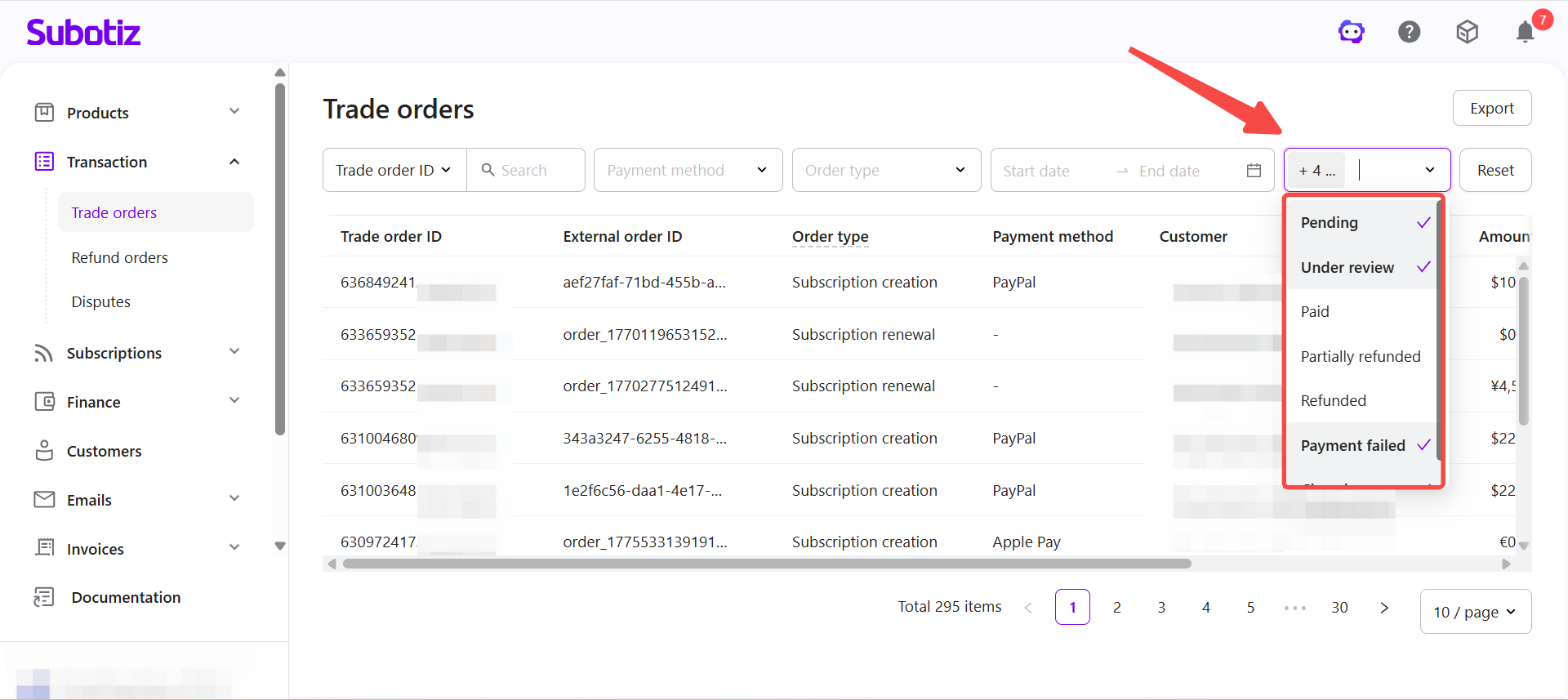
- Filter trade orders: Go to Transaction > Trade orders and filter by Pending, Under review, Payment failed, or Closed.
- Open order details: Review transaction data and the external order ID.
- Verify unsettled transactions: Check the provider dashboard using the external order ID.
- Refine results: Filter by order type or date range to narrow down specific cases.
Reviewing Related Records
- Check invoices: Use invoice ID or customer email to verify billing records.
- Review refund orders: Track refund status in the Refund orders section.
- Cross-check records: Ensure consistency across trade orders, invoices, and refund orders.
Best Practices
- Monitor unresolved statuses: Review Pending and Under review orders daily.
- Follow up on failed payments: Notify customers promptly to avoid service disruption.
- Verify with payment providers: Use provider reference IDs such as Stripe or PayPal to confirm outcomes.
- Cross-check billing records: Ensure consistency across transactions, invoices, and refunds.
- Identify recurring issues: Analyze repeated failures and adjust payment configurations if needed.
Troubleshooting payment issues in Subotiz starts with monitoring trade order statuses. By focusing on Pending, Under review, Payment failed, and Closed transactions, and verifying outcomes with payment providers, merchants can resolve issues efficiently and maintain a stable billing workflow.