Refunds for completed payments can be issued directly from the Subotiz dashboard. Merchants can enter any amount up to the refundable balance, allowing them to process a full or partial refund through the same workflow. Each refund generates a separate Refund order, which can be tracked for status updates and reconciliation.
Refund Conditions
Refunds can be created from any Trade order with a Paid status. The following conditions apply:
- The payment must be successfully captured and settled.
- The total refund amount, including any partial refunds already issued, must not exceed the refundable balance.
- Refunds must be initiated from the Subotiz dashboard to generate a Refund order.
- Each refund generates a new Refund order, which can be monitored in Transaction > Refund orders.
Issuing a Refund
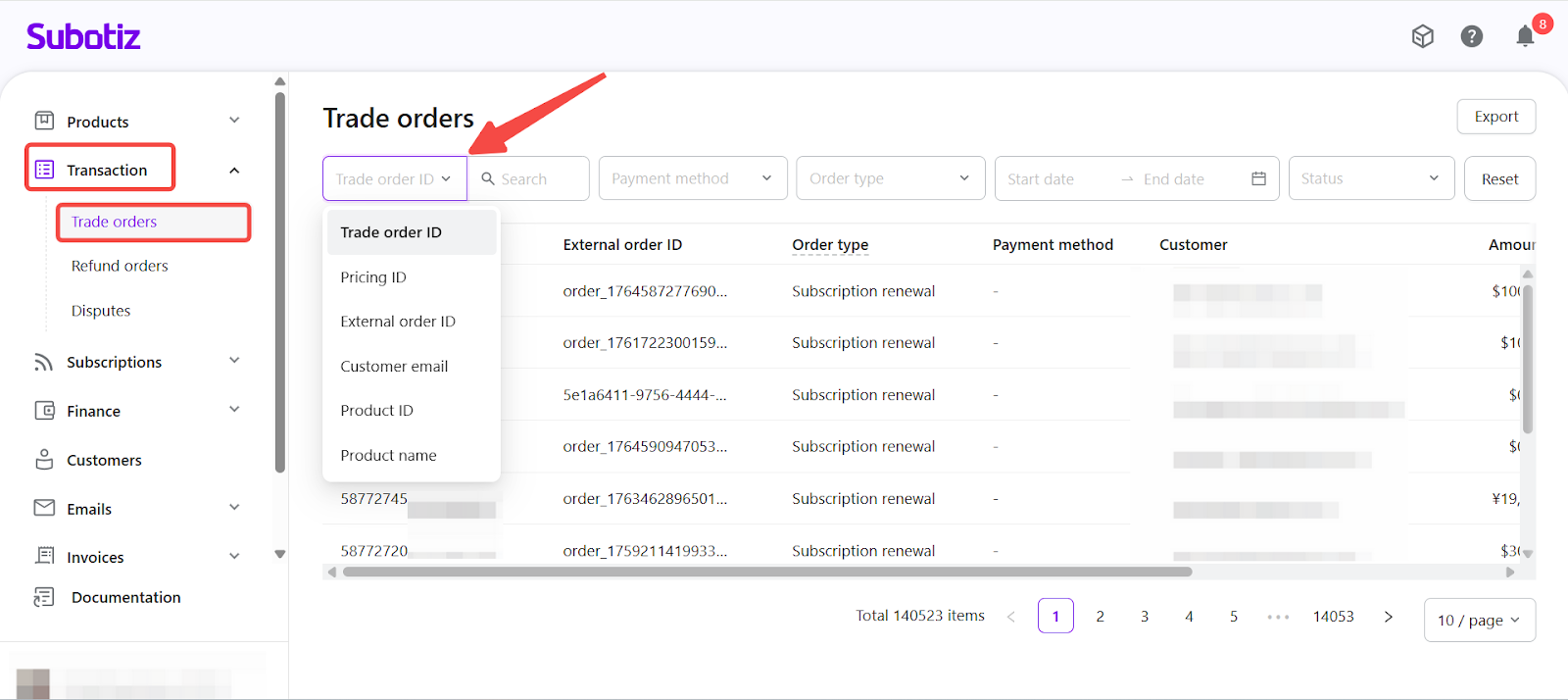
- Locate the Trade order: Go to Transaction > Trade orders and apply filters such as Trade order ID or External order ID to find the target transaction.
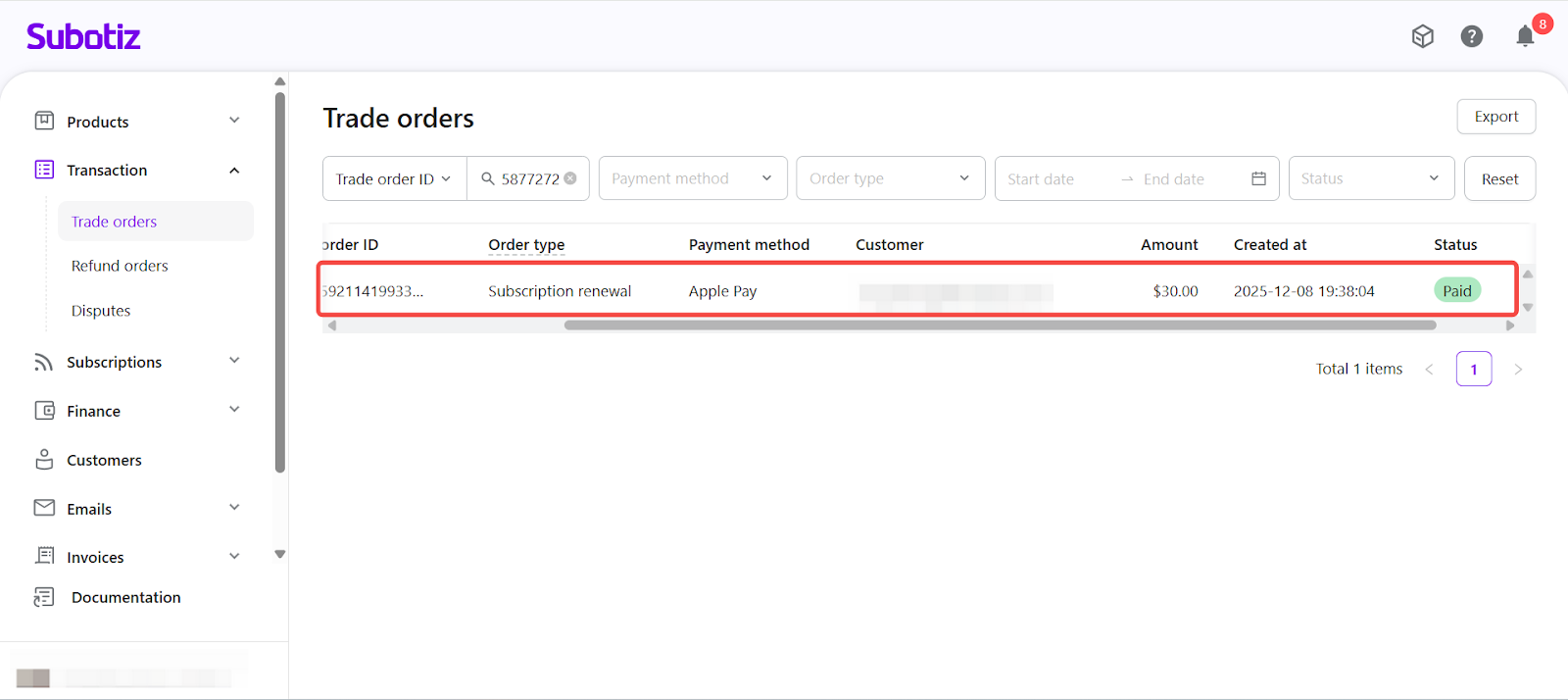
- Open the order details: Select the Trade order to view its transaction information. Ensure the status is Paid and confirm the refundable balance.
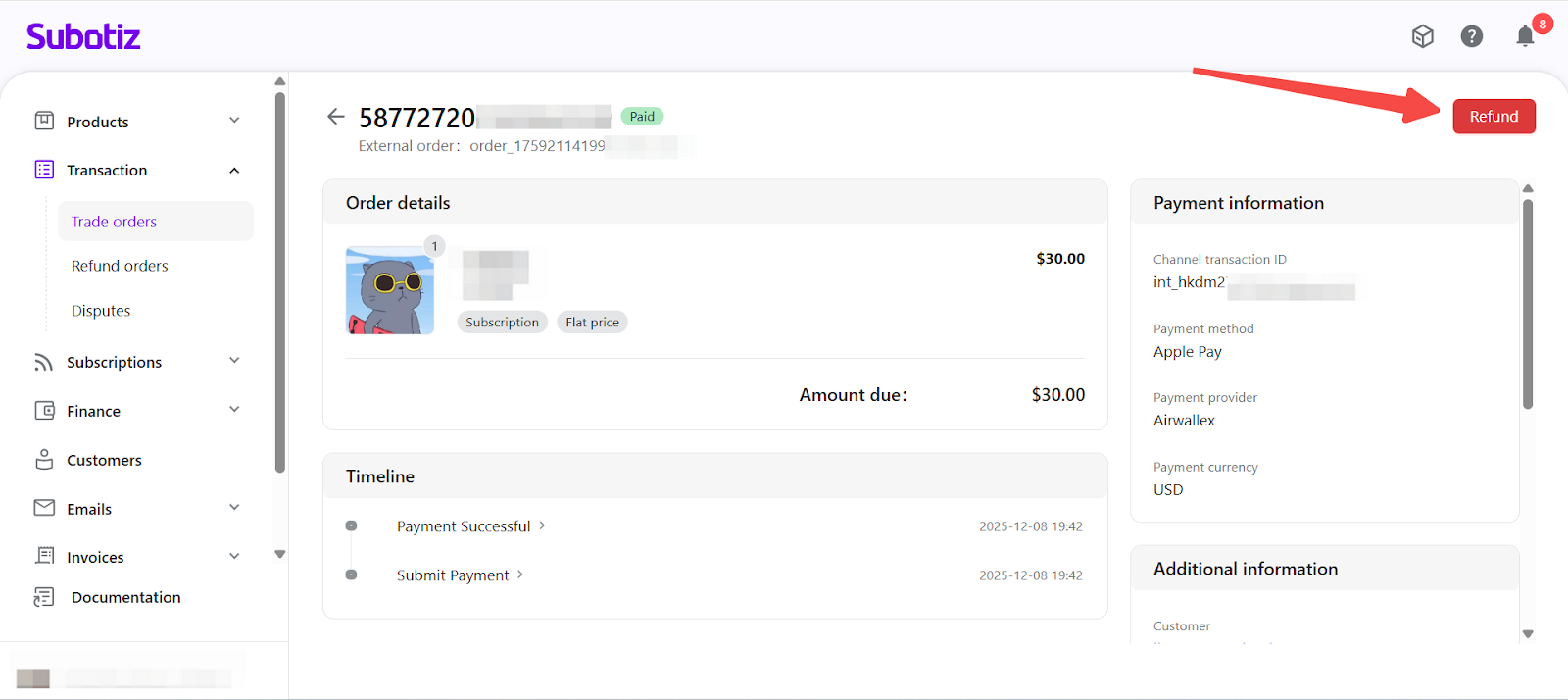
- Start the refund process: Click Refund at the top of the Trade order detail page.
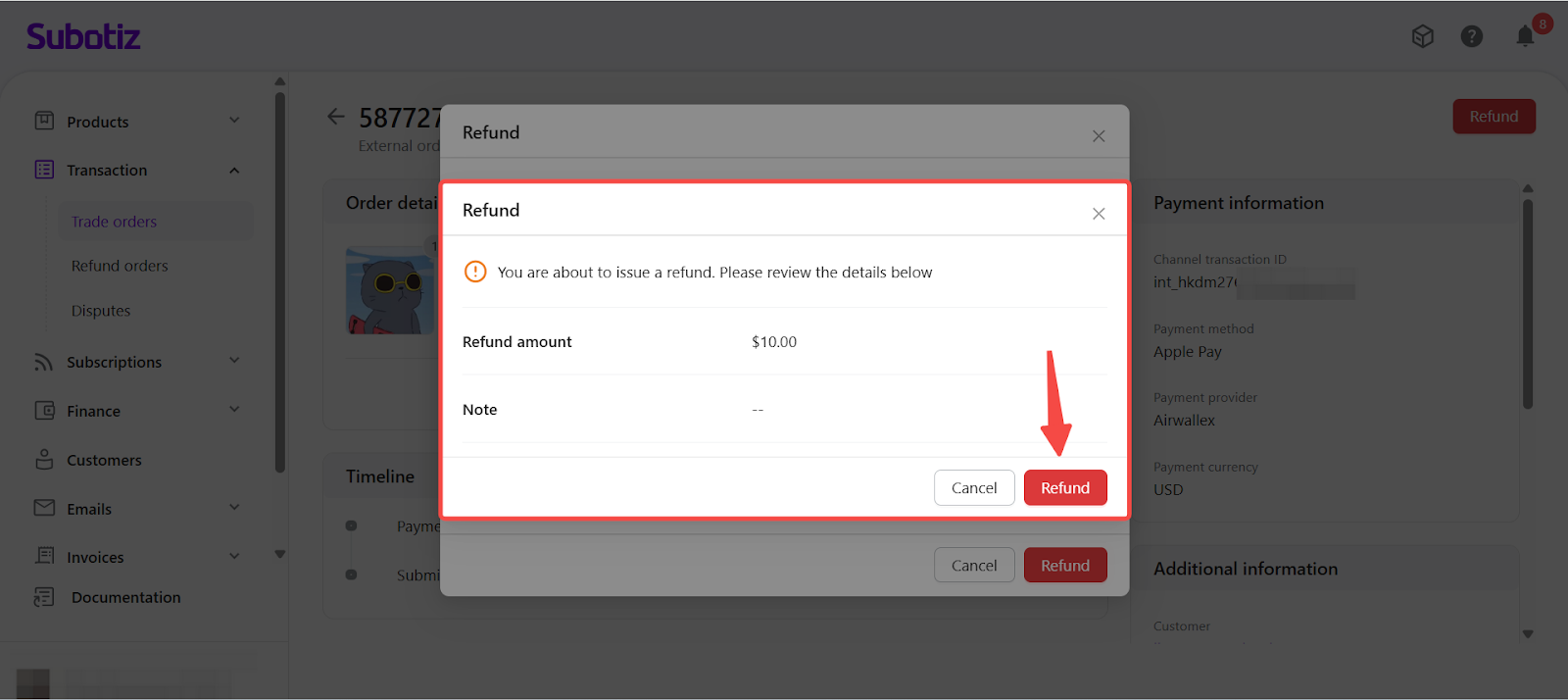
- Enter the refund amount and note: In the refund dialog, the refundable balance is displayed. Enter the desired refund amount (up to the displayed balance). Optionally add an internal note, then click Refund to confirm.
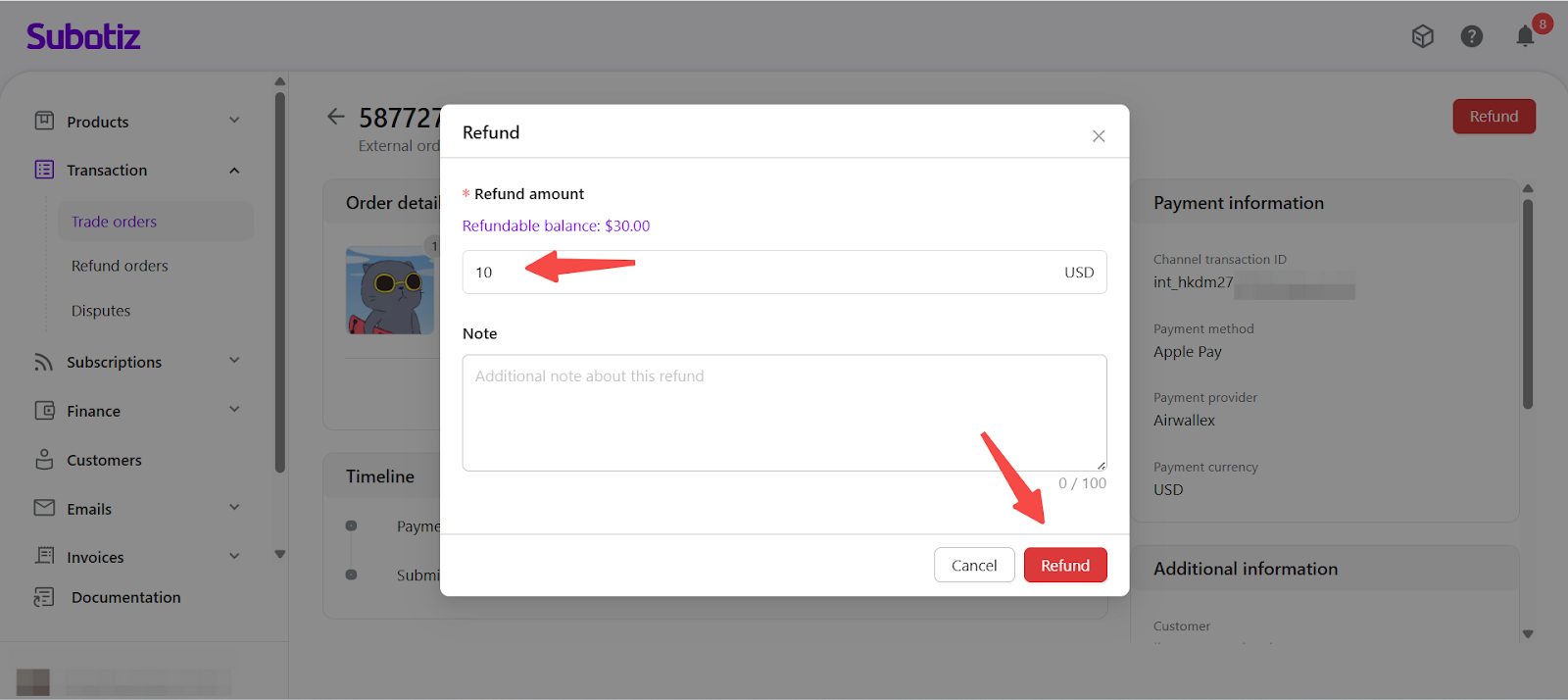
- Confirm the refund: Review the refund details and submit the request. A Refund order will be created and can be tracked in Transaction > Refund orders.
Operational Notes
- Multiple refunds can be issued as long as the total refunded amount does not exceed the refundable balance.
- Certain payment methods may restrict refund eligibility depending on how long ago the original transaction was settled.
- All refunds initiated in Subotiz are recorded as Refund orders for audit and tracking purposes.
Best Practices
- Monitor Refund orders: Review recent Refund orders to identify any with Processing or Failed status.
- Verify refund amounts: Check that the entered amount matches internal billing records before confirming.
- Use filters in the Refund section: Locate specific Refund orders for reconciliation or customer service needs.
- Investigate failed refunds: Resolve issues promptly to avoid delays or unresolved cases.
Refunds in Subotiz follow a single workflow. By entering the amount directly, merchants can issue partial or full refunds, with each refund tracked by a Refund order for visibility and reconciliation.