The Multiple Pricing Plans feature in Subotiz allows merchants to assign different billing models, such as weekly subscription, monthly subscription, and one-time payment, to a single product without duplicating product entries. Each pricing plan operates independently, allowing flexible billing configurations without affecting existing transactions.
Example Setup
This setup demonstrates how to configure multiple pricing options under one product:
- Weekly subscription: $4.99
- Monthly subscription: $14.99
- One-time payment: $120.00
Before You Start
Confirm product setup: Go to Products > Products to ensure the target product exists. If the product is inactive, it can be activated during pricing creation.
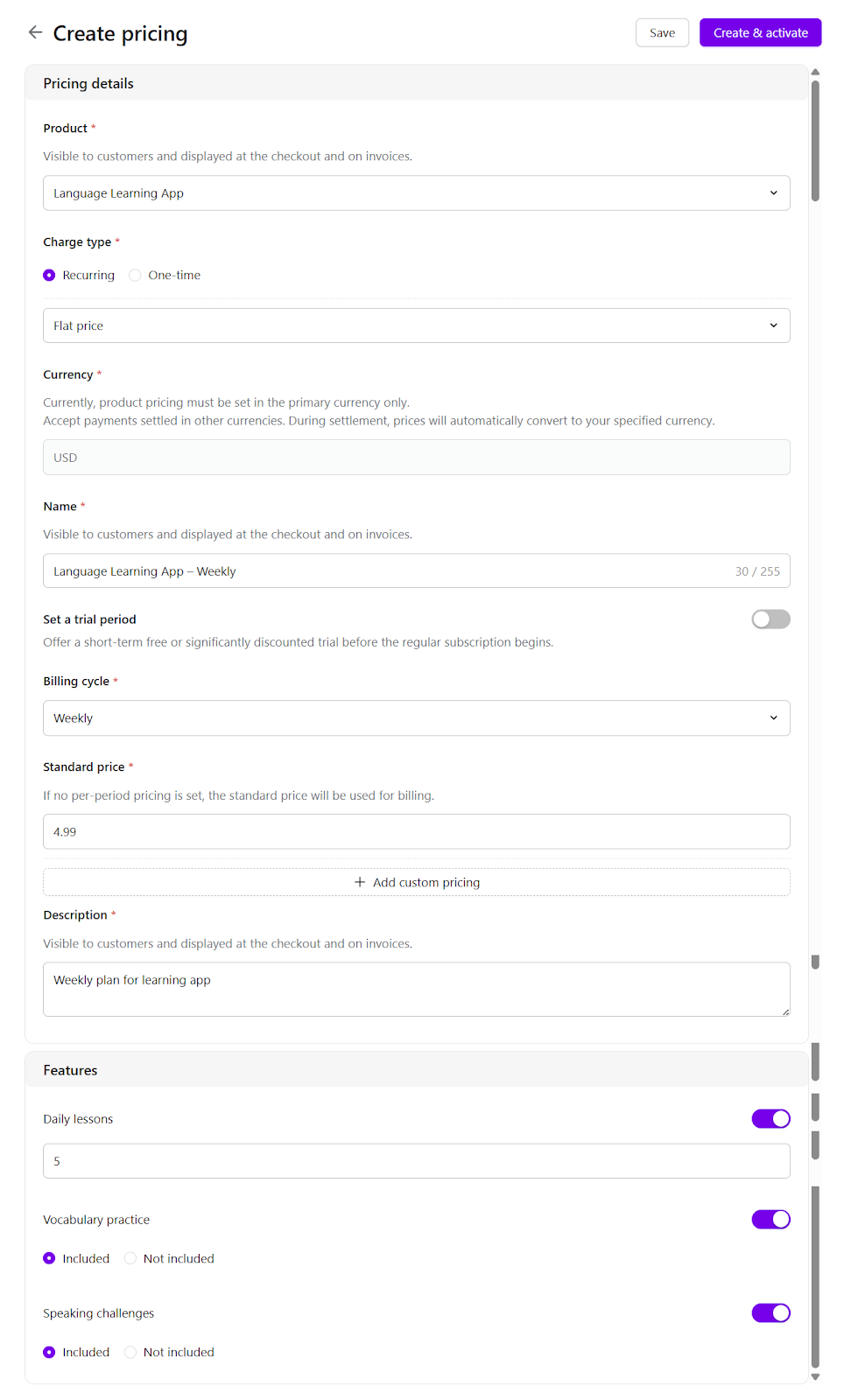
Weekly Subscription Plan
- Access Product Pricing: Go to Products > Product Pricing, then click Create Pricing.
- Select product: Choose the target product (e.g., Language Learning App).
- Configure pricing:
- Charge type: Recurring > Fixed pricing
- Name: Language Learning App – Weekly
- Billing cycle: Weekly
- Standard price: 4.99
- Trial (optional): Configure if needed
- Activate plan: Click Create and activate to publish the pricing plan immediately.
Monthly Subscription Plan
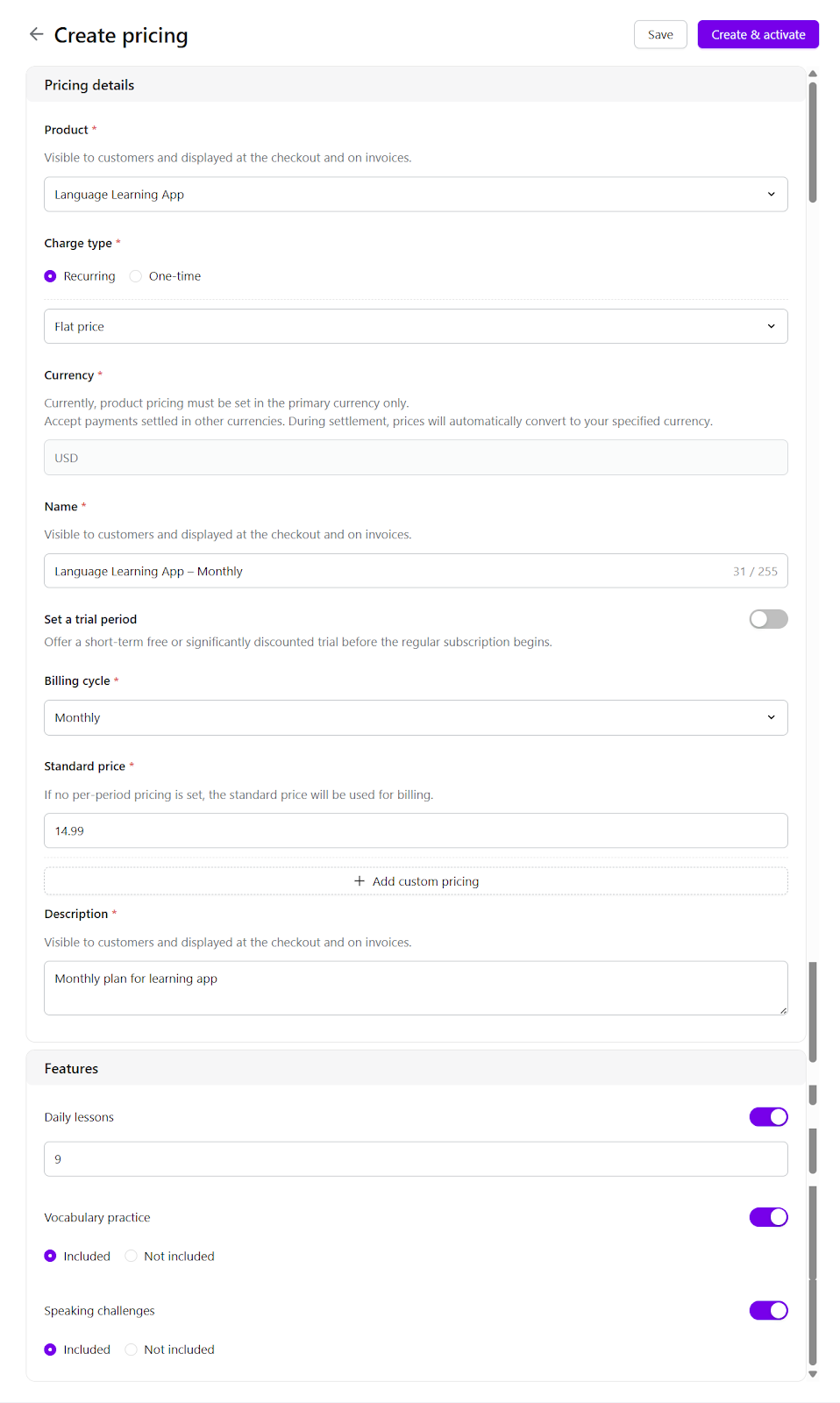
- Create pricing plan: Go to Products > Product Pricing, then click Create Pricing.
- Select product: Choose the same product.
- Configure pricing:
- Charge type: Recurring > Fixed pricing
- Name: Language Learning App – Monthly
- Billing cycle: Monthly
- Standard price: 14.99
- Trial (optional): Configure if needed
- Activate plan: Click Create and activate to publish the pricing plan immediately.
One-Time Payment Plan
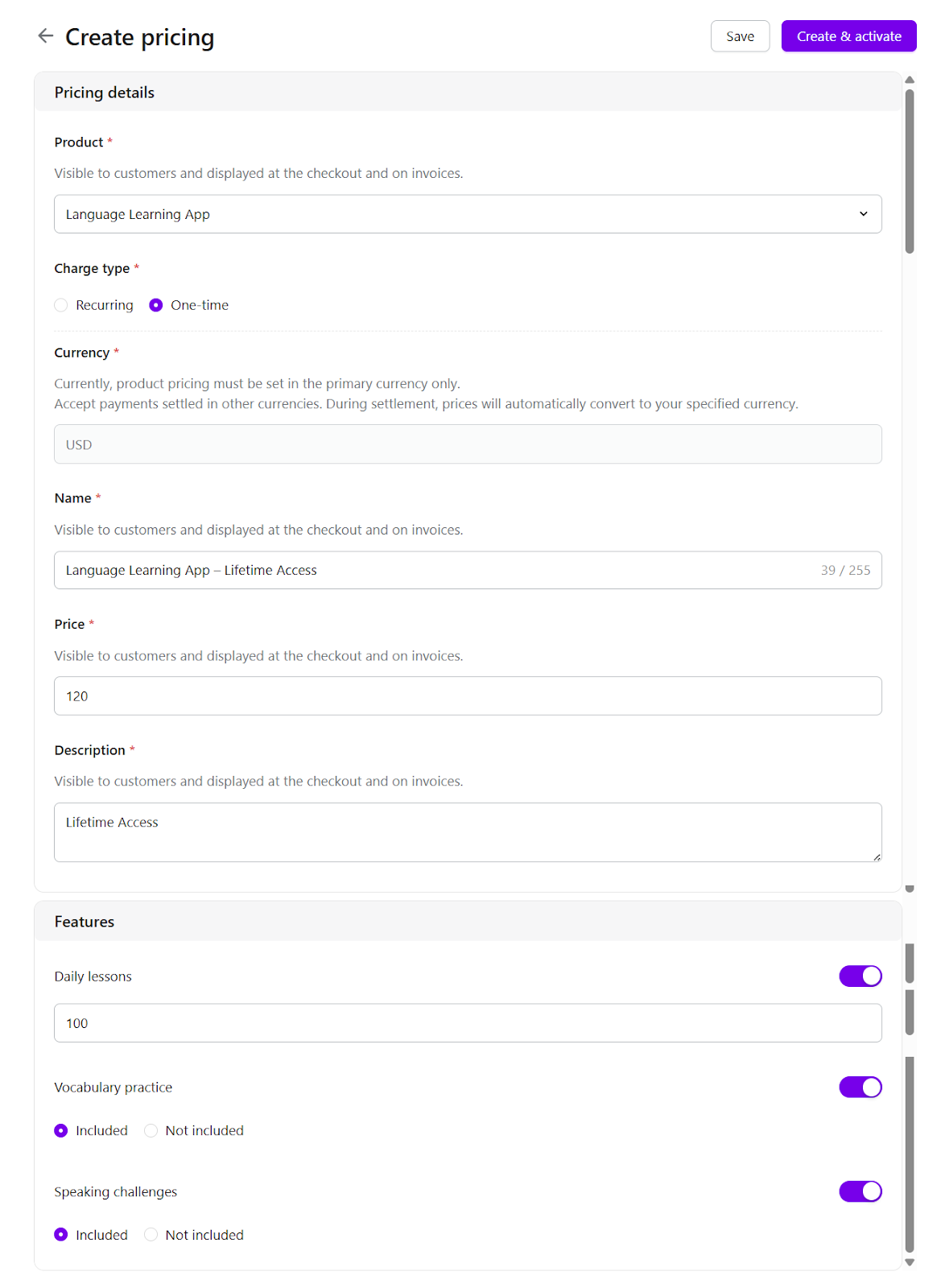
- Create pricing plan: Go to Products > Product Pricing, then click Create Pricing.
- Select product: Choose the same product.
- Configure pricing:
- Charge type: One-time
- Name: Language Learning App – Lifetime Access
- Price: 120.00
- Confirm field behavior: Trial and billing cycle are not displayed for one-time plans.
- Activate plan: Click Create and activate to publish the pricing plan immediately.
Understanding Pricing Behavior
- Assign multiple pricing plans: Create multiple pricing entries under the same product.
- Identify pricing uniquely: Each pricing plan is created as an independent option.
- Control checkout behavior: Customers select one pricing plan per checkout session.
- Generate billing records: Orders, invoices, and subscriptions are created based on the selected pricing plan.
Verifying Pricing Setup
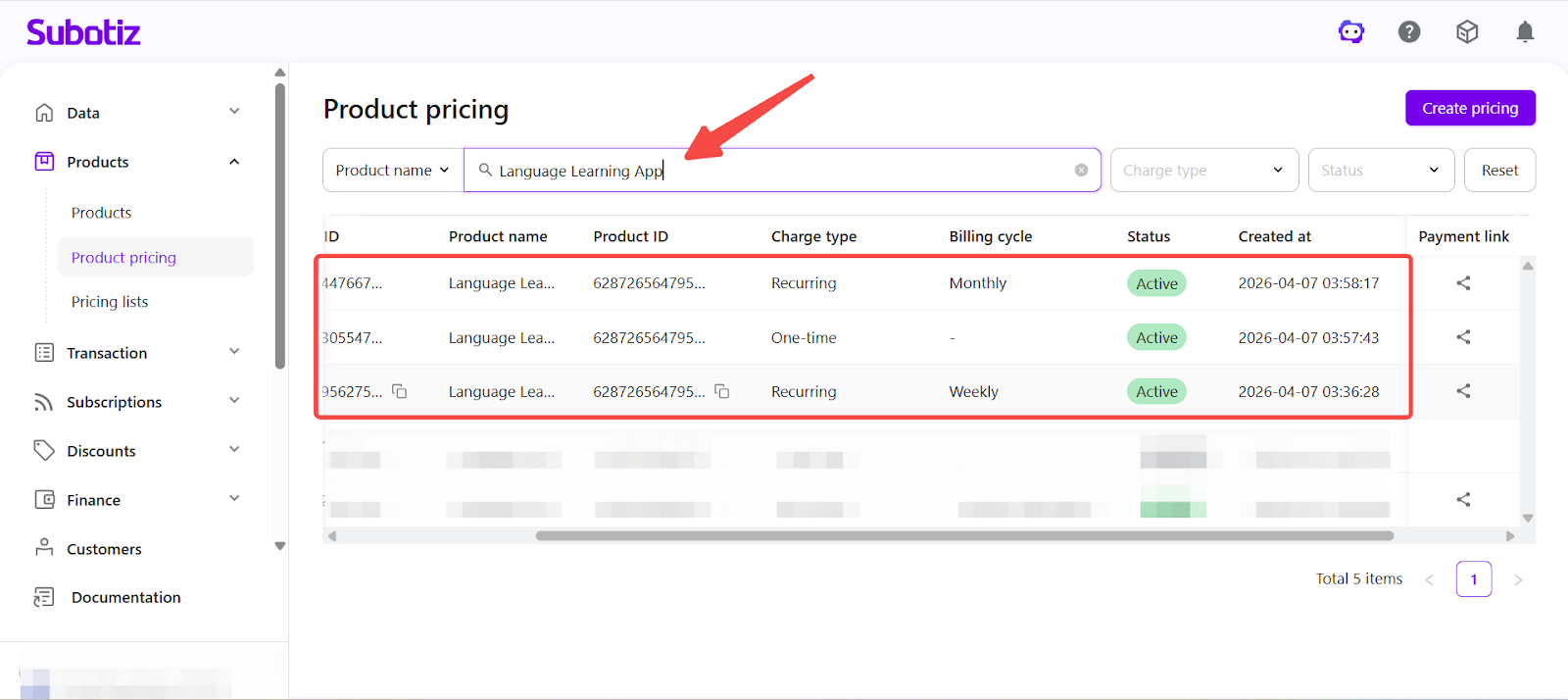
- Open pricing list: Go to Products > Product Pricing.
- Filter by product: Use the product filter to locate the target product.
- Confirm pricing plans: Verify all plans are listed and in Active status.
Each pricing plan appears as an individual option in checkout and payment link flows.
Best Practices
- Define pricing names clearly: Use consistent naming (e.g., “Product – Weekly”, “Product – Monthly”).
- Differentiate plan value: Adjust pricing or features to guide customer selection.
- Manage plan status: Deactivate unused pricing plans to keep the catalog organized.
- Configure payment links: Map each pricing plan to the correct checkout or shared payment link.
- Review pricing regularly: Align pricing structure with product and revenue strategy.
Setting up multiple pricing plans for a single product enables flexible billing options and improves conversion across different customer segments. A structured pricing configuration ensures clear checkout selection and scalable subscription management.