The multiple pricing plans feature in Subotiz allows merchants to assign weekly, monthly, or one-time billing options to a single product without duplicating product entries.
This guide demonstrates how to configure three pricing plans for the same product:
- Weekly subscription: $4.99
- Monthly subscription: $14.99
- One-time purchase: $120.00
Before You Start
- Confirm the product is Active: From your Subotiz admin, go to Products > Products and ensure the target product is in Active status. Only active products can be linked to pricing plans.
Creating a Weekly Subscription Plan
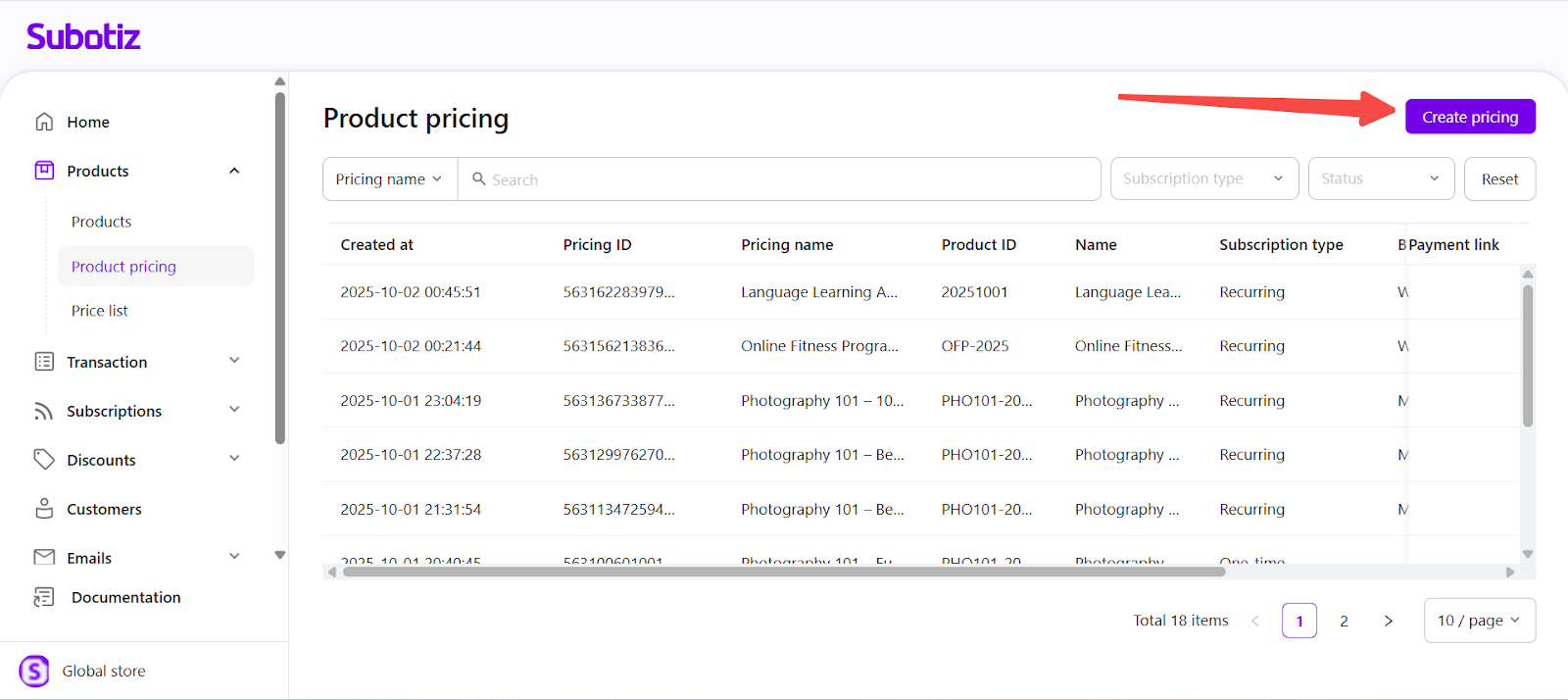
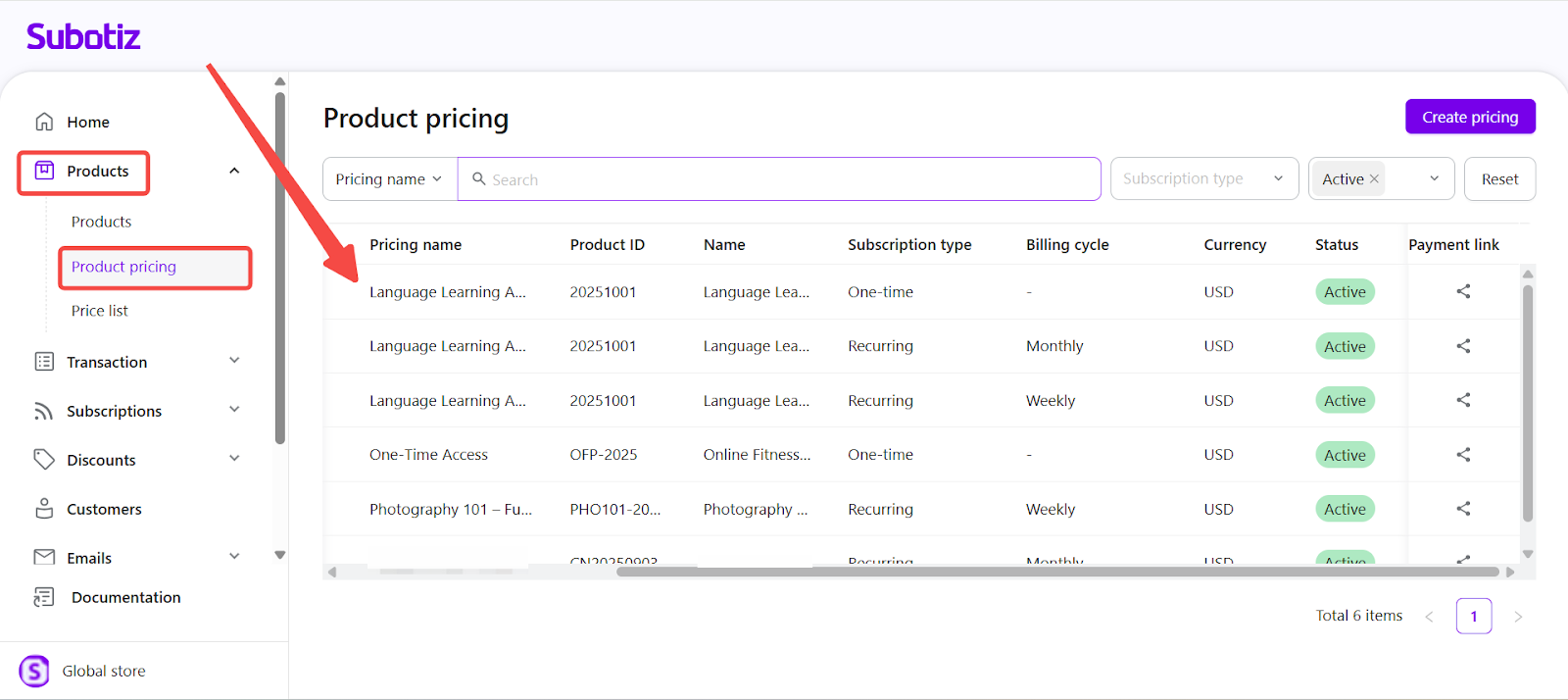
- Access Product pricing: From your Subotiz admin, go to Products > Product pricing, then click Create pricing at the top right.
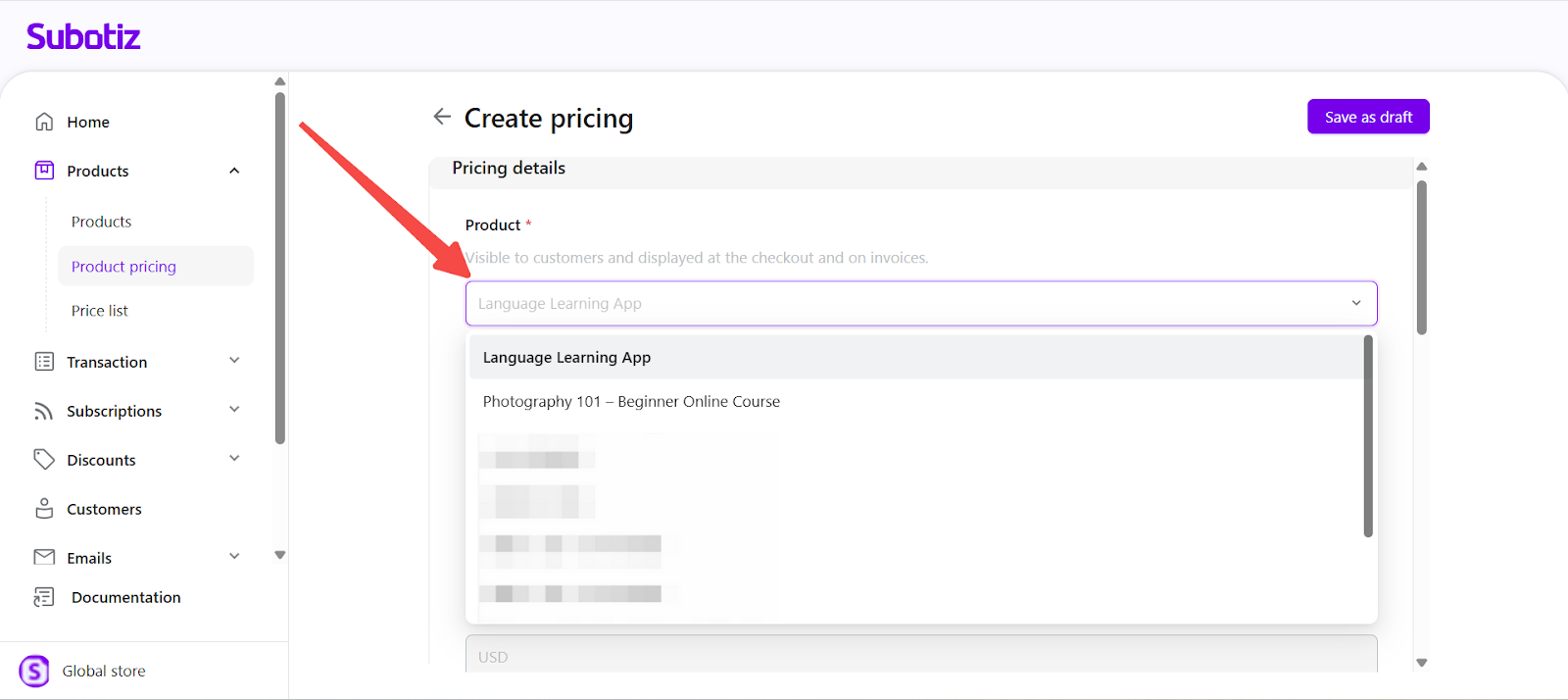
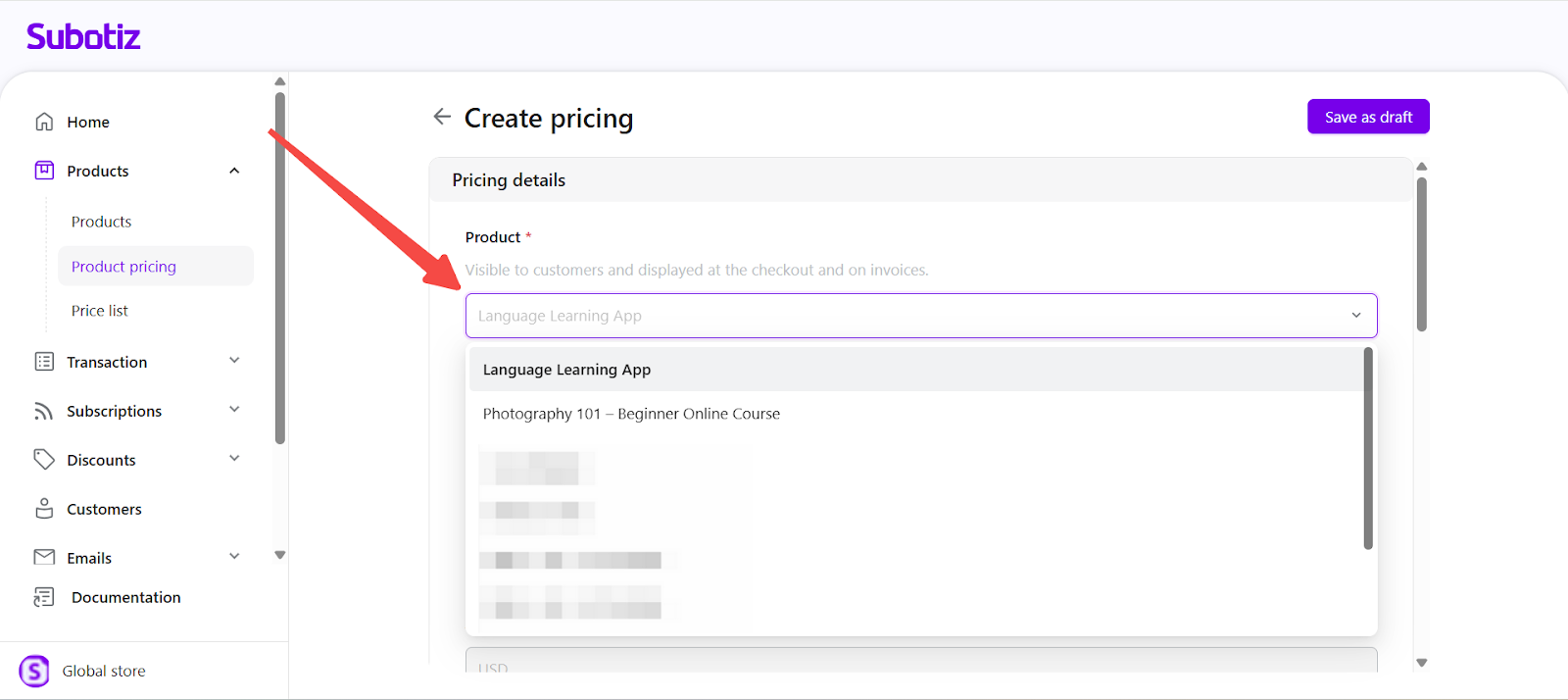
- Select the target product: In the Product field, choose the product to assign pricing to (e.g., Language Learning App).
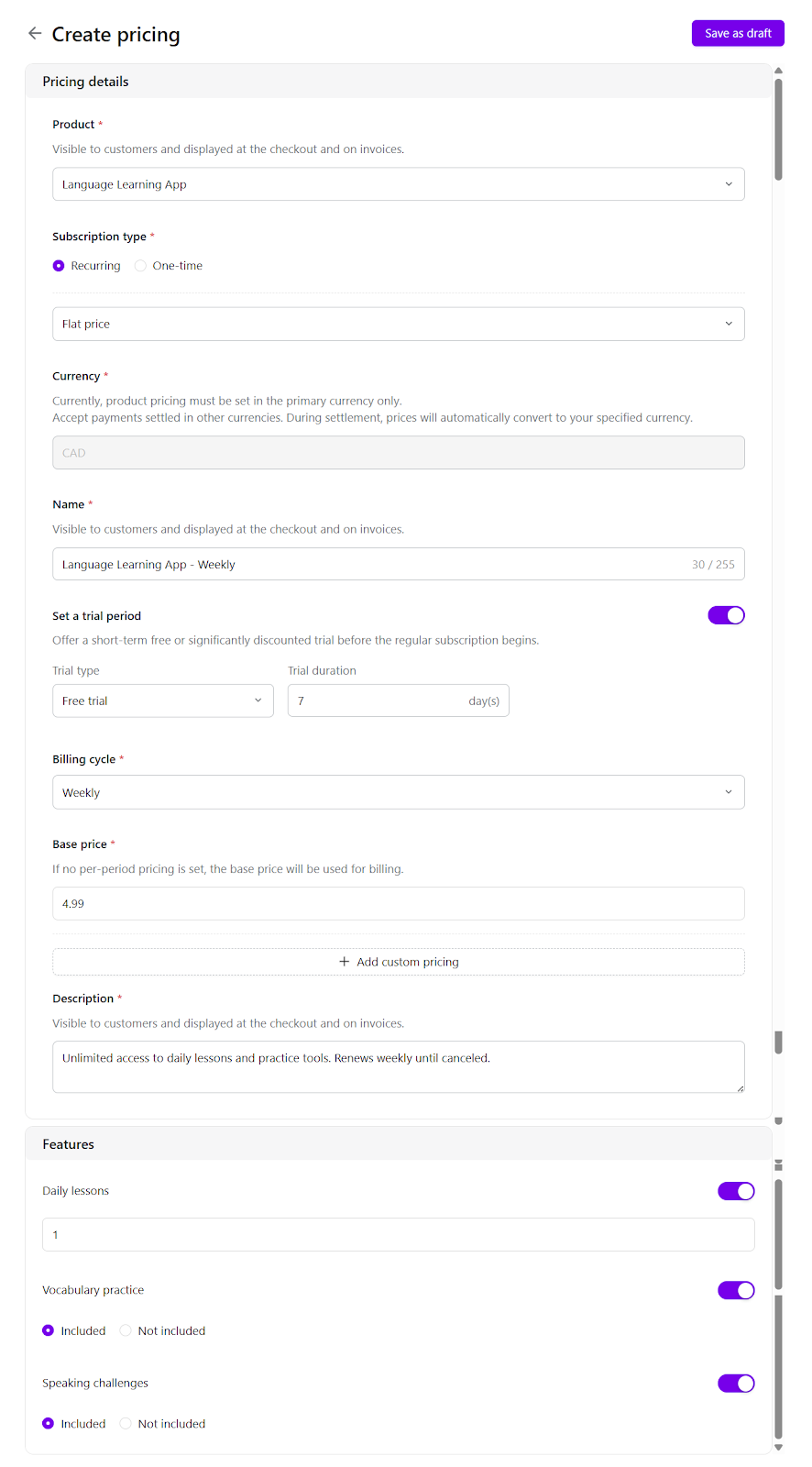
- Configure pricing details:
- Subscription type: Recurring → Flat price (example; you may select Package if needed)
- Currency: Follows the store’s primary currency (e.g., USD)
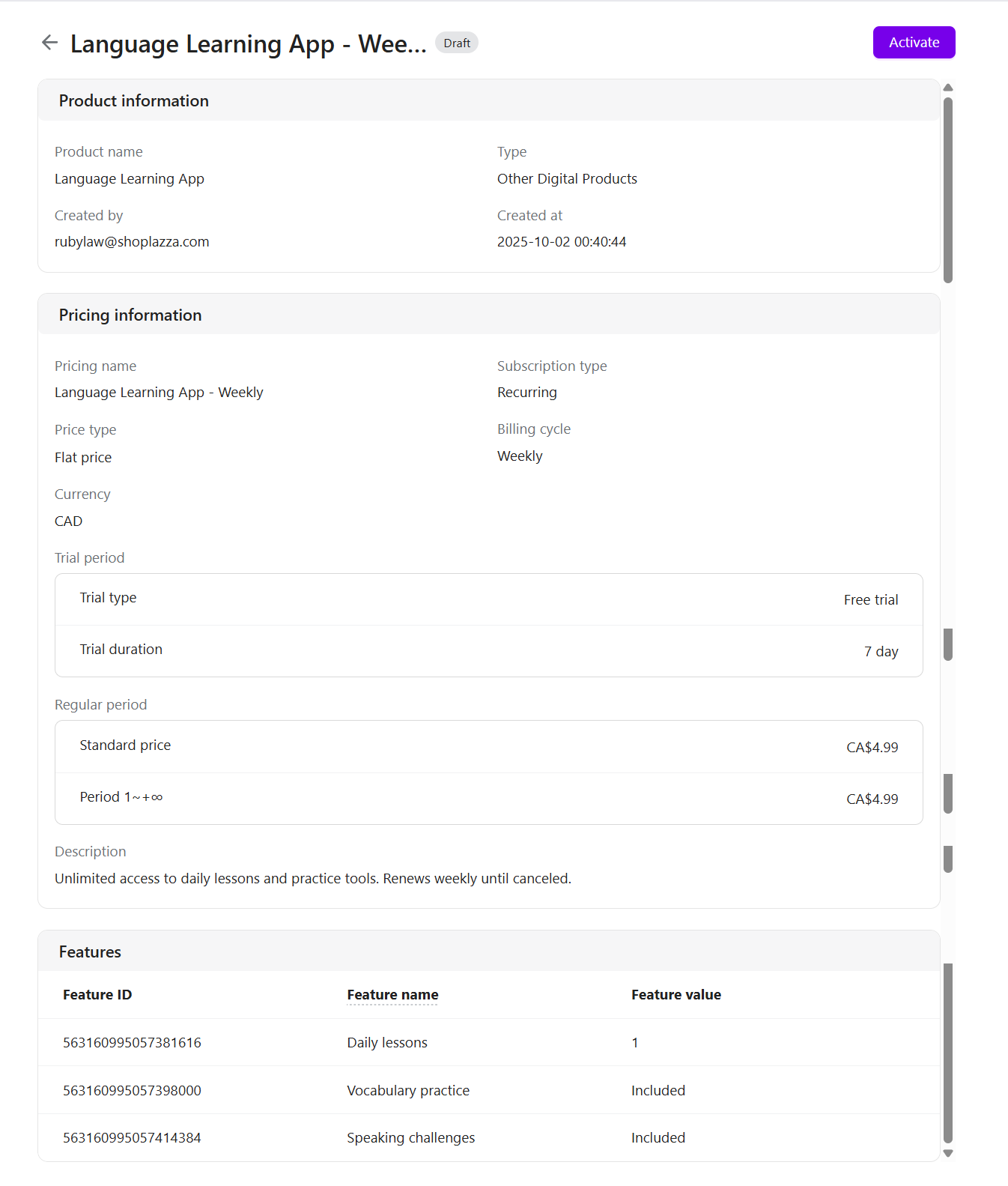
- Name: Language Learning App - Weekly
- Set a trial period (optional): e.g., 7-day free trial.
- Billing cycle: Weekly
- Subotiz supports weekly billing with a 7-day cycle. For example, if the first charge occurs on Thursday, May 29, 2025, the next billing date will be June 5, 2025 at 00:00.
- Base Price: 4.99
- Add custom pricing: Leave blank if not required.
- Description: Unlimited access to daily lessons and practice tools. Renews weekly until canceled.
- Features:
- Daily lessons → Quantitative feature = 1
- Vocabulary practice → Qualitative feature = Included
- Speaking challenges → Qualitative feature = Included
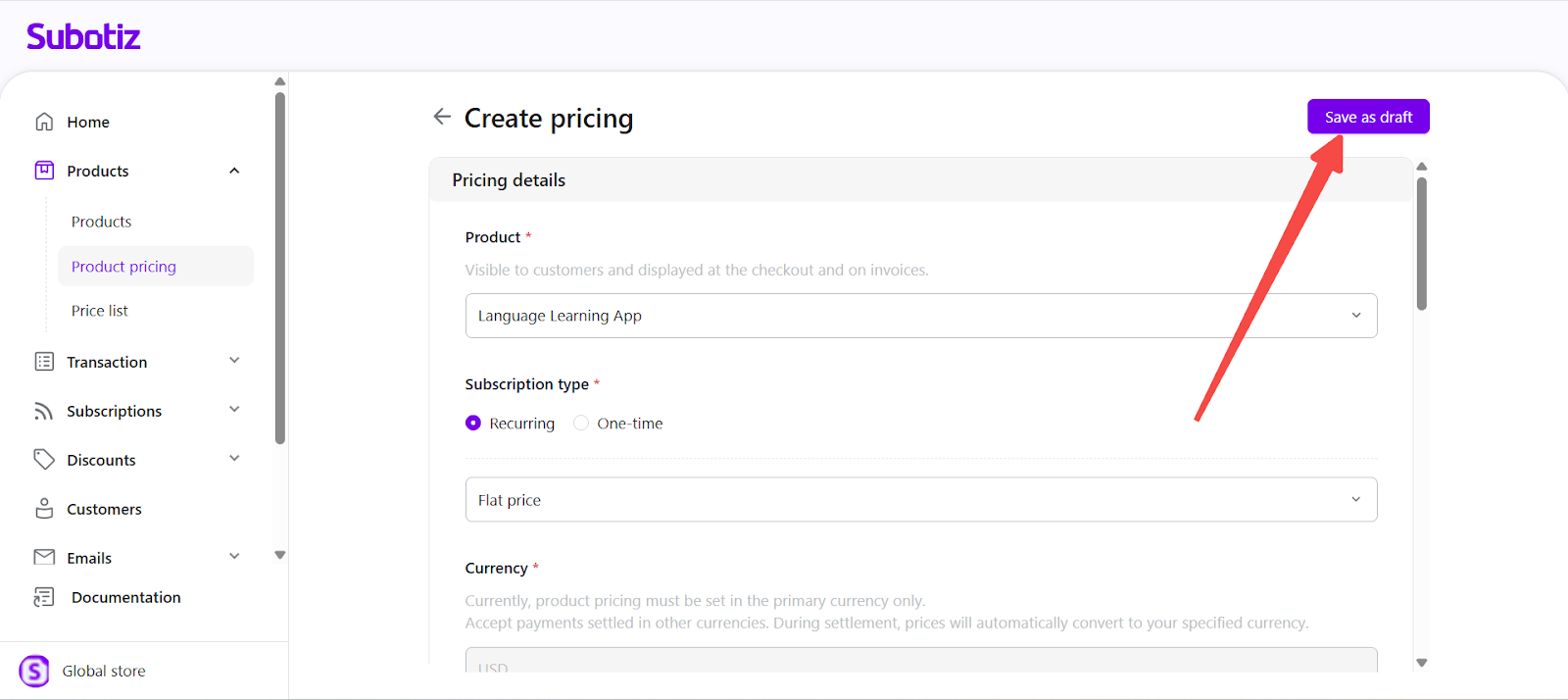
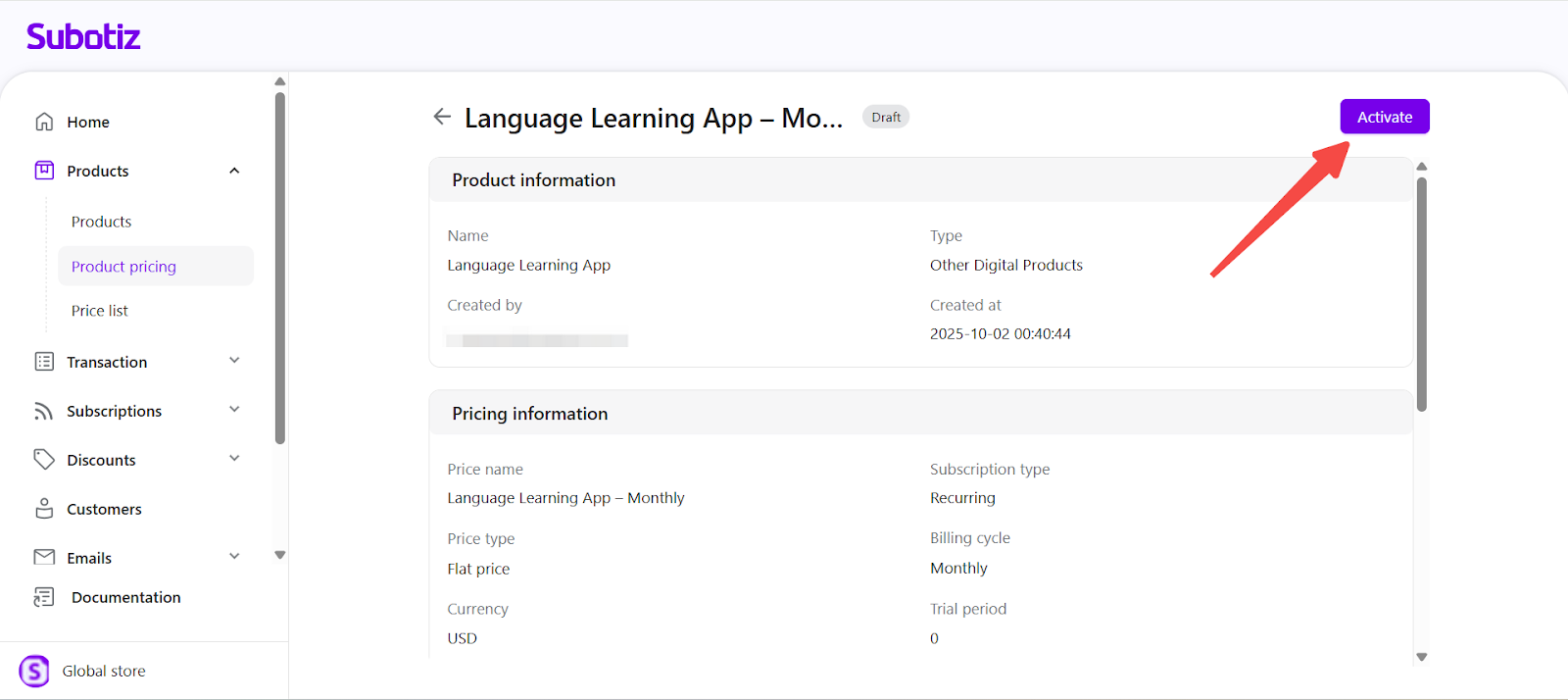
- Save and activate: Click Save as draft, then open the pricing detail page and click Activate to publish the plan.
Creating a Monthly Subscription Plan
- Return to Product pricing: Go back to Product > Product pricing, then click Create pricing again.
- Select the same product: Choose "Language Learning App" again.
- Configure monthly pricing details:
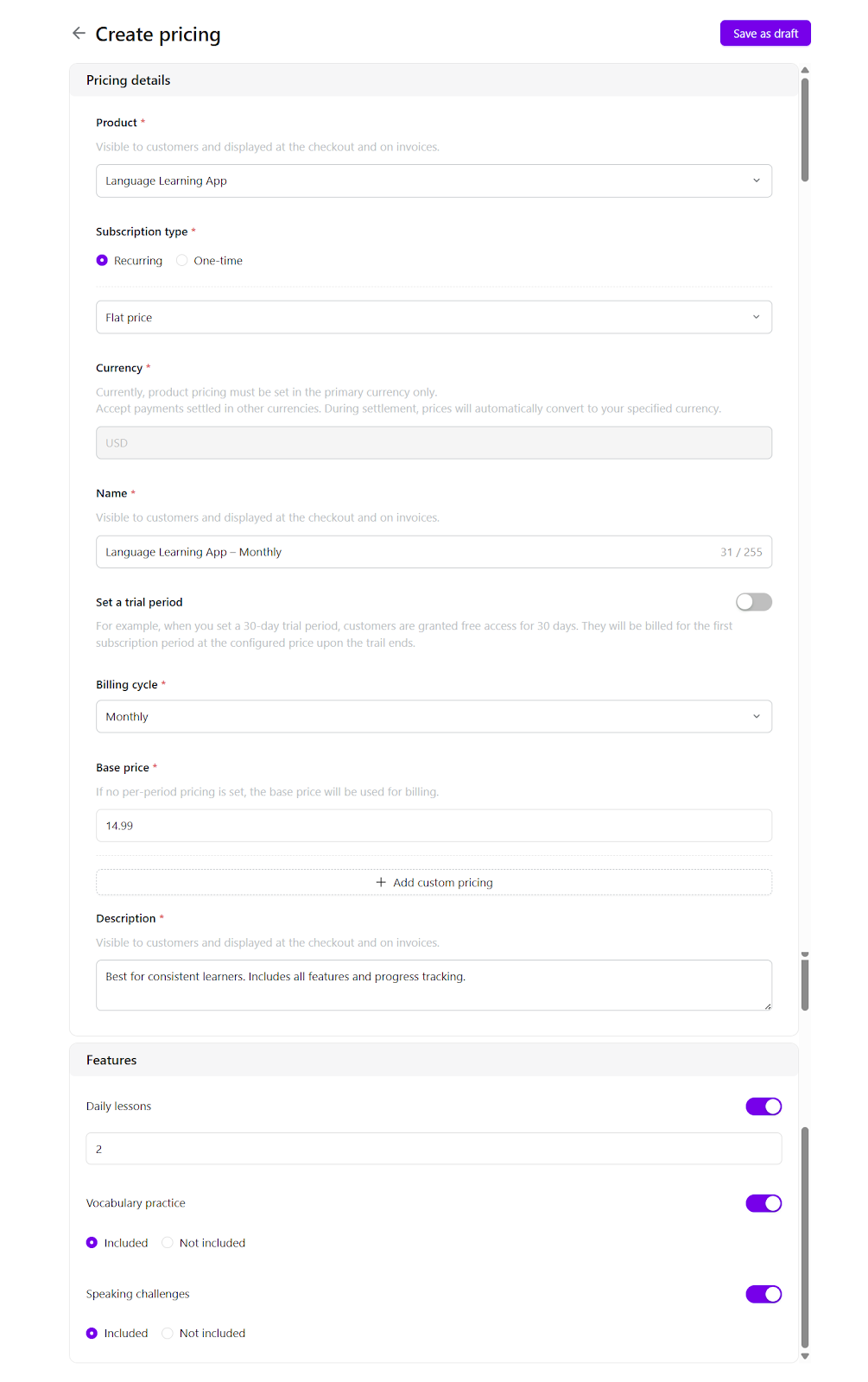
- Subscription type: Recurring → Flat price (example; you may select Package if needed)
- Currency: Follows the store’s primary currency (e.g., USD)
- Name: Language Learning App – Monthly
- Set a trial period (optional): Free trial or Paid trial
- Billing cycle: Monthly
- Base price: 14.99
- Add custom pricing: Leave blank if not required.
- Description: Best for consistent learners. Includes all features and progress tracking.
- Features:
- Daily lessons → Quantitative feature = 2
- Vocabulary practice → Qualitative feature = Included
- Speaking challenges → Qualitative feature = Included
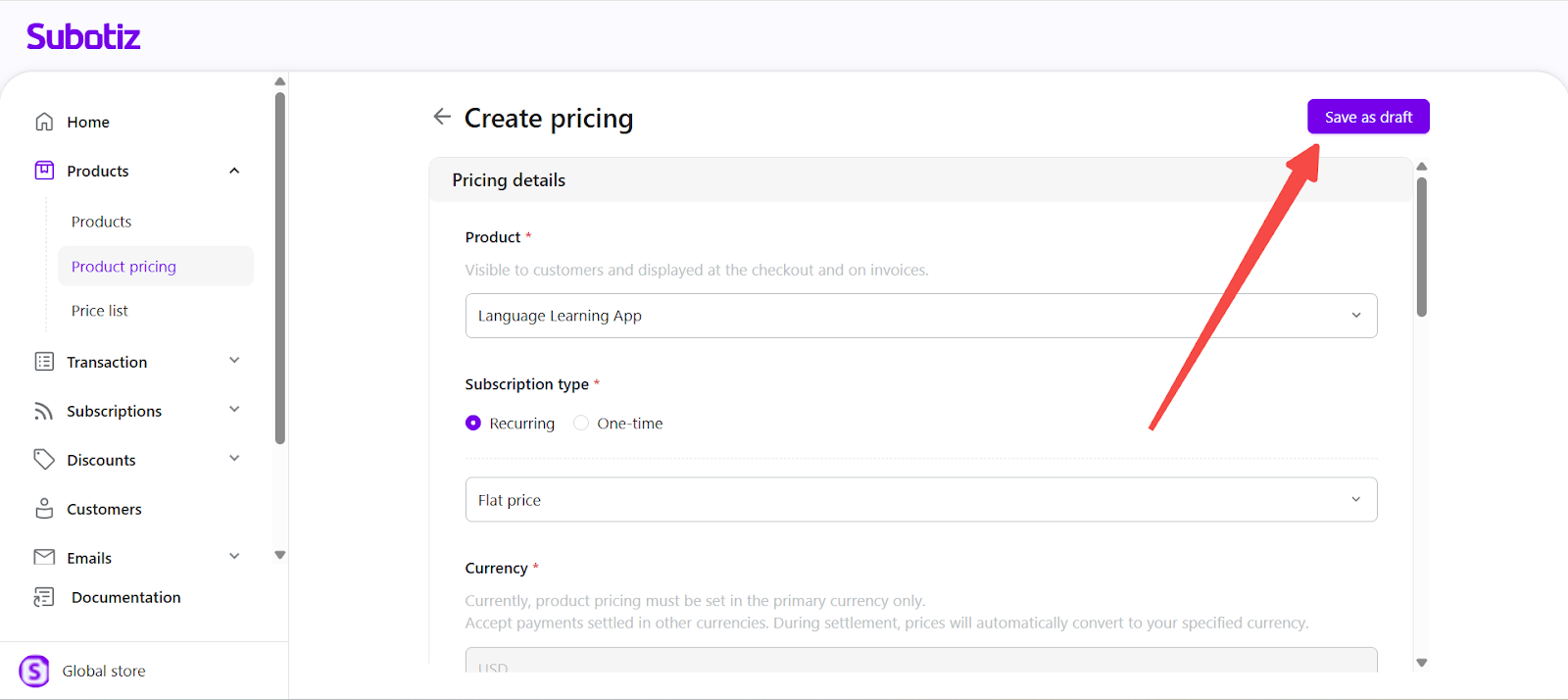
- Save and activate: Click Save as draft, then open the pricing detail page and click Activate to publish the plan. The monthly plan is now live.
Creating a One-Time Payment Plan
- Create a new pricing entry: Click Create pricing again from the Product Pricing dashboard. Choose "Language Learning App".
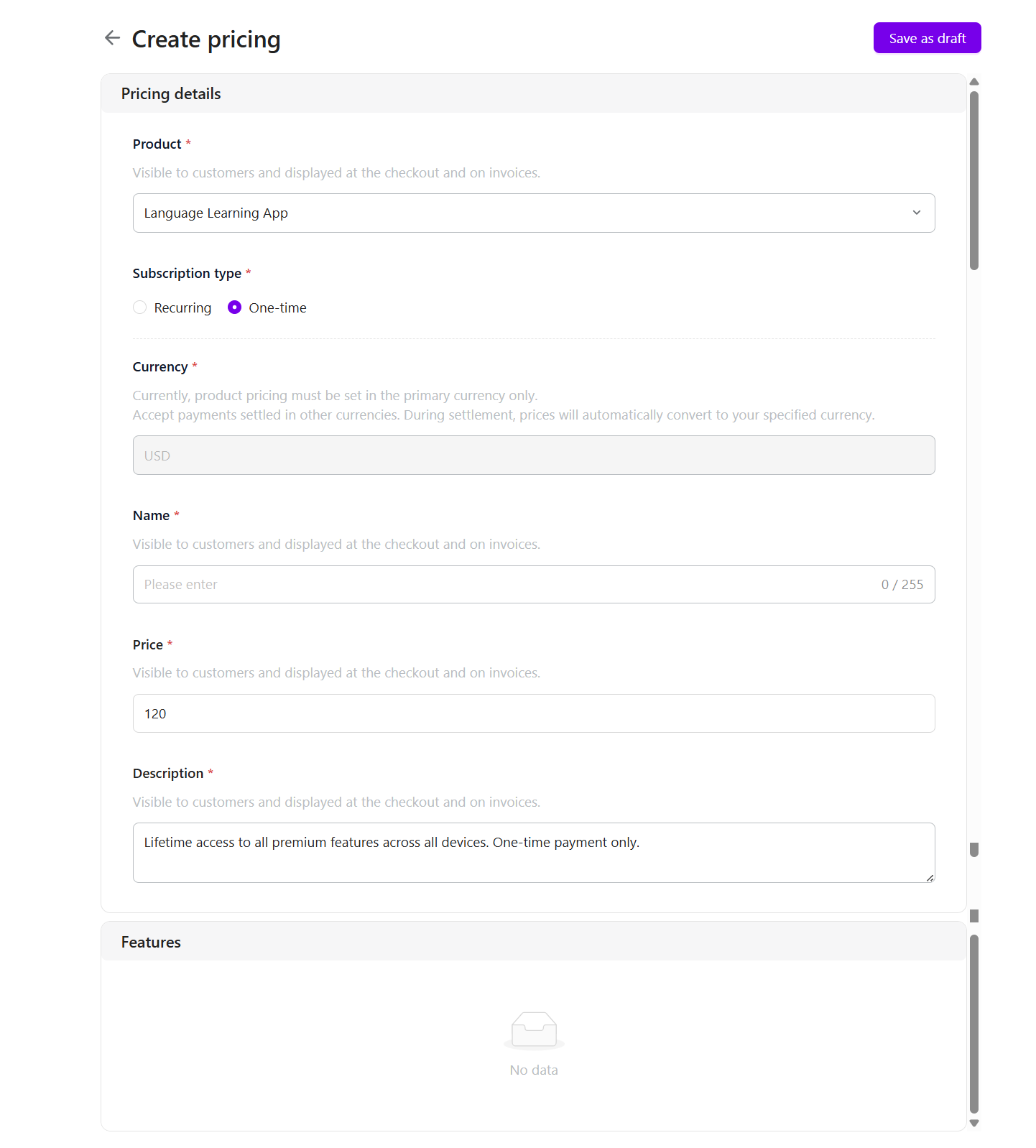
- Complete one-time pricing details:
- Subscription type: One-Time
- Currency: Follows the store’s primary currency (e.g., USD)
- Price: 120
- Name: Language Learning App – Lifetime Access
- Description: Lifetime access to all premium features across all devices. One-time payment only.
Note: Trial period and billing cycle fields are not applicable and will not appear for one-time plans.
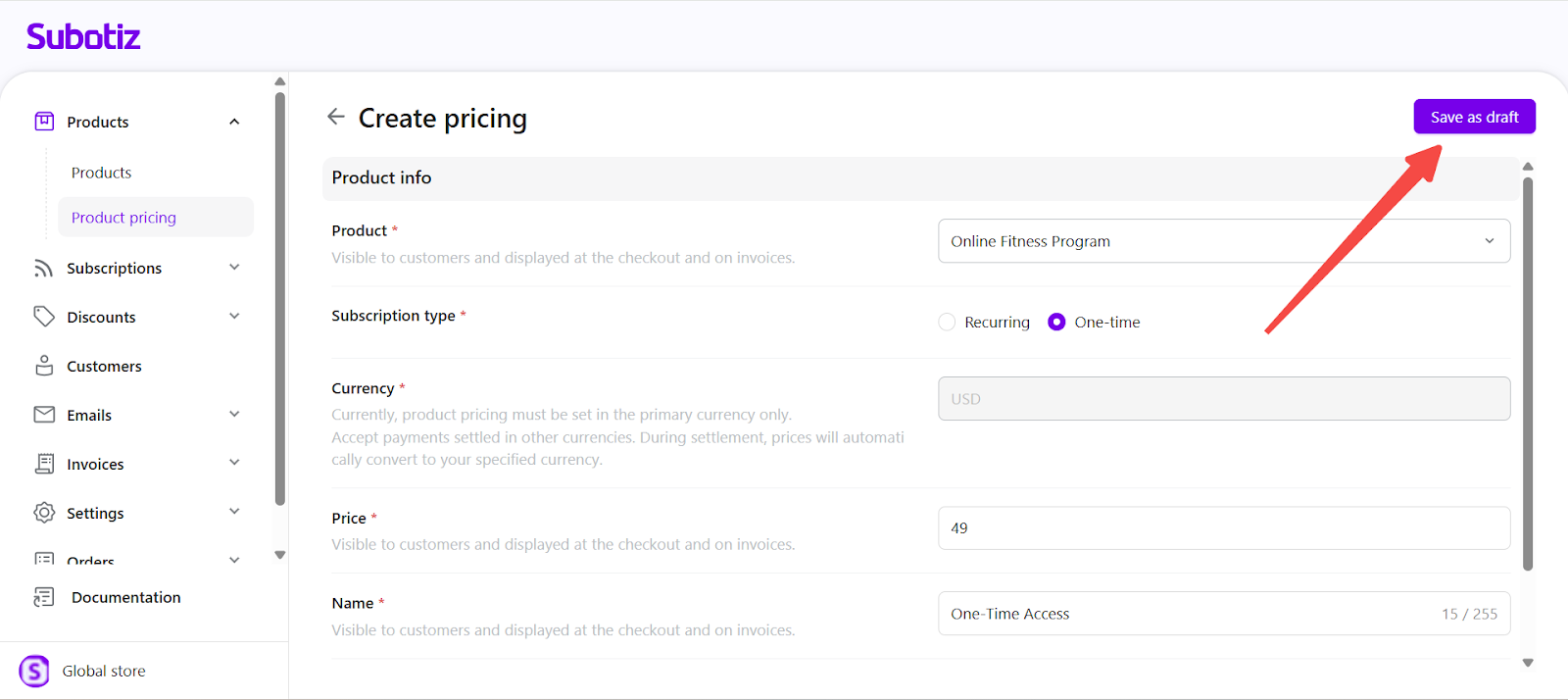
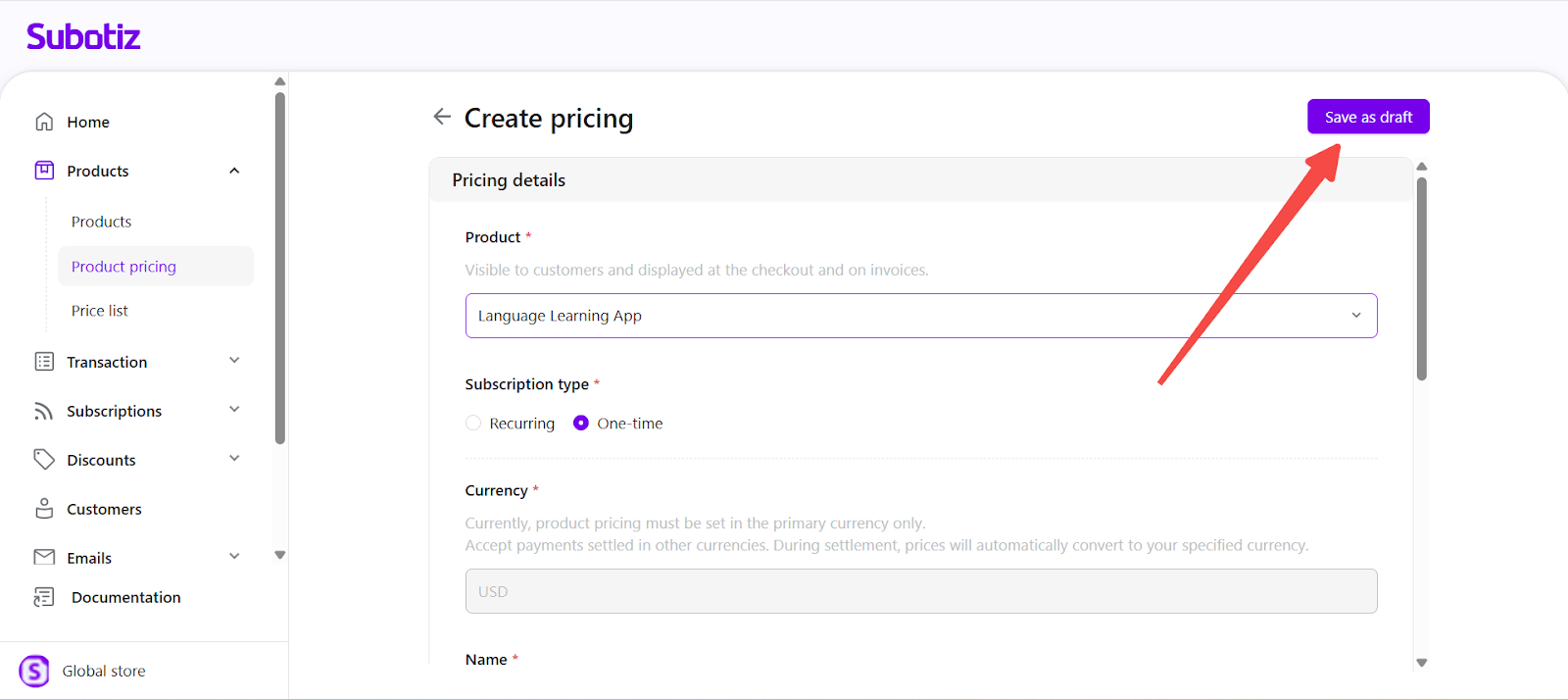
- Save and activate: Click Save as draft, then open the pricing detail page and click Activate to publish the plan.
Verifying All Pricing Plans Are Linked
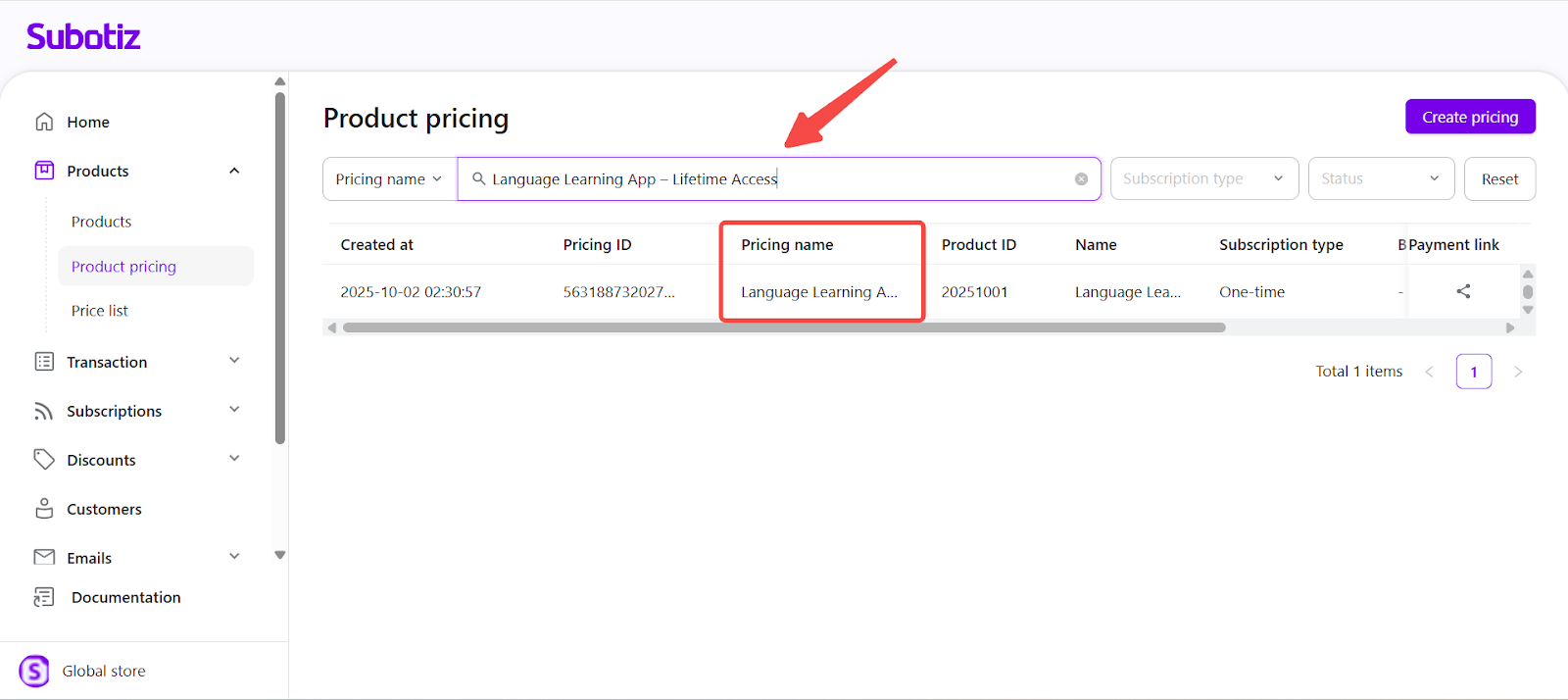
- Filter by product to review pricing entries: Go to Product > Product Pricing and use the product filter to confirm that all three plans have been created—each will appear as a separate option in checkout and invoice flows.
- Language Learning App – Weekly
- Language Learning App – Monthly
- Language Learning App – Lifetime Access
Deactivating a Product Pricing
- Manage plans in the product pricing dashboard: Go to Product > Product Pricing, use filters to locate the target plan.
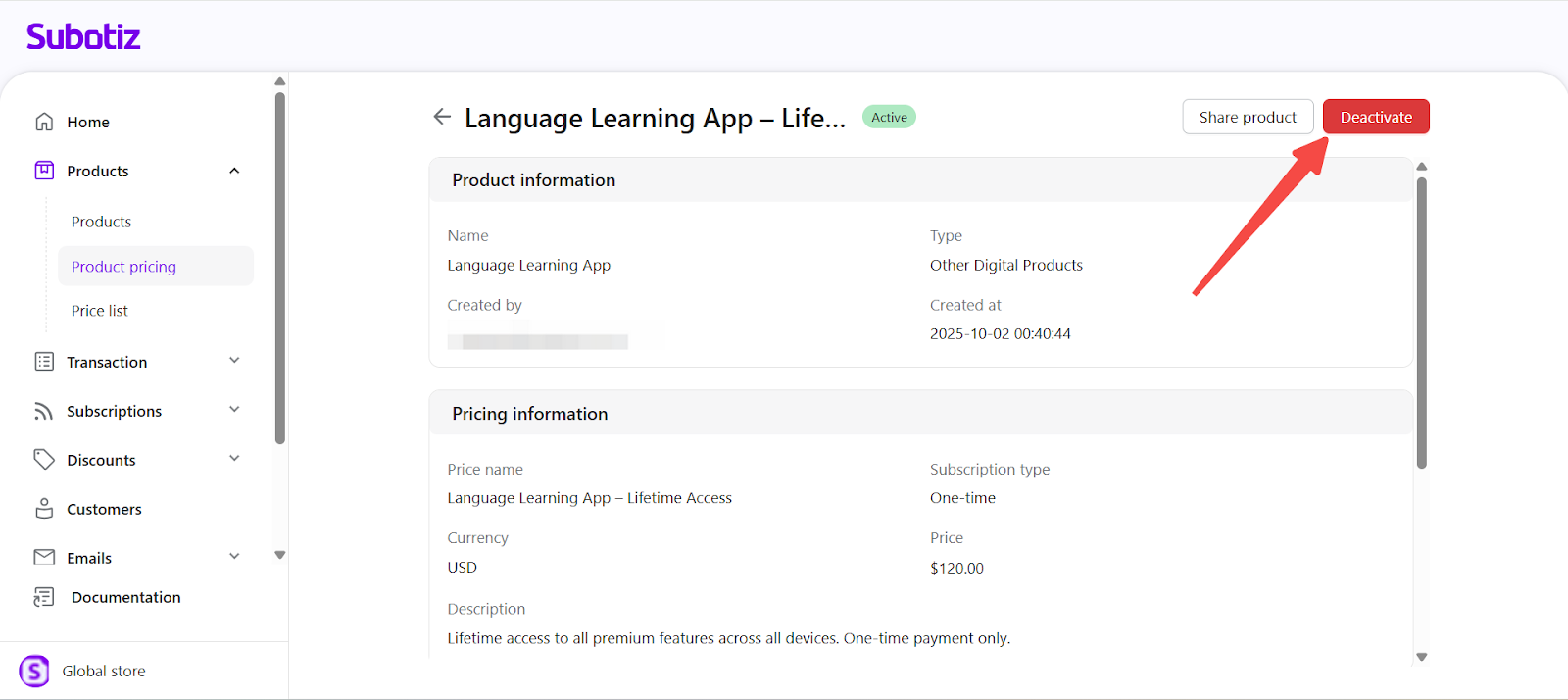
- Click Deactivate: Open the pricing entry and click Deactivate to remove the plan from checkout and invoice availability.
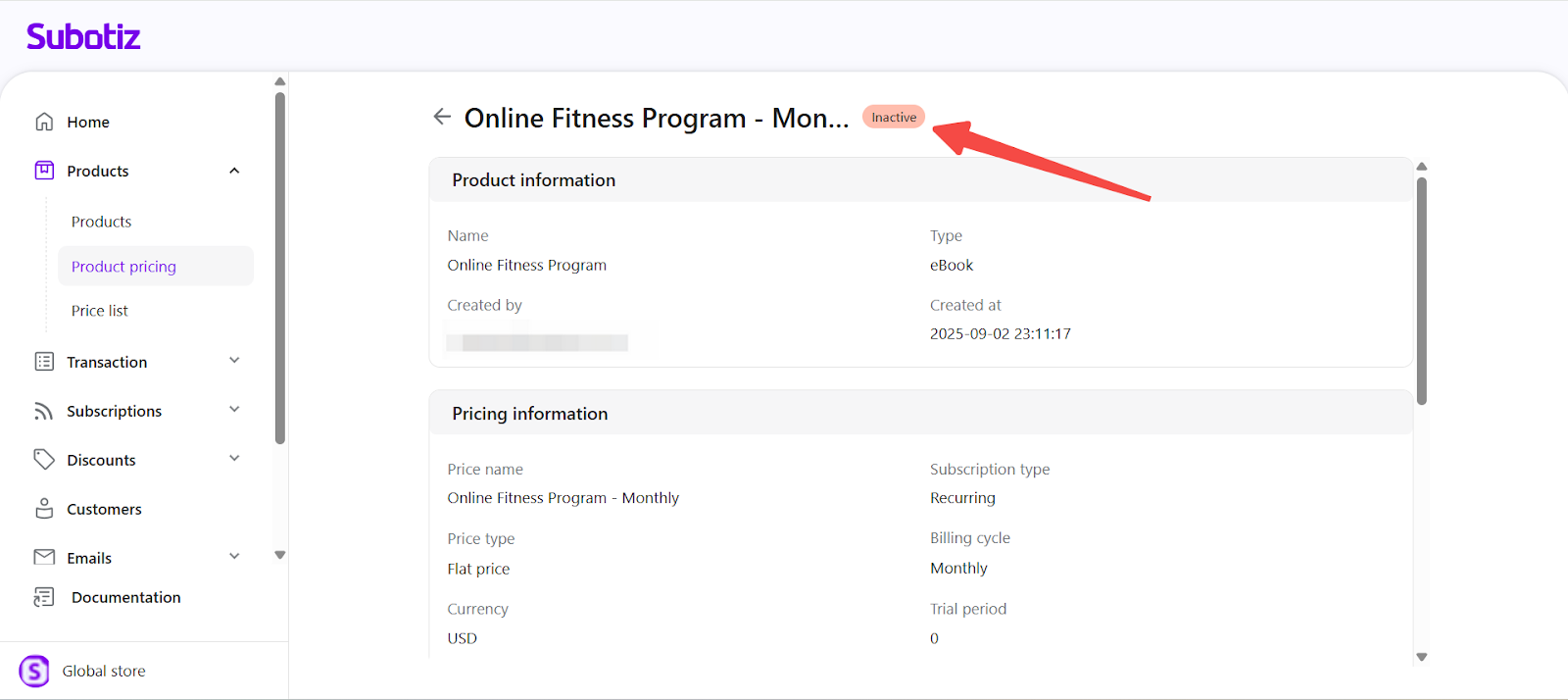
- Confirm status change: Once deactivated, the plan status will show as Inactive. Deactivated plans cannot be reactivated; create a new entry if needed.
Best Practices
- Name plans clearly: Use consistent and descriptive pricing names (e.g., "Language Learning App – Weekly").
- Archive unused plans: Deactivate outdated entries to keep the catalog clean.
- Review regularly: Audit pricing configurations to align with product strategy.
- Configure checkout properly: Use separate checkout links or buttons, each linked to the correct pricing ID.
- Differentiate features: Clearly show differences between plans to avoid customer confusion.
Offering multiple pricing plans for a single product increases flexibility and expands your reach. Always activate products before assigning plans, use clear naming, and audit regularly to maintain a streamlined checkout experience.