Subotiz one-time pricing allows merchants to set non-recurring charges for products, making it suitable for digital products, online courses, consulting services, and other one-time payment scenarios. Merchants can configure the price, currency, description, and product features, with charges calculated based on the customer's purchase quantity.
Before creating pricing, create the corresponding product. For details about products and pricing, see Products|Products and Pricing and Products | Understanding Pricing.
Creating One-Time Pricing
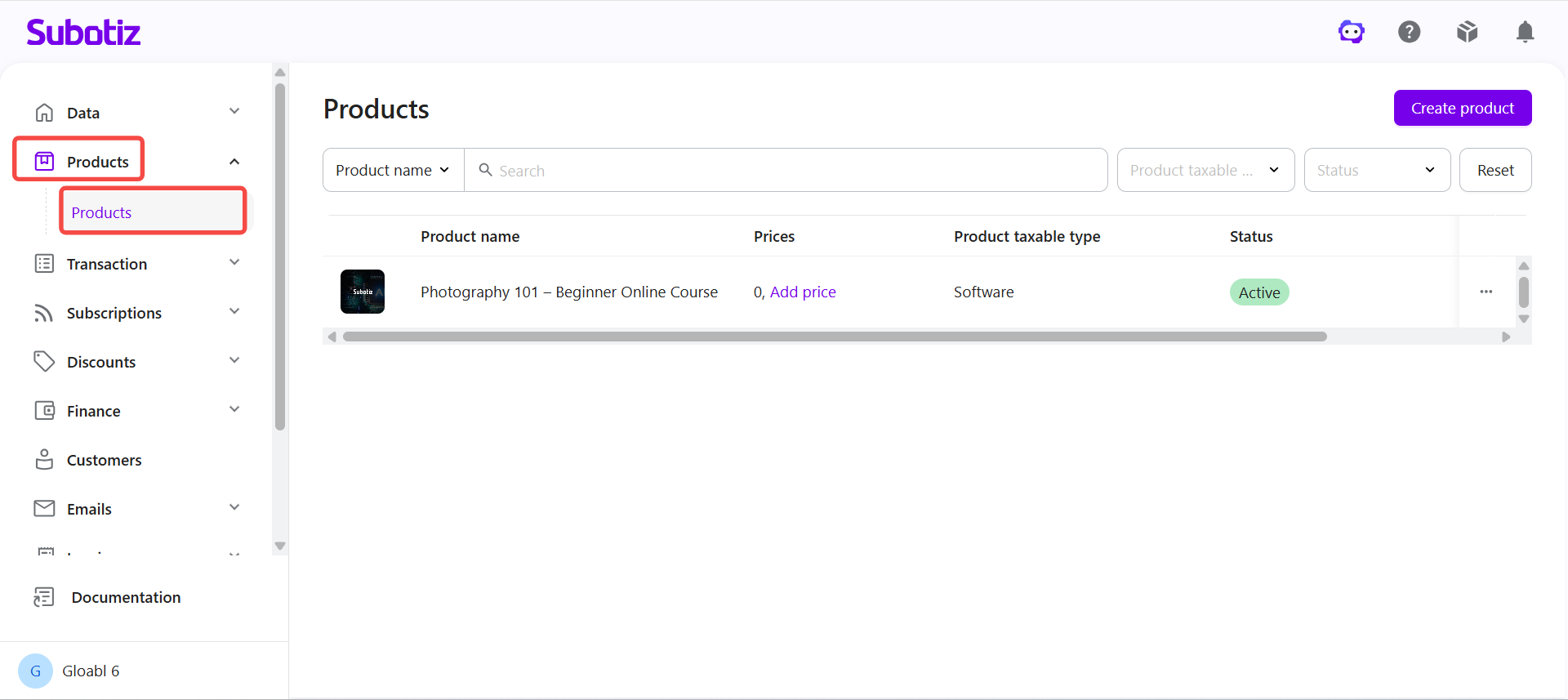
- Open Products: Log in to the Subotiz admin and go to Products > Products.
-
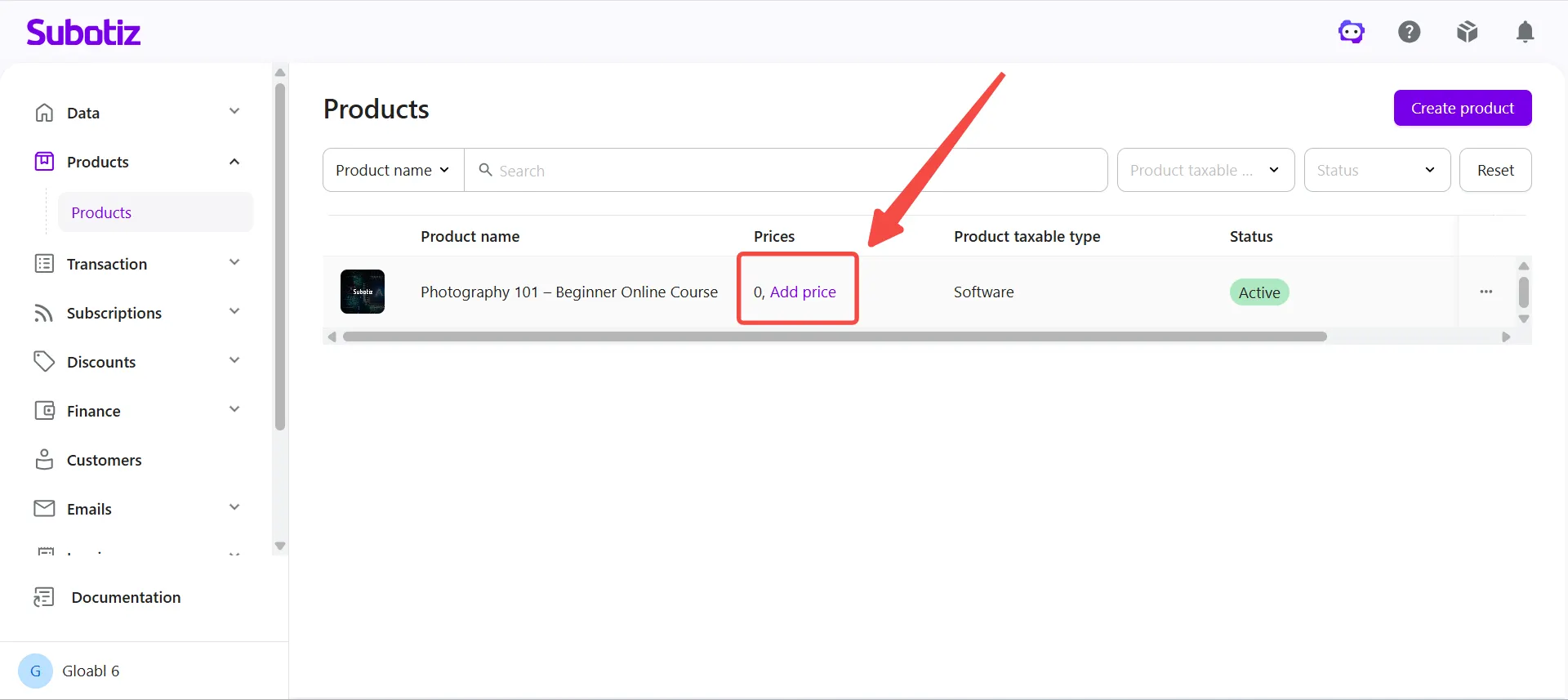
Start creating pricing: Locate the product and open the pricing creation page based on whether pricing already exists:
- No pricing created: Click Add price under the pricing count.
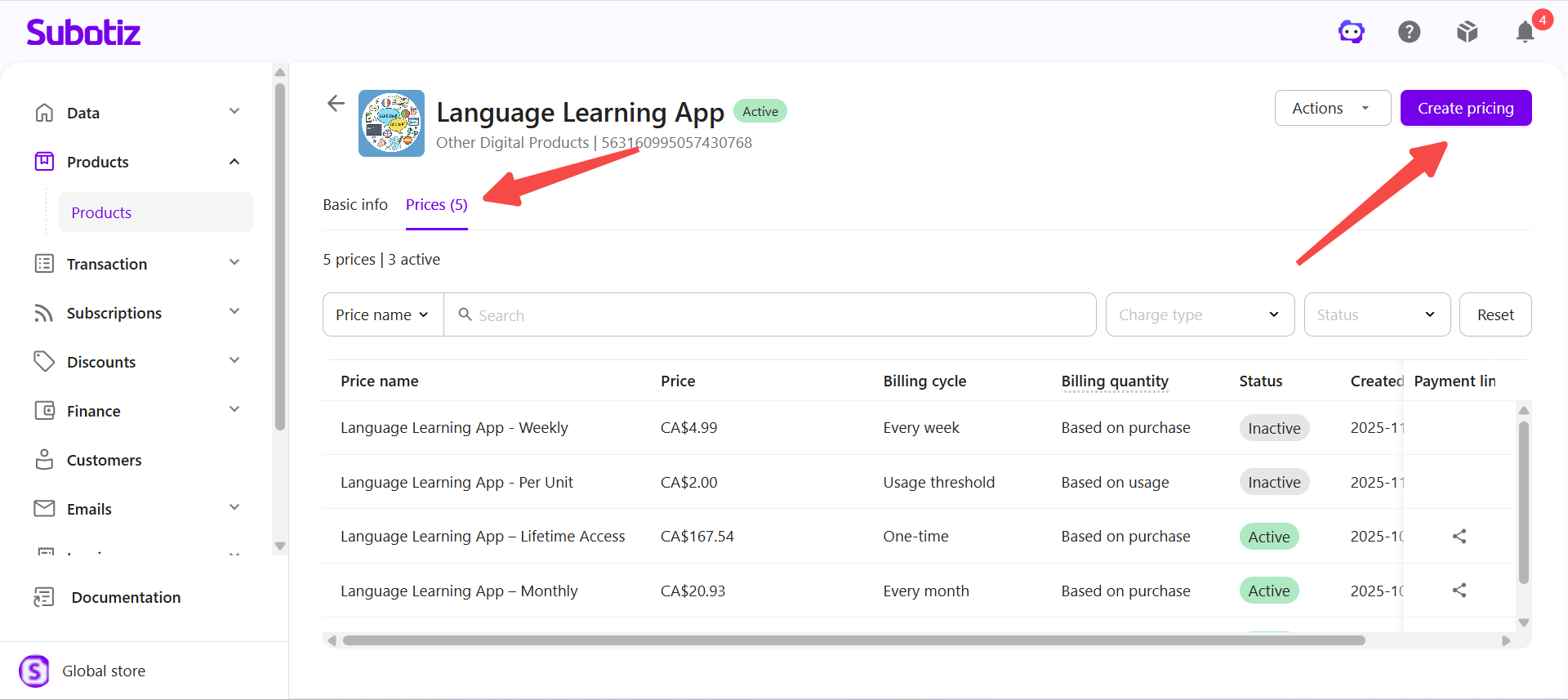
- Pricing already exists: Select the product to open its details, open the Prices tab, then click Create pricing.
-
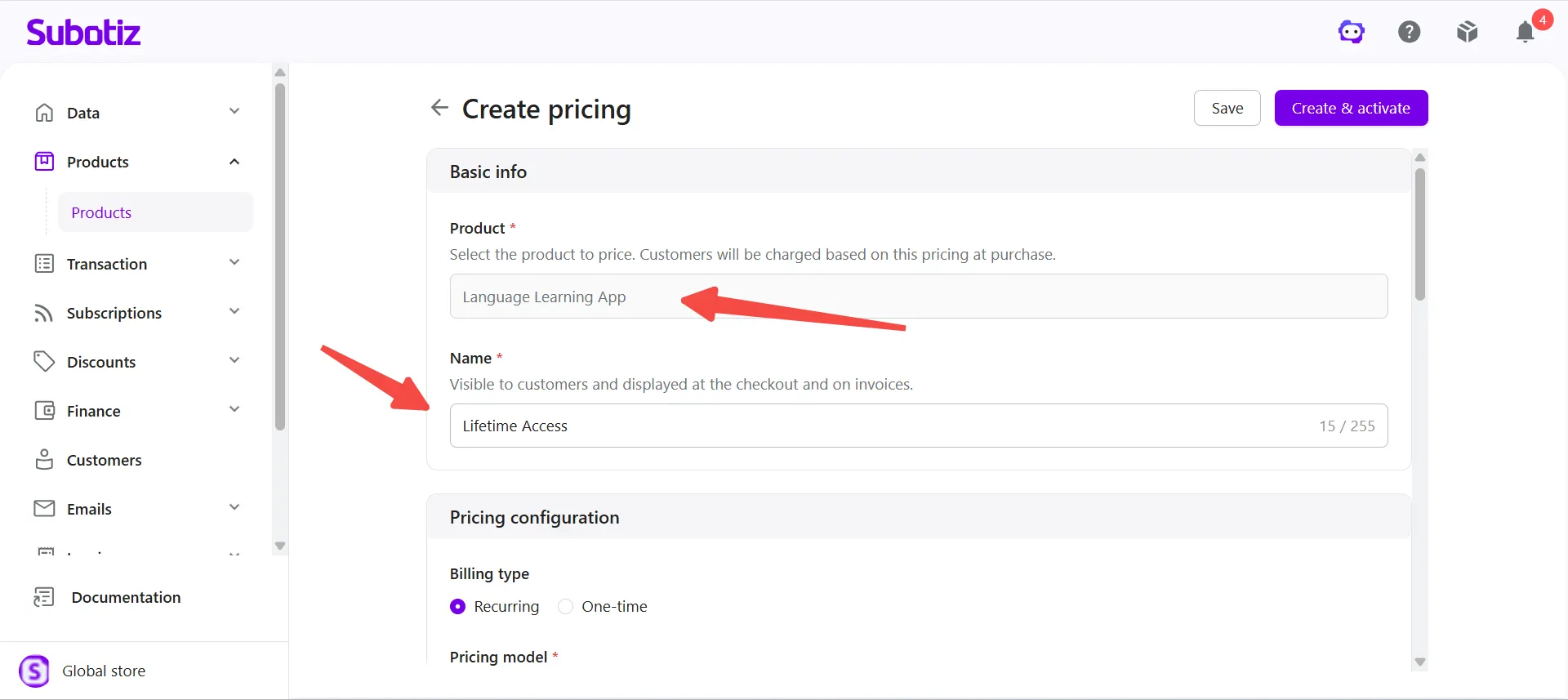
Enter basic information: Under Basic info, confirm the associated Product, then enter a Name. The name is visible to customers and appears at checkout and on invoices.
- For example, for the Language Learning App product, enter Lifetime Access as the pricing name.
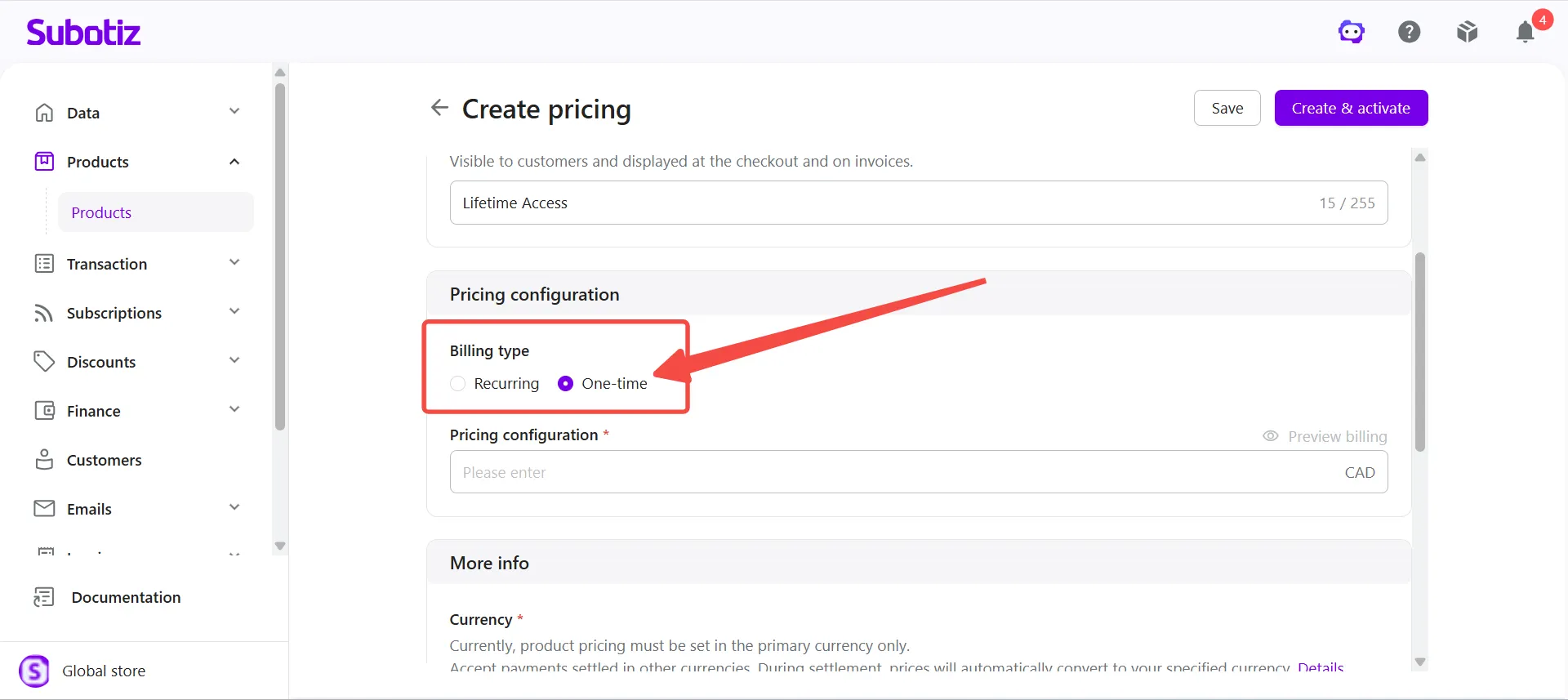
- Select One-time: Under Pricing configuration > Billing type, select One-time.
-
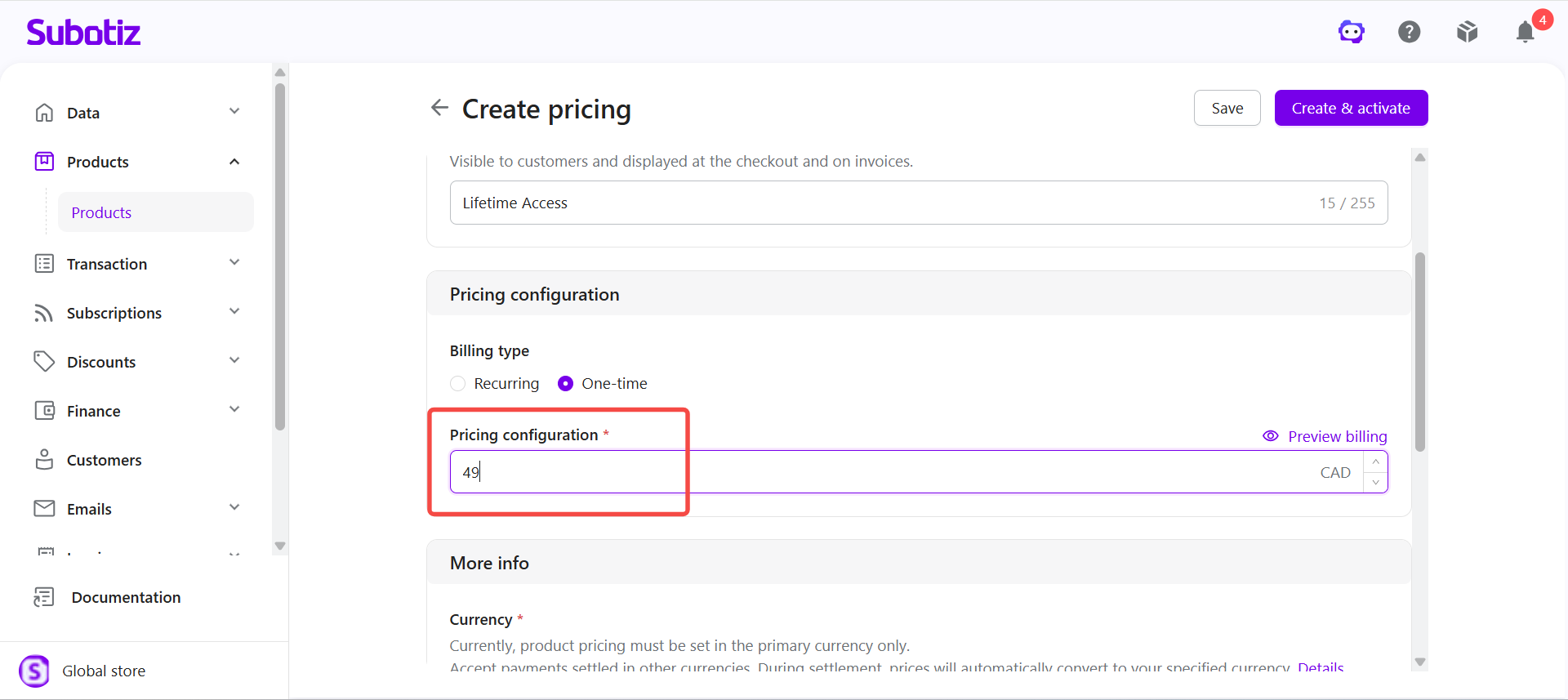
Set the price: Under Pricing configuration, enter the price per unit. The total charge is calculated based on the customer's purchase quantity.
- For example, enter 49.00 CAD to charge CA$49.00 per unit.
Note: Payment methods are displayed at checkout when the amount due is at least USD 0.50 (or the equivalent). Set the price so the amount due meets this minimum.
-
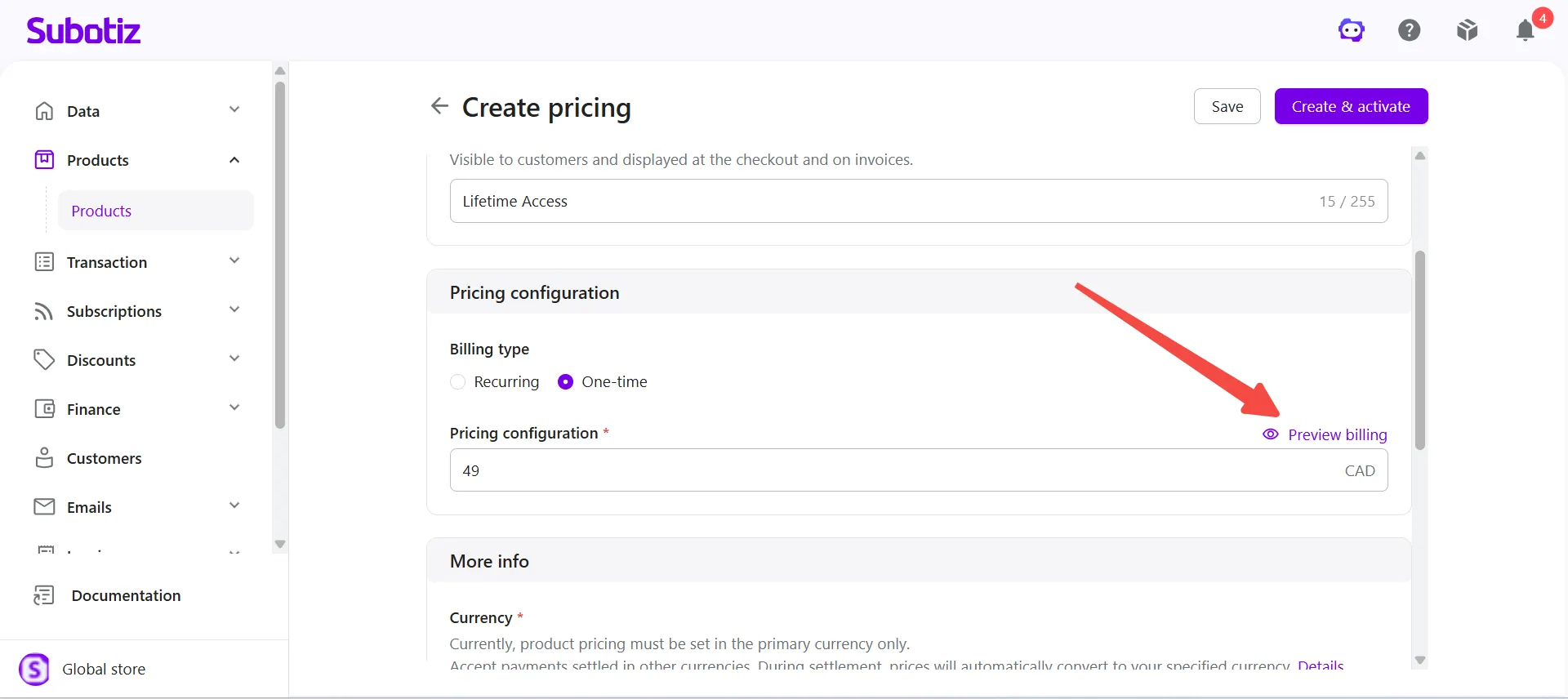
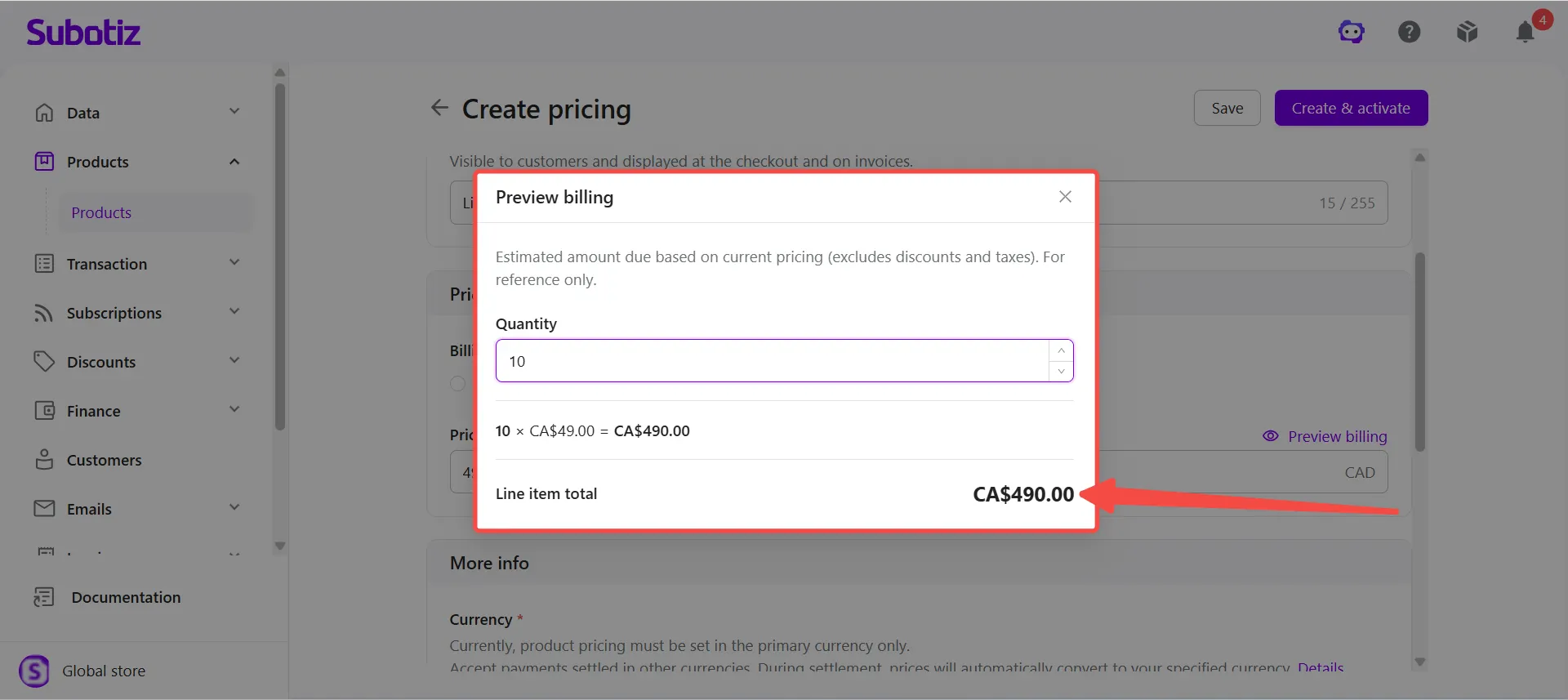
Preview billing: Click Preview billing, enter the Purchase quantity, and review the estimated charge based on the current pricing configuration. For example, at CA$49.00 per unit with a purchase quantity of 10, the estimated charge is CA$490.00.The preview excludes discounts and taxes and is for reference only.
-
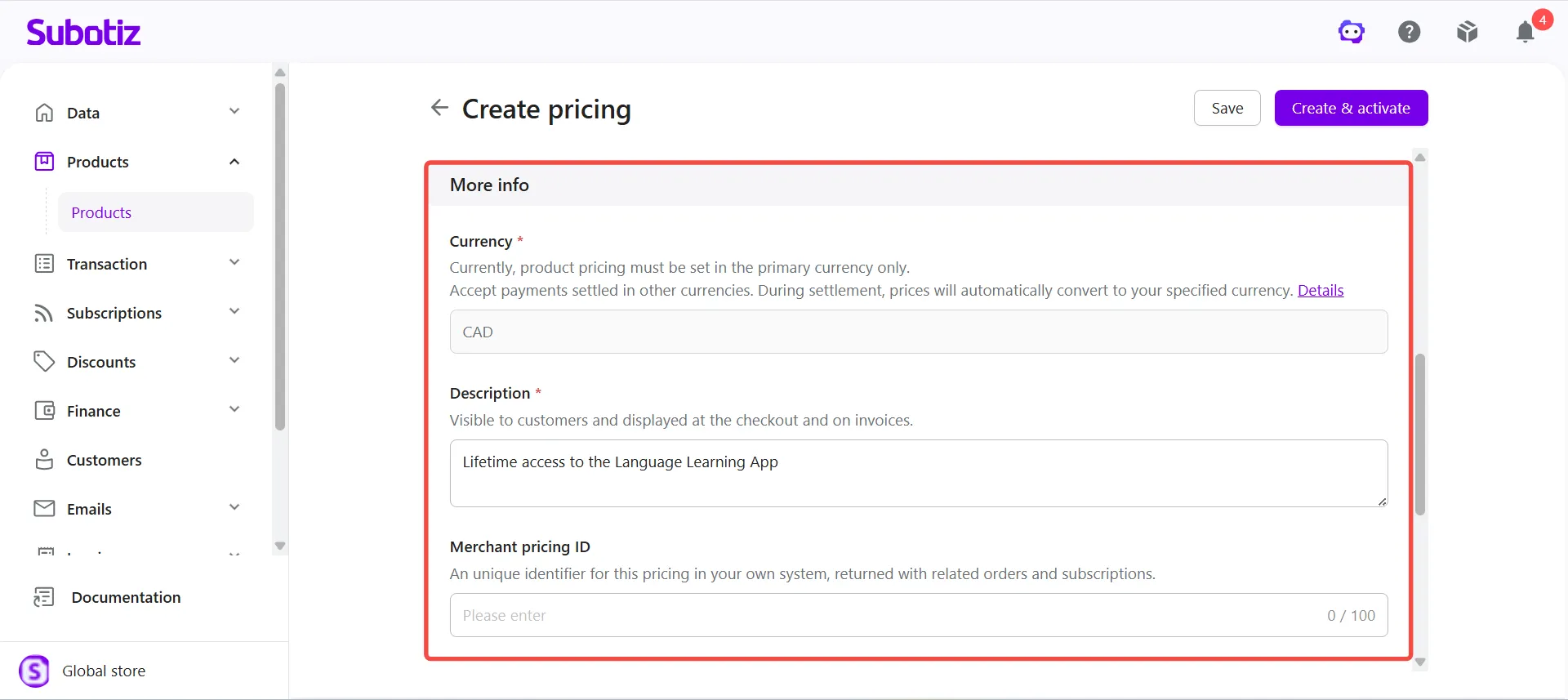
Enter additional information: Under More info, confirm the Currency, enter a Description, and optionally enter a Merchant pricing ID.
- Currency: Product pricing must be configured in the store's primary currency. When accepting payments in another supported currency, the system converts the product price to the specified settlement currency during settlement based on the applicable exchange rate. For details about supported currencies, currency conversion, and settlement, see Subotiz Payments|Multi-Currency Payments and Settlement.
- Description: Enter a customer-facing description that appears at checkout and on invoices. For example, enter Lifetime access to the Language Learning App.
- Merchant pricing ID (optional): Enter a unique identifier for the pricing in the merchant's own system. The ID is returned with related orders and subscriptions.
-
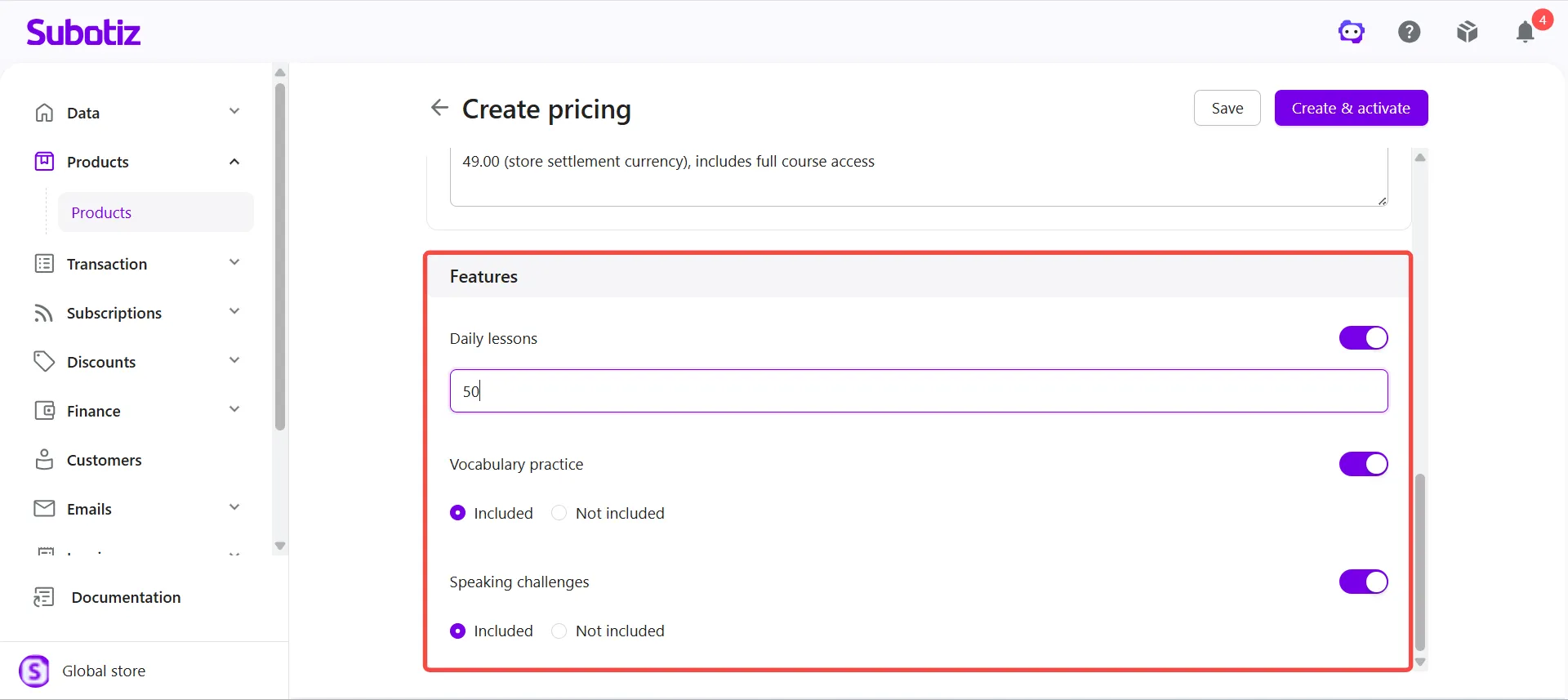
Configure pricing features: Under Features, enable the product features included with the pricing and complete any required configuration based on the feature type.
- Quantitative features: Enter the quantity included with the pricing.
-
Qualitative features: Specify whether the feature is included.
- For example, the Language Learning App pricing can include Daily lessons, Vocabulary practice, and Speaking challenges.
-
Save or activate pricing: Choose an option based on whether the pricing is ready for use:
- Save pricing as inactive: Click Save to create the pricing with an Inactive status.
- Create and activate pricing: Click Create & activate to create and immediately activate the pricing.
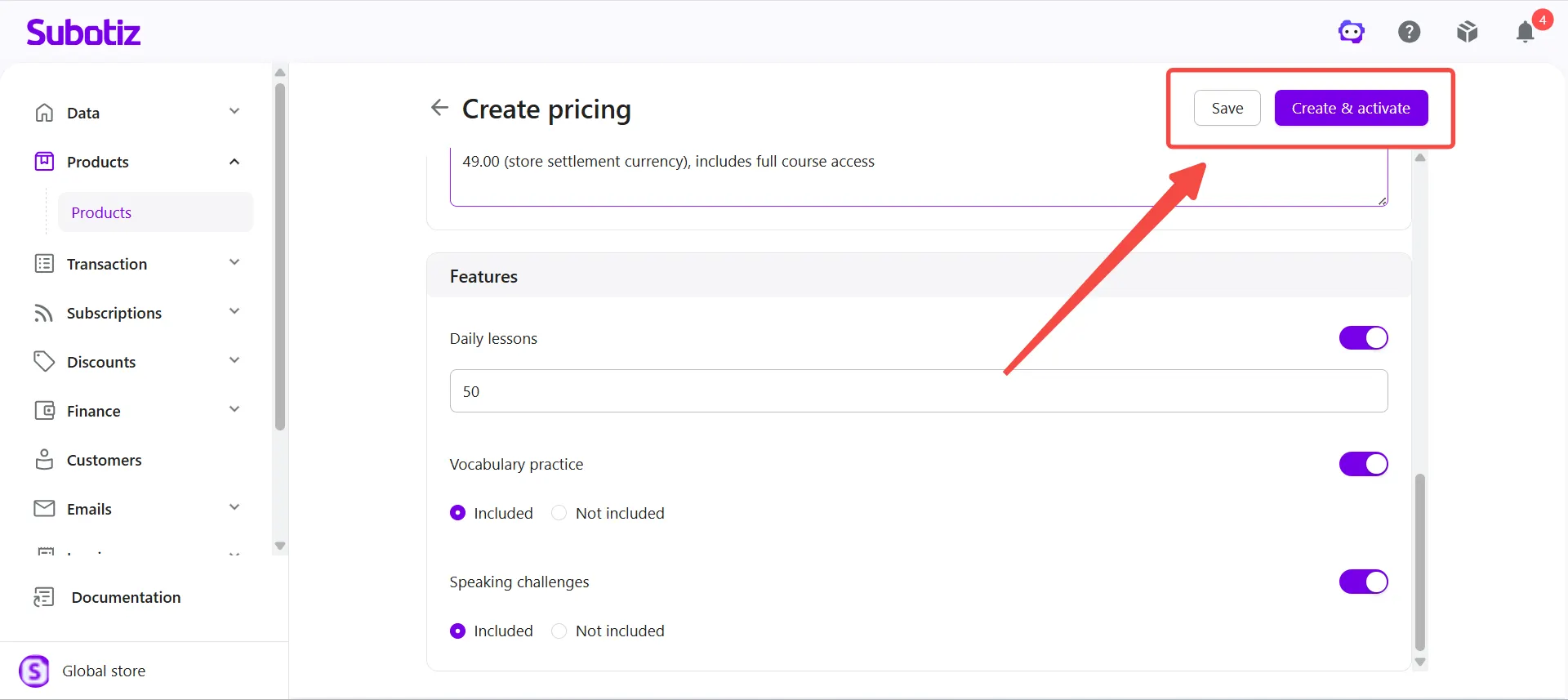
Note: Pricing can only be used for new sales and checkout when both the product and its corresponding pricing are Active.
Viewing the Customer Checkout Page
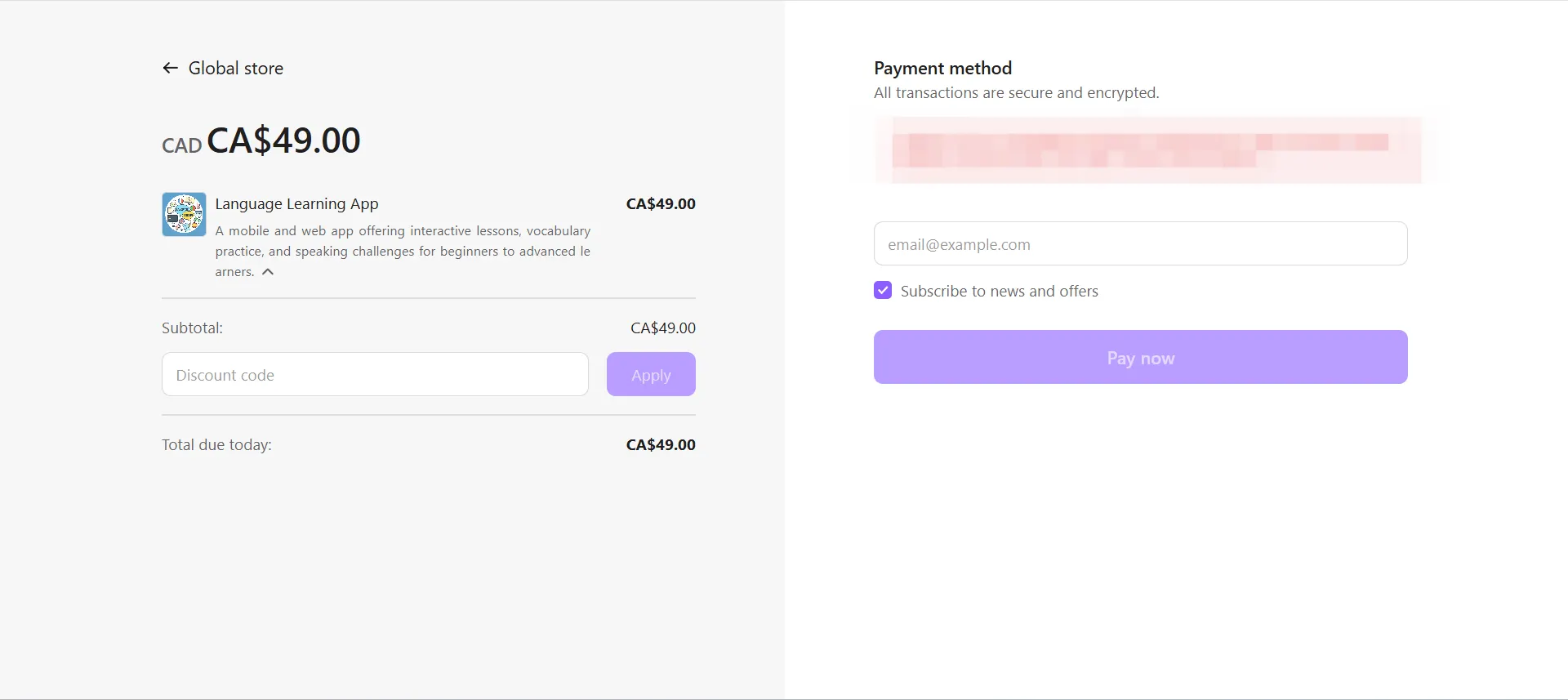
After one-time pricing is created and used for a sale, customers can view the product information, price, and current amount due at checkout, then complete the purchase using an available payment method.
For example, customers purchasing the Language Learning App with the Lifetime Access pricing can review the product, one-time price, and amount due before completing payment.
Managing One-Time Pricing
Existing one-time pricing can be edited, activated, or deactivated. Changes to pricing do not overwrite the original pricing information associated with existing transactions. Updated pricing applies to transactions created afterward.
For instructions on editing, activating, and deactivating pricing, see Products | Manage Pricing. For details about how product and pricing changes affect existing records, see Products|Product and Pricing Update Behavior.
One-time pricing supports products and services that do not require recurring billing. Merchants can configure the price, currency, description, and product features to establish clear billing rules for one-time purchases.