In Subotiz, the Products page provides a centralized view of all created products. You can review product statuses and perform actions such as editing, activating, deactivating, or deleting products. Properly managing product statuses ensures that only valid products are used in pricing configurations and checkout flows.
Viewing the Product List
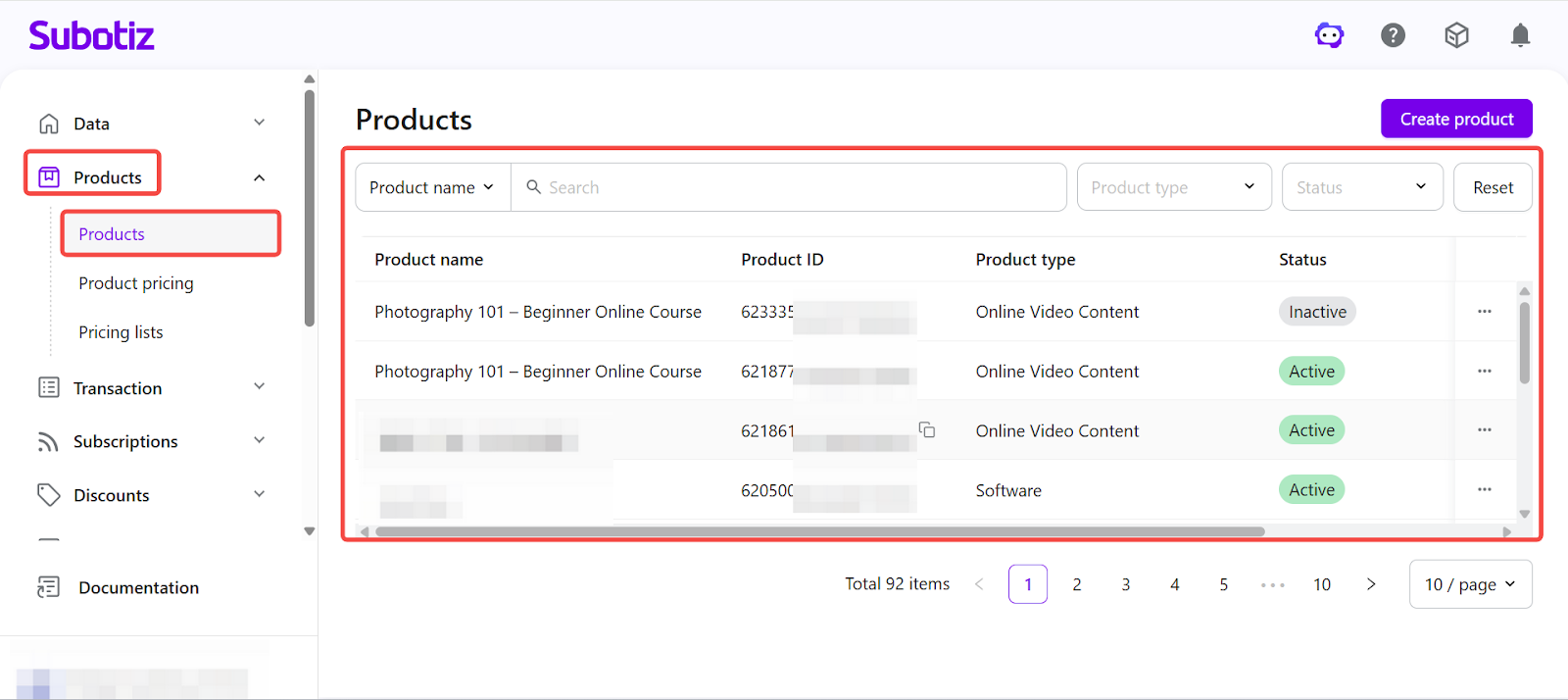
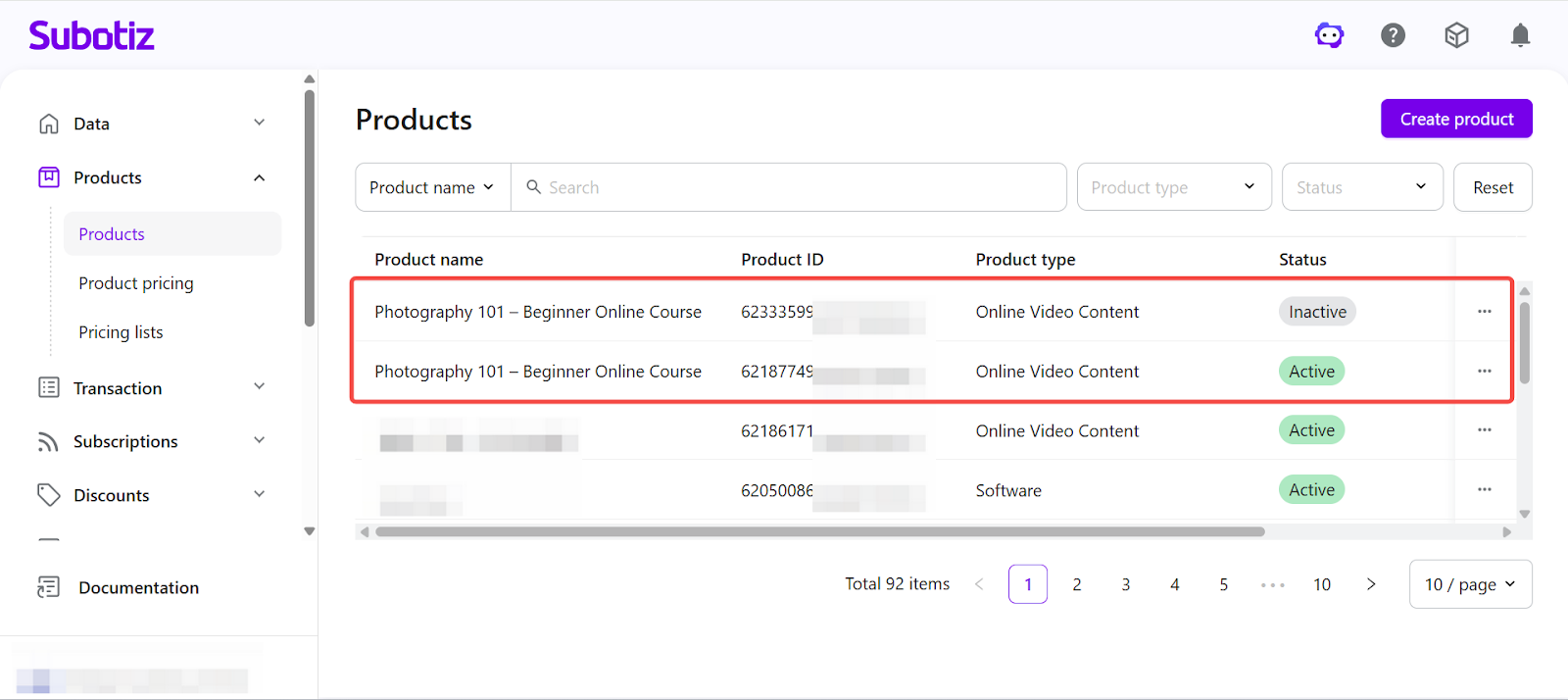
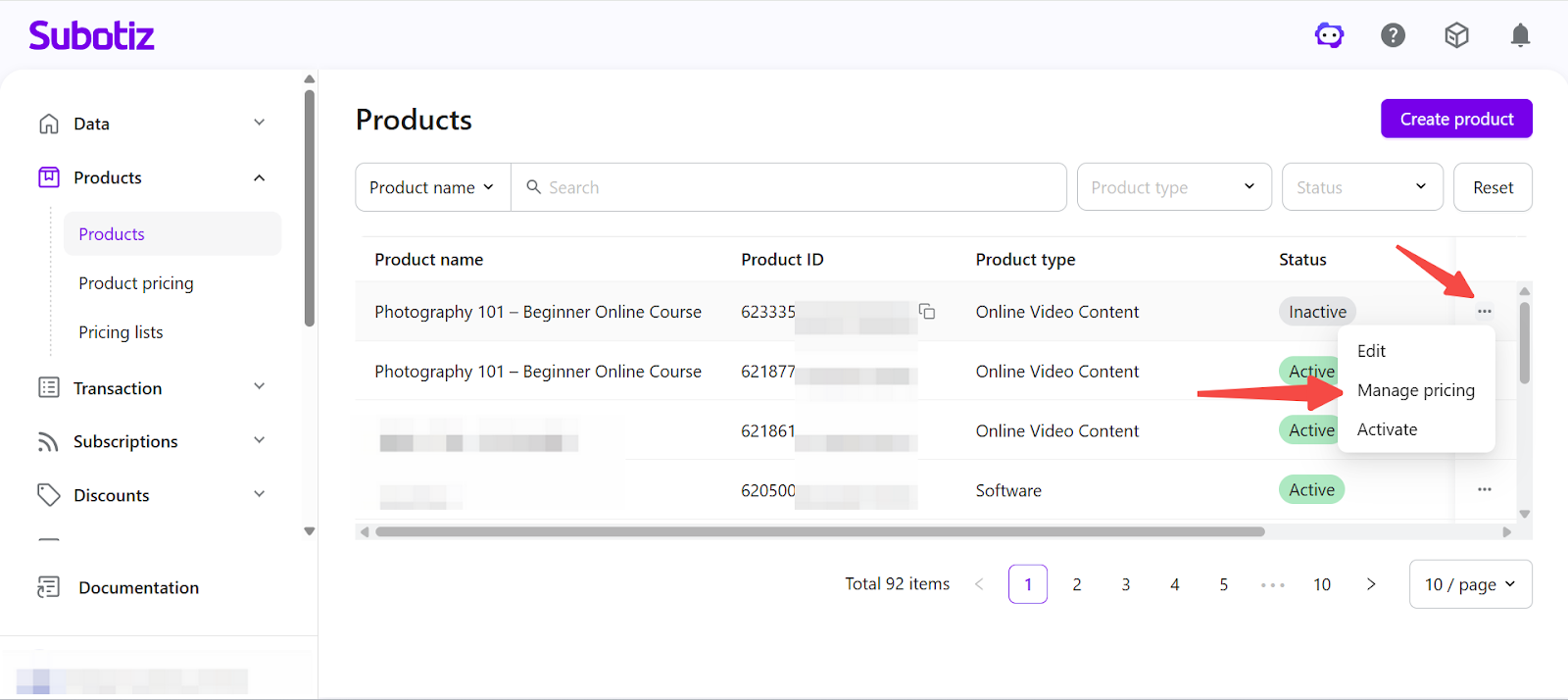
- Open the product list: Go to Subotiz Admin > Products > Products to view all created products.The product list includes the following information:
- Product name
- Product ID
- Product type
- Status
- Created time
This view allows you to quickly check product status and take action when needed.
- Search and filter products: Use the search and filter options at the top of the page to quickly locate specific products:
- Product name / Product ID: Search by keyword
- Product type: Filter by category (e.g., software, eBook, information services, or SaaS subscriptions)
- Status: Filter by product status (Active or Inactive)
Filters help streamline management when working with a large number of products.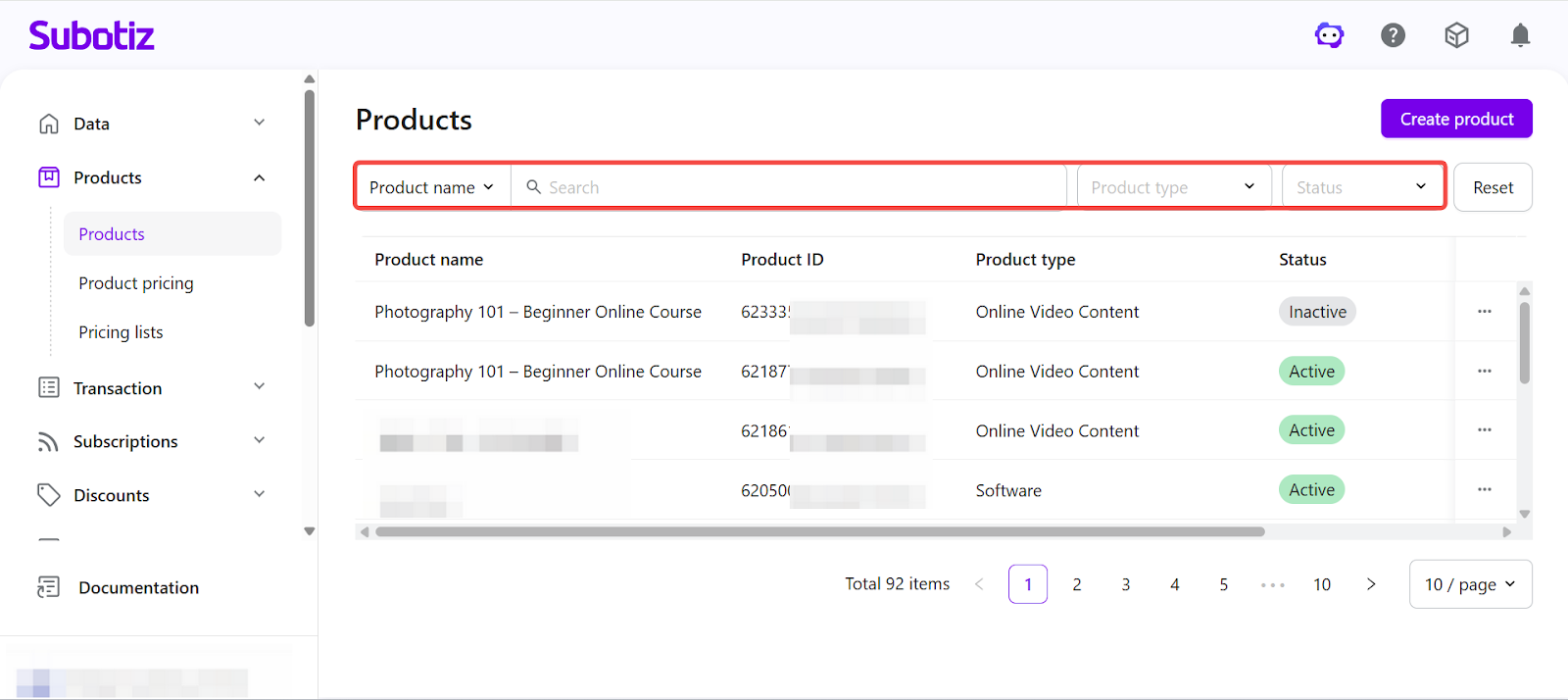
Product Status
Each product has a status that determines whether it can be used in pricing and checkout.
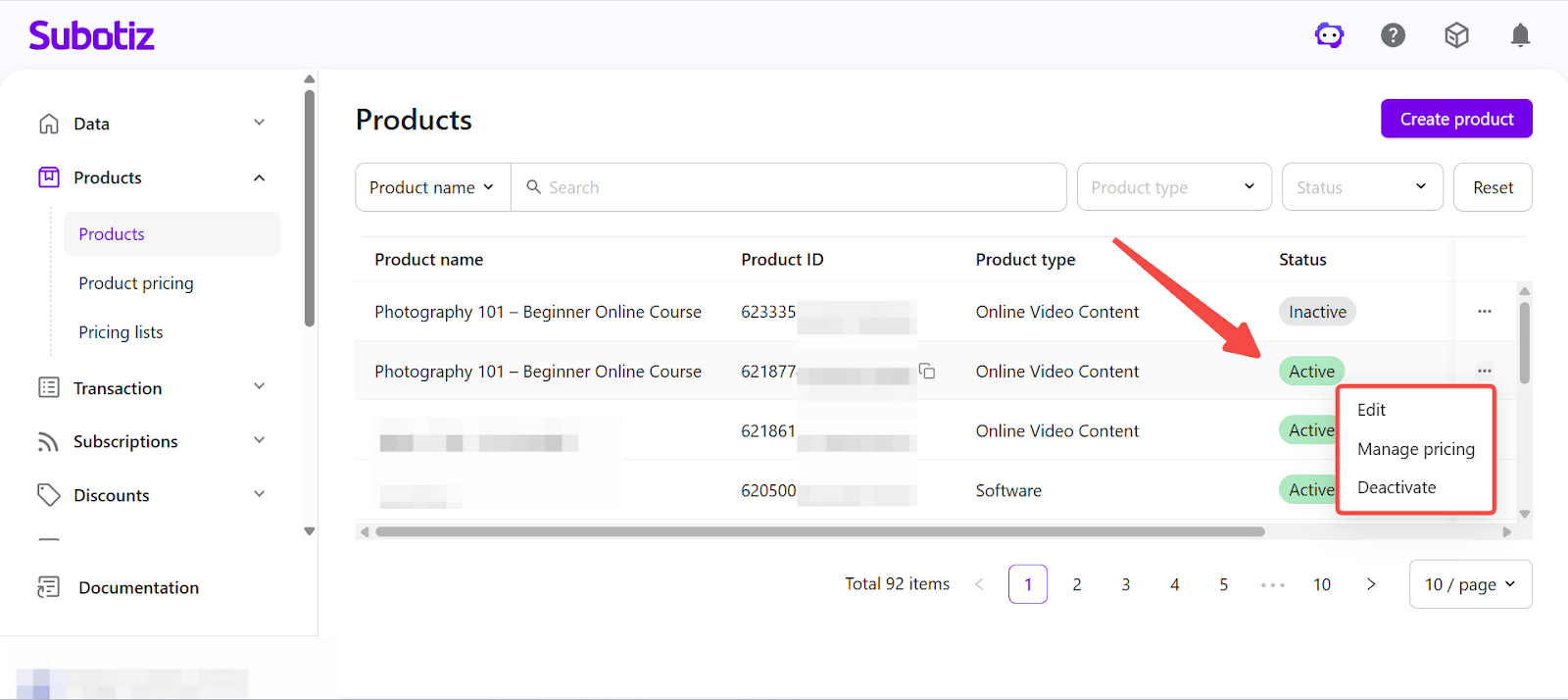
- Active: Active products are enabled and available for use.They can be used to:
- Create or manage product pricing
- Generate payment links
- Be used in checkout flows
- Inactive: Inactive products have been created but are not currently in use.Inactive products:
- Cannot be used in checkout
- Cannot generate payment links
To use the product, it must be activated before configuring pricing or accepting payments.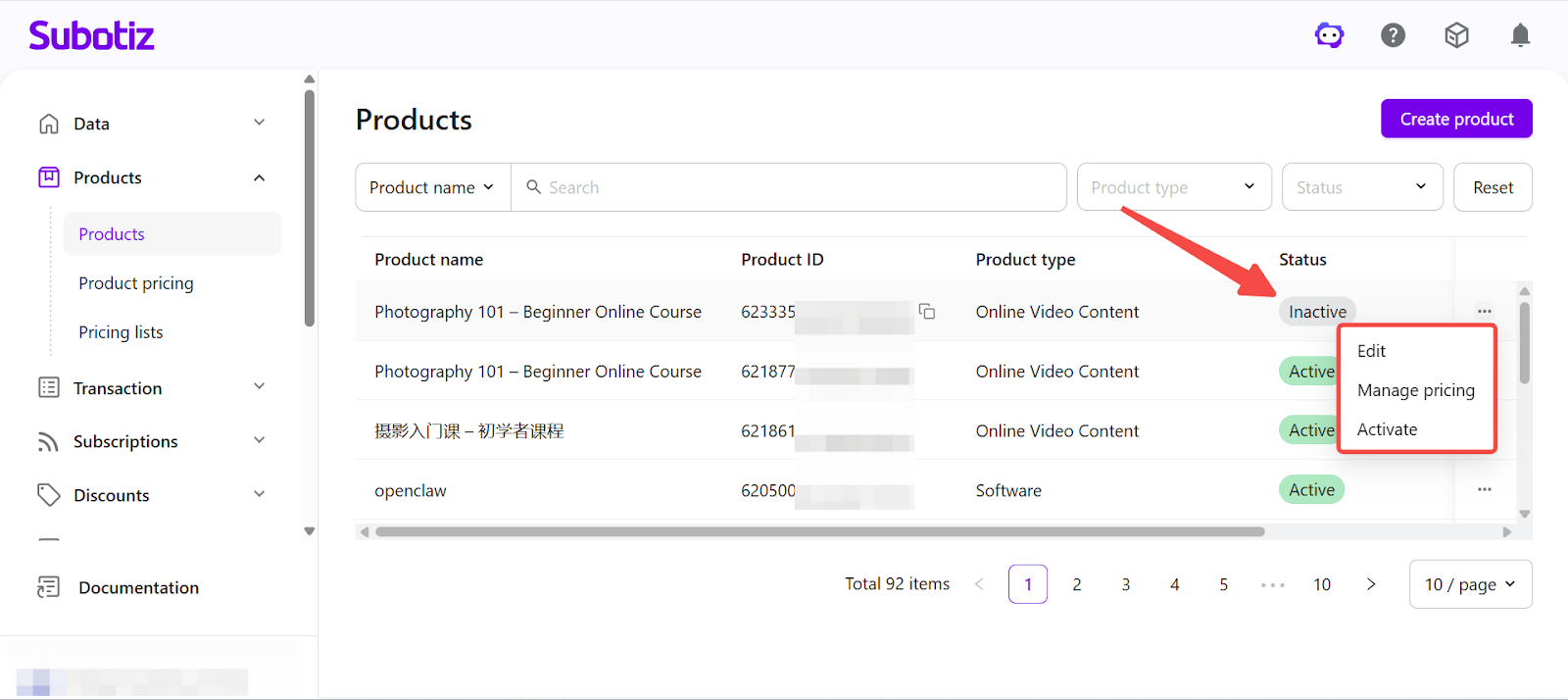
Managing Products
From the product list or product detail page, you can perform the following actions:
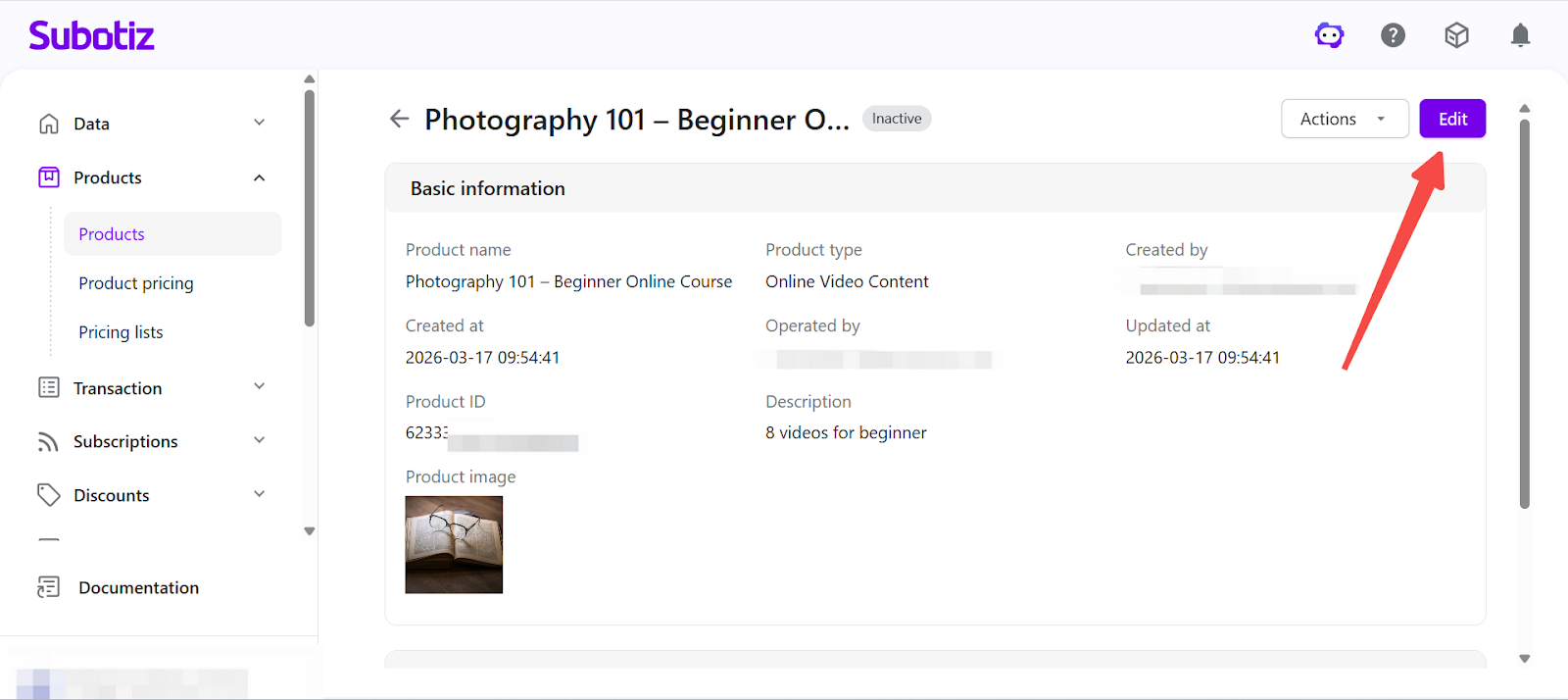
- Edit product information: To update product details such as name, image, or description, open the product and click Edit.
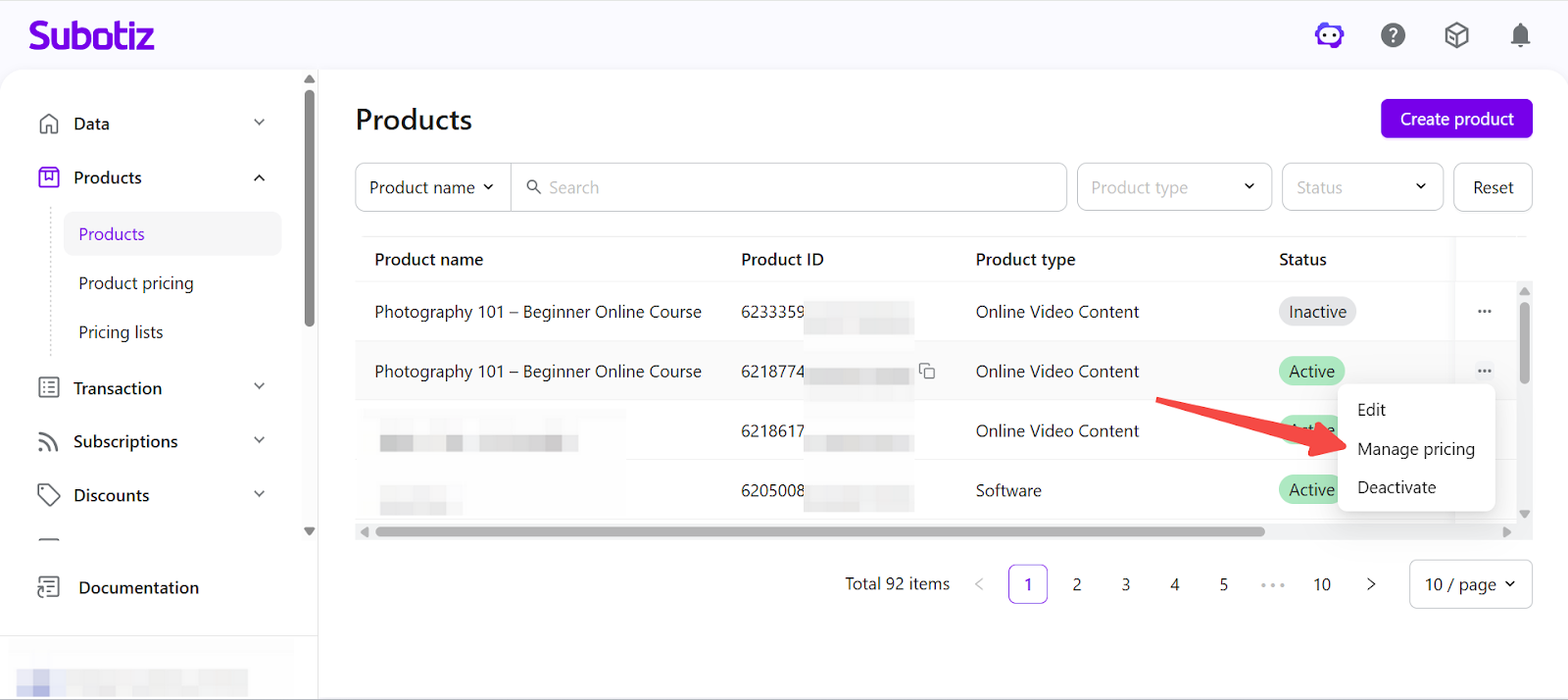
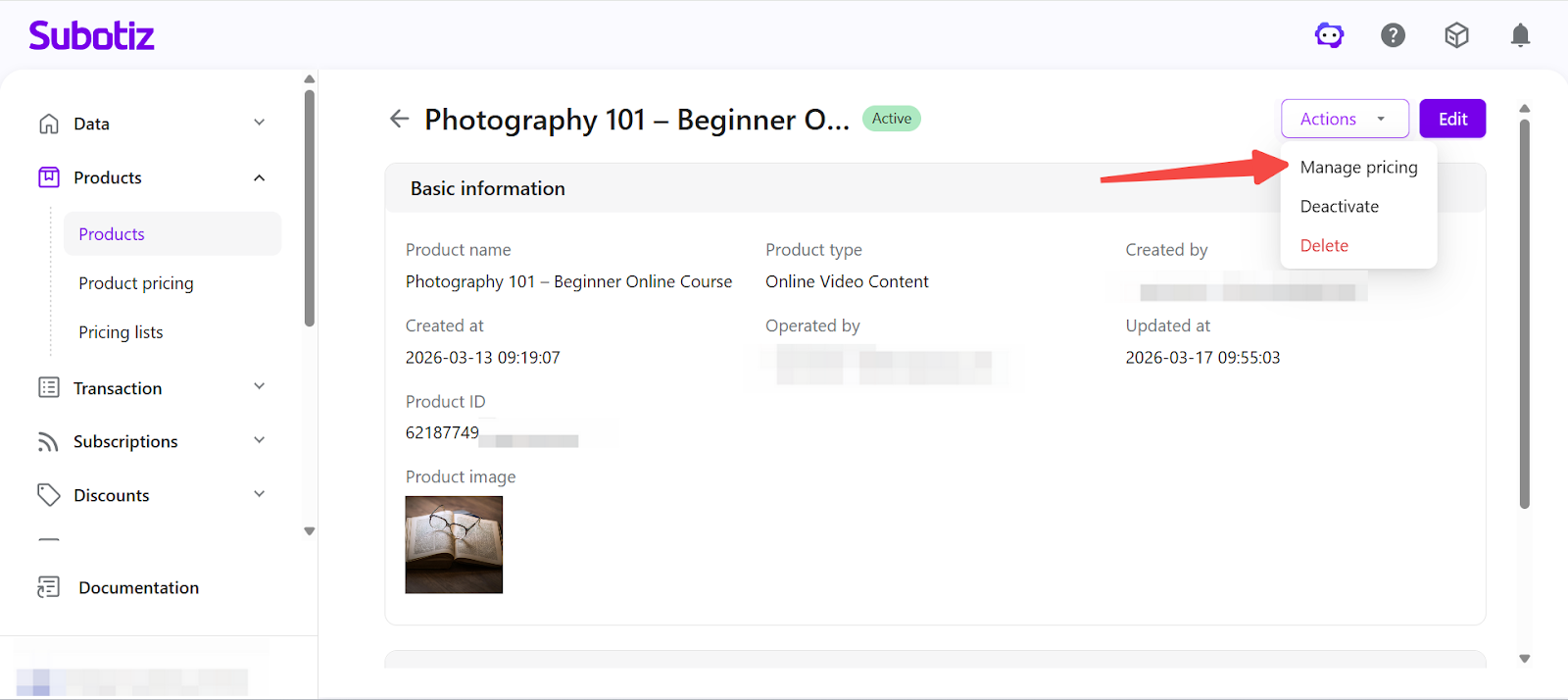
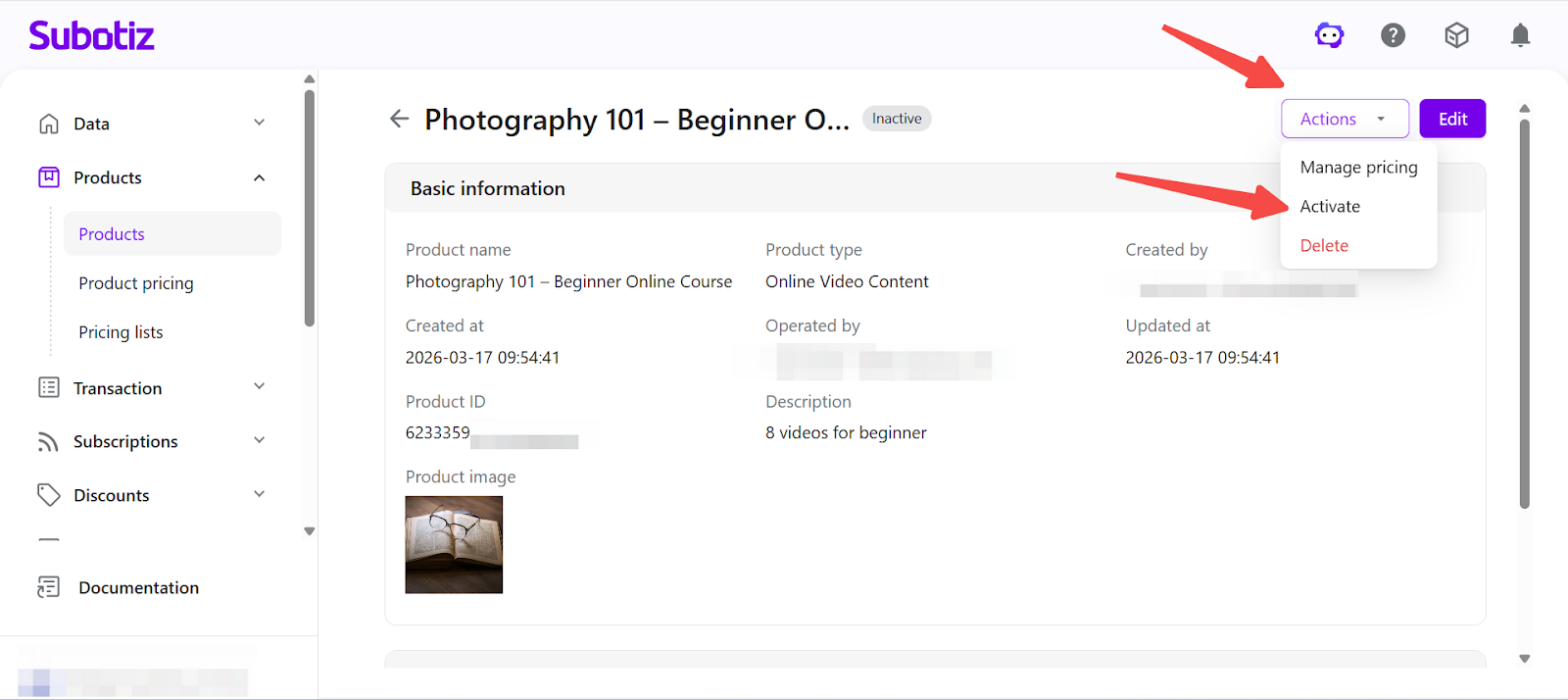
- Manage product pricing: To configure or view pricing for a product, click Actions > Manage Pricing.On the pricing page, you can:
- Create pricing plans
- View existing pricing configurations
- Manage billing structures for the product
- Activate a product: If a product is currently inactive, open the product detail page and click Actions > Activate. Once activated, the product becomes available for pricing and checkout.
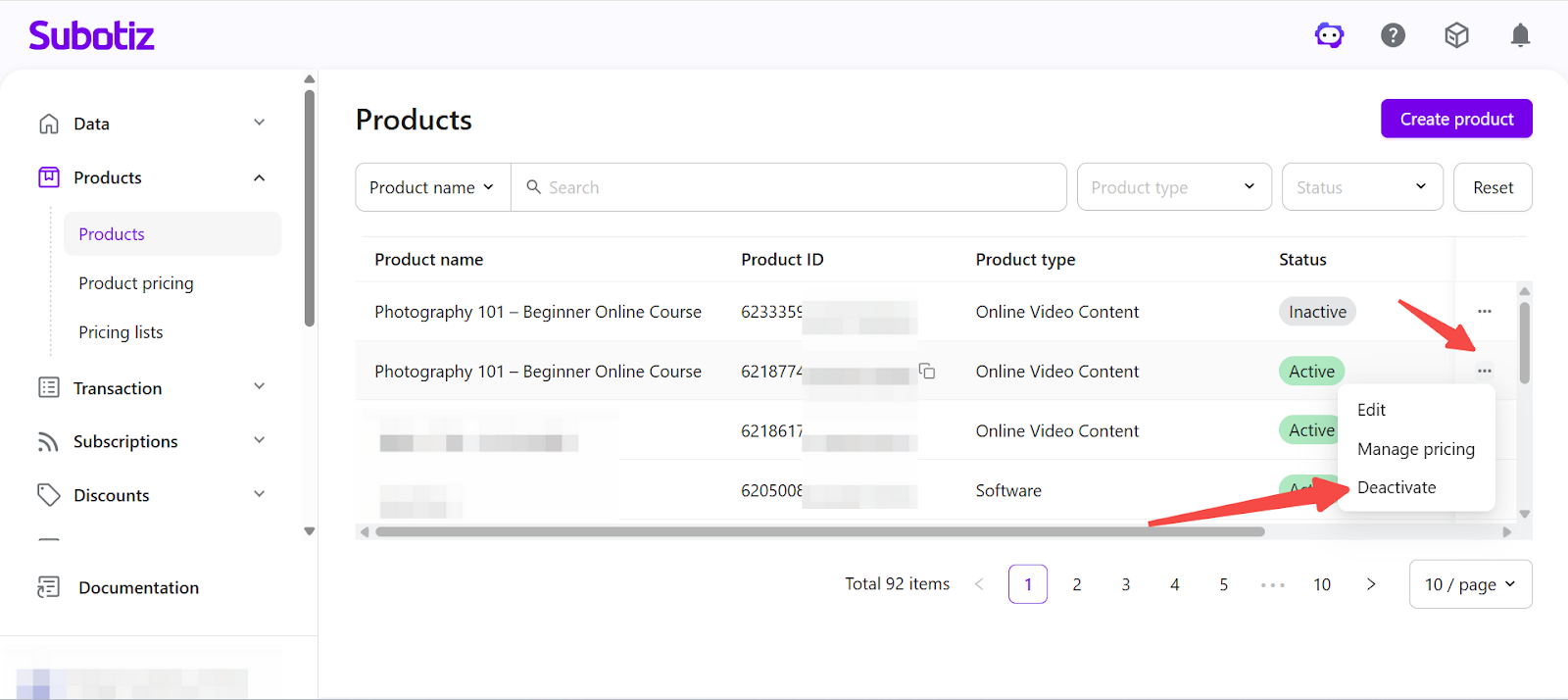
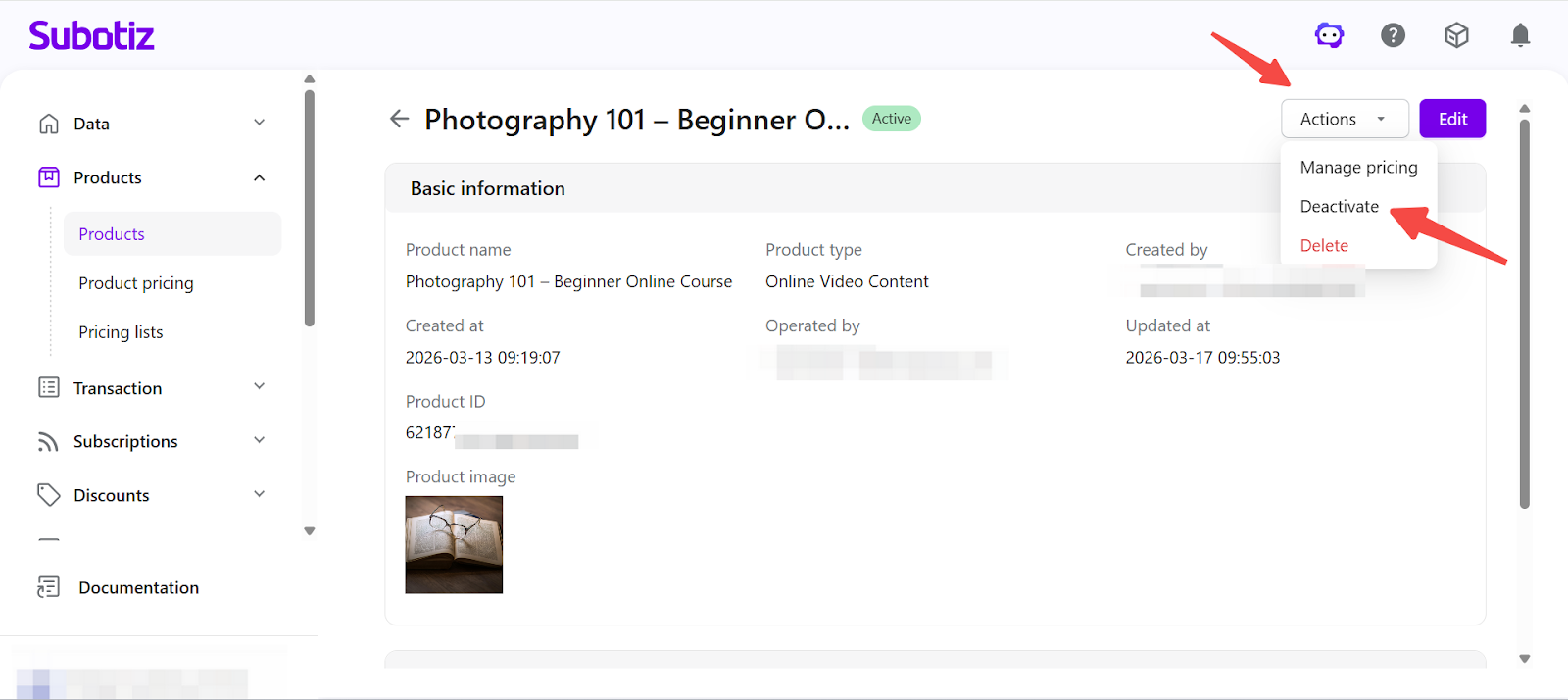
- Deactivate a product: To stop using a product for new transactions, you can deactivate it. When you click Deactivate, a confirmation prompt will appear. The action will only proceed after confirmation.After deactivation:
- The product becomes inactive
- All associated pricing plans are deactivated
- It can no longer be used to create new checkout sessions or orders
- Historical orders remain unchanged
- Delete a product: To permanently remove a product, open the product detail page and click Actions > Delete.After deletion:
- The product is removed from the product list
- Historical order records are preserved
Please note that deleted products cannot be restored. Make sure the product is no longer needed before deleting.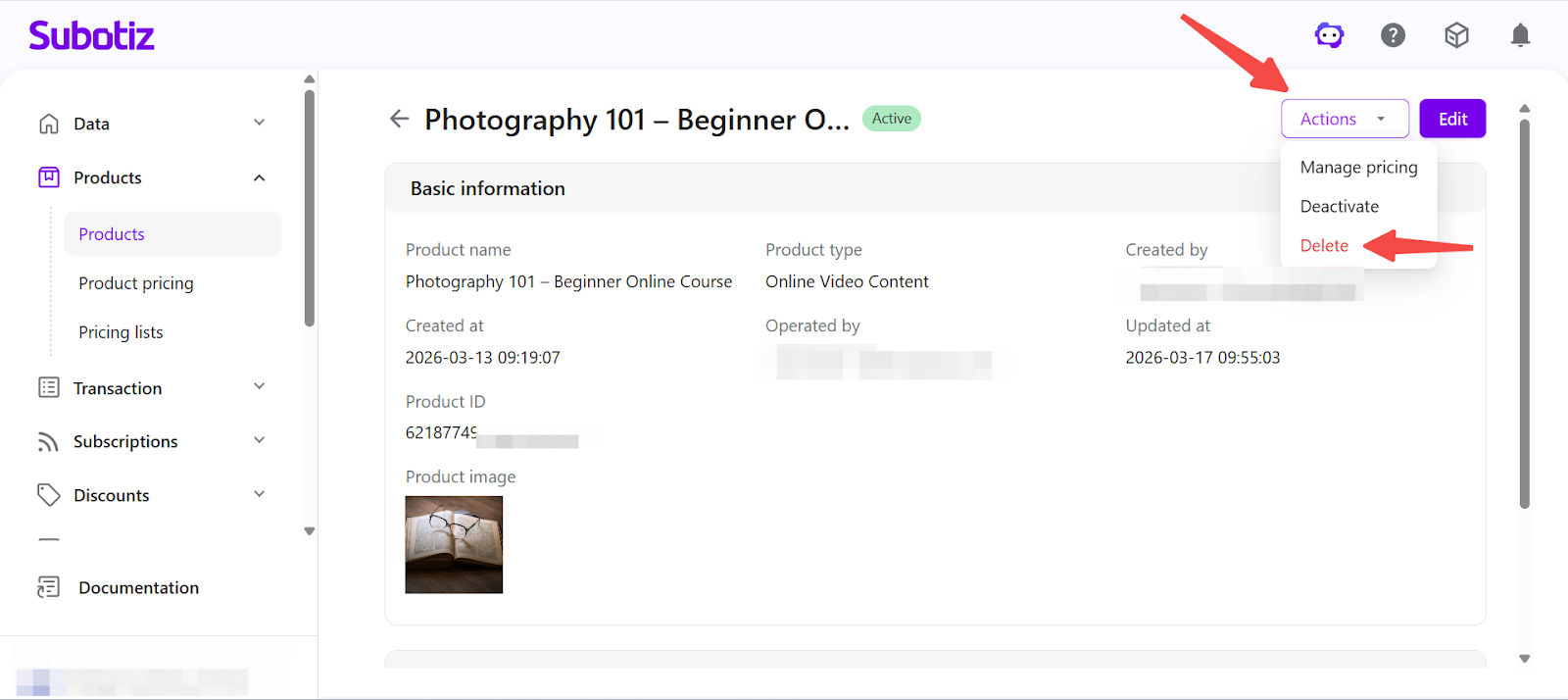
Keeping products well-organized ensures a consistent checkout experience and accurate pricing configuration, while making it easier to manage product availability and maintain a clear product structure.