The Products feature in Subotiz allows merchants to view and manage existing products, including updating product information, managing product status, and reviewing associated prices. Merchants can use product management tools to adjust product configurations based on business needs and manage product information and prices from the product detail page.
Note: When updating a product that is already referenced by a transaction or subscription, Subotiz retains the original product information and generates a new product version based on the updated configuration. For details about how product and price updates affect existing transactions and subscriptions, see Products|Product and Pricing Update Behavior.
Finding and Filtering Products
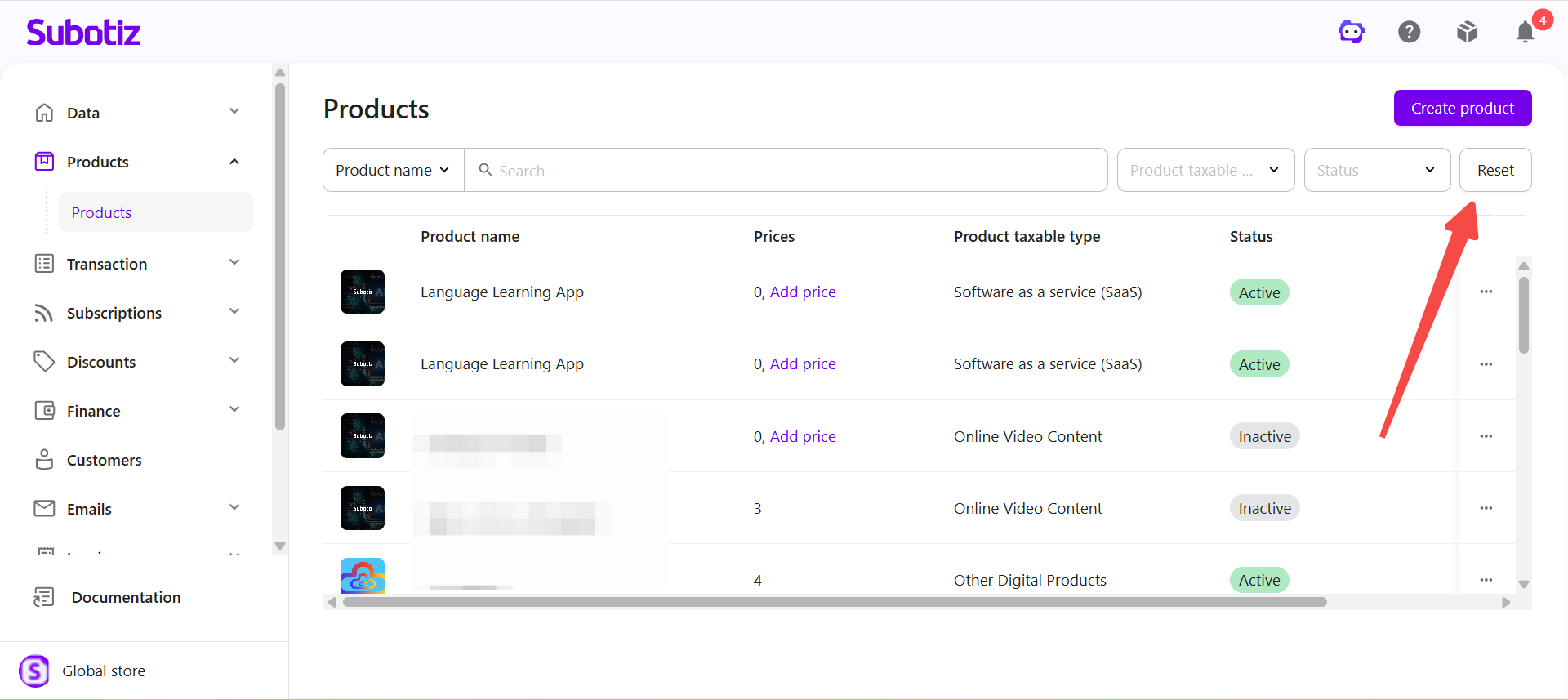
Use the search and filter options on the Products page to quickly locate products.
- Open Products: Log in to the Subotiz admin and go to Products > Products.
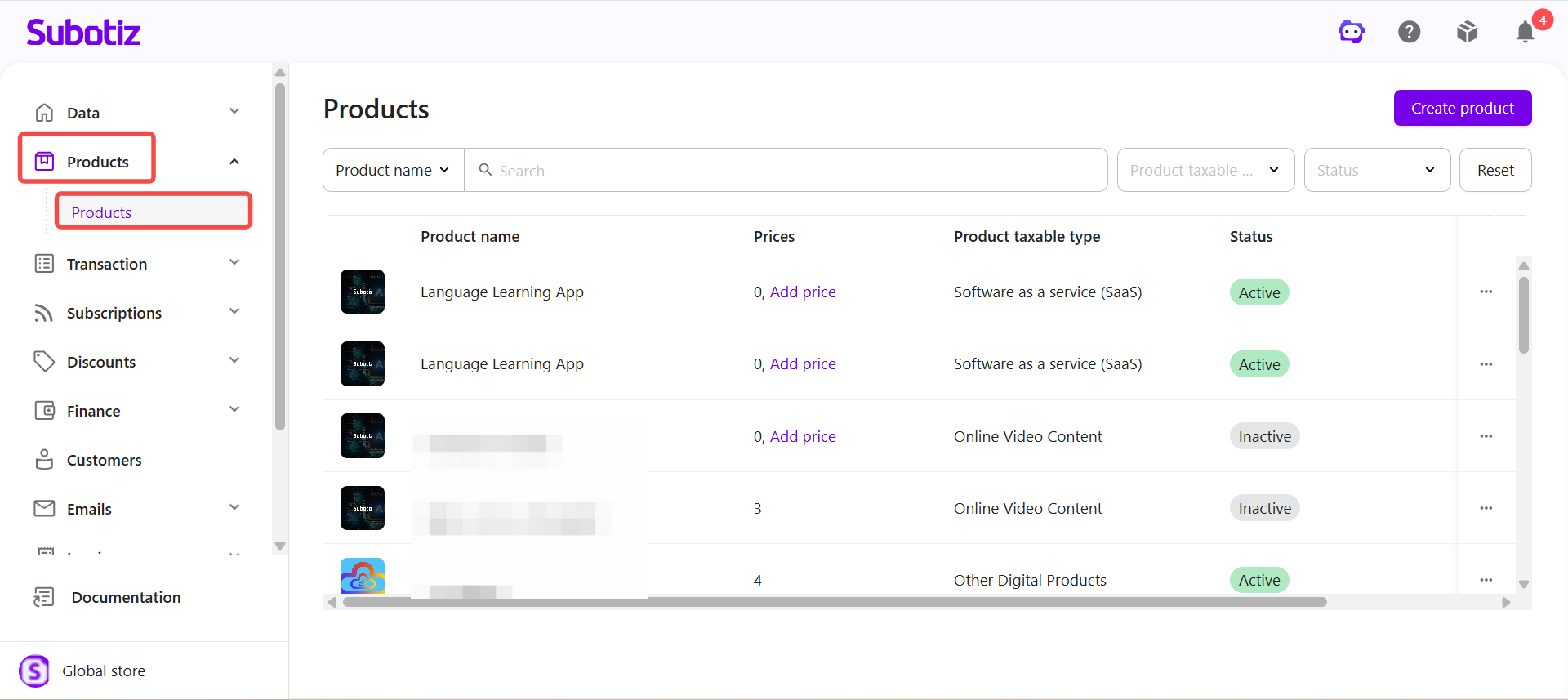
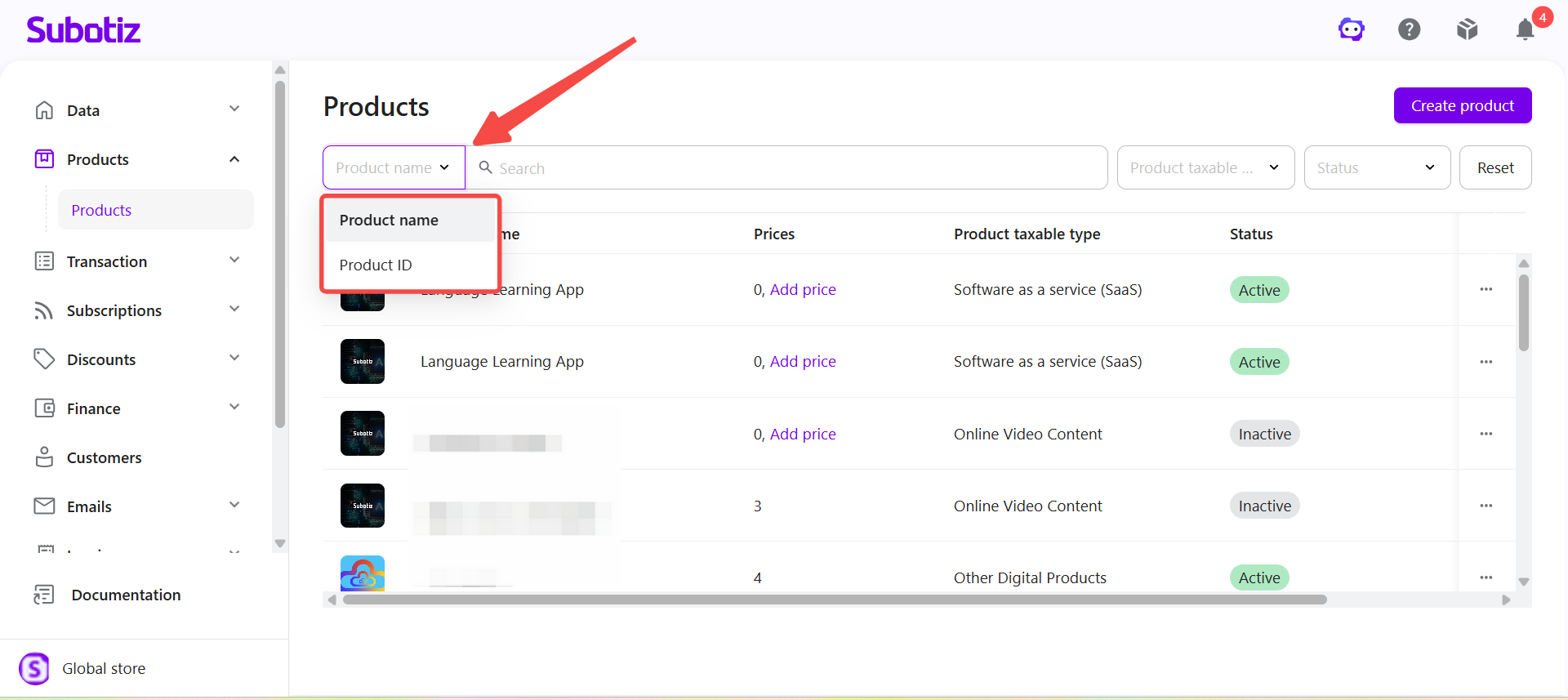
- Search for a product: Select Product name or Product ID from the dropdown to the left of the search bar, then enter the corresponding information.
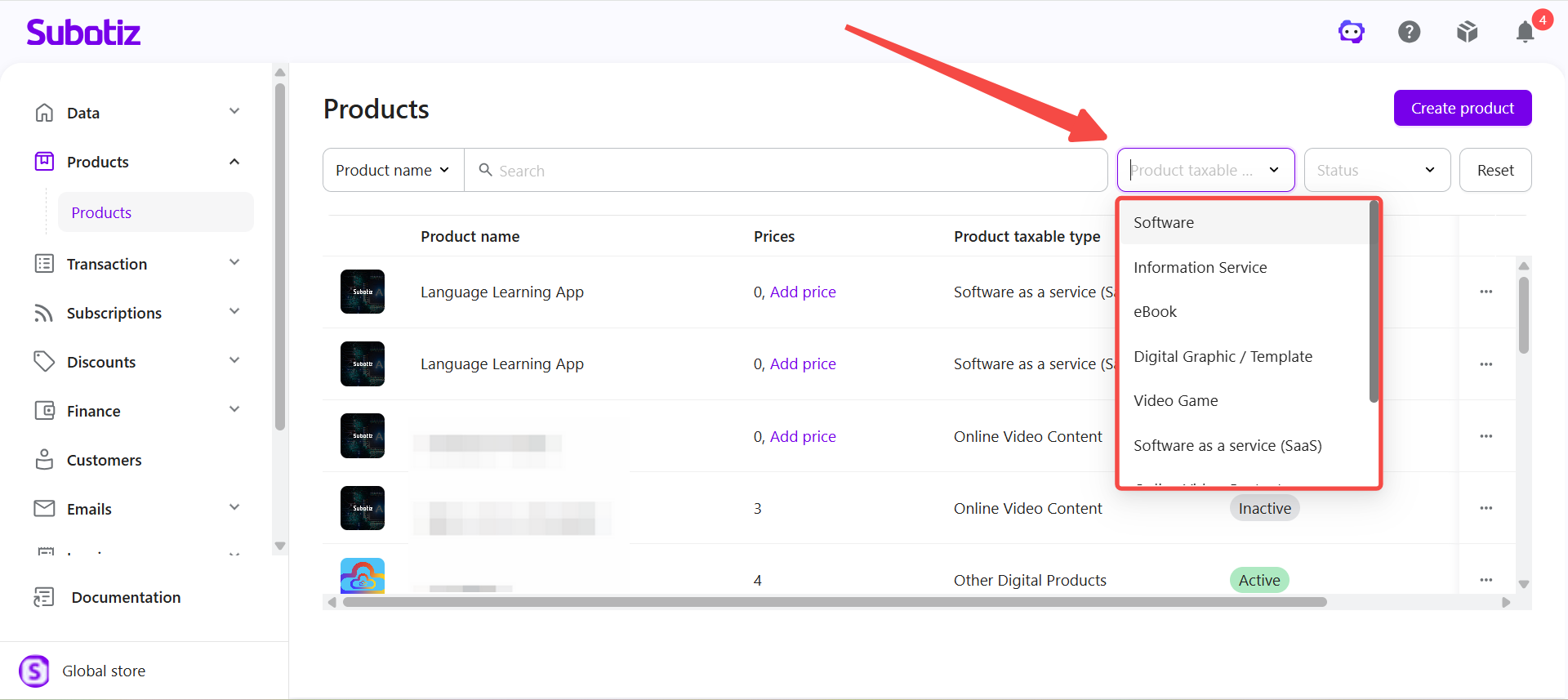
- Filter by product taxable type: Click Product taxable type and select a product taxable type.
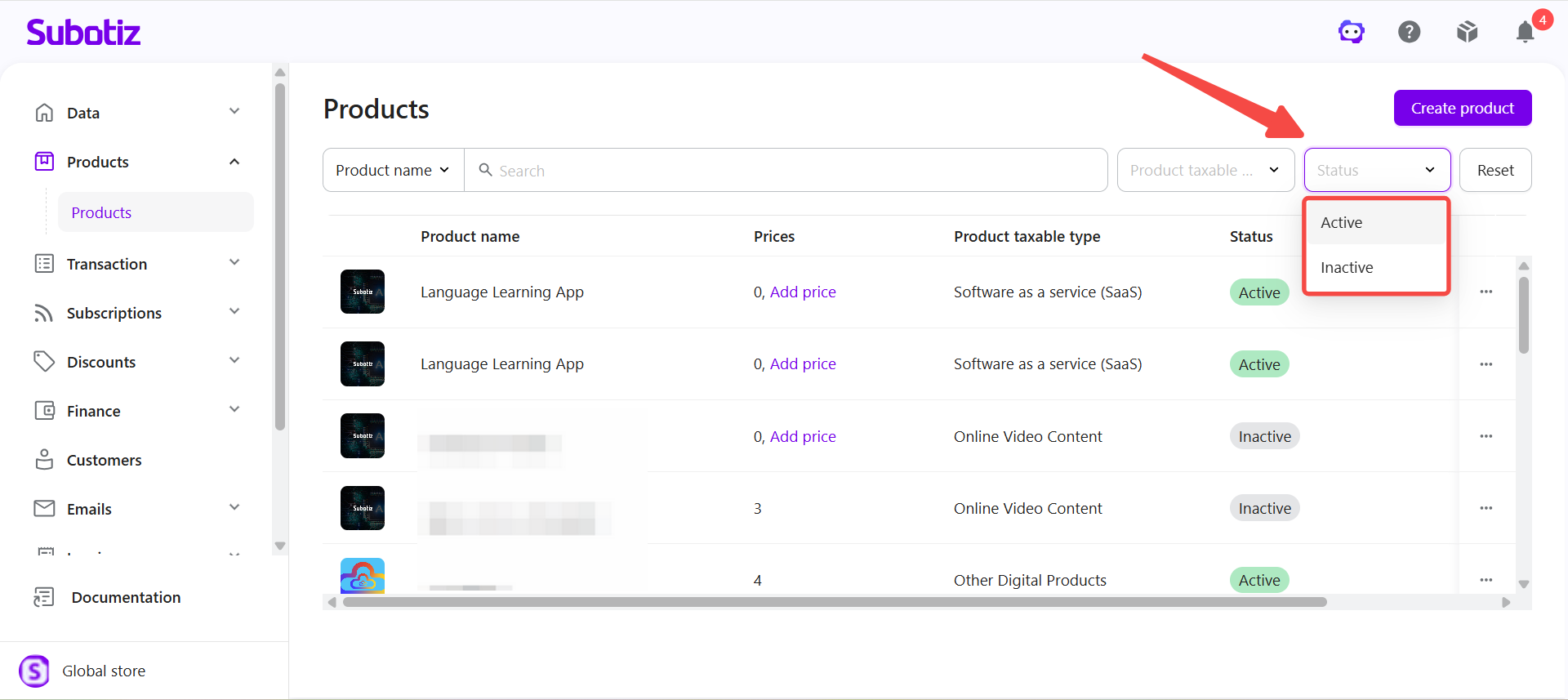
- Filter by status: Click Status and select Active or Inactive.
- Reset filters: Click Reset to clear the current search and filter criteria and restore the product list.
Viewing Product Details
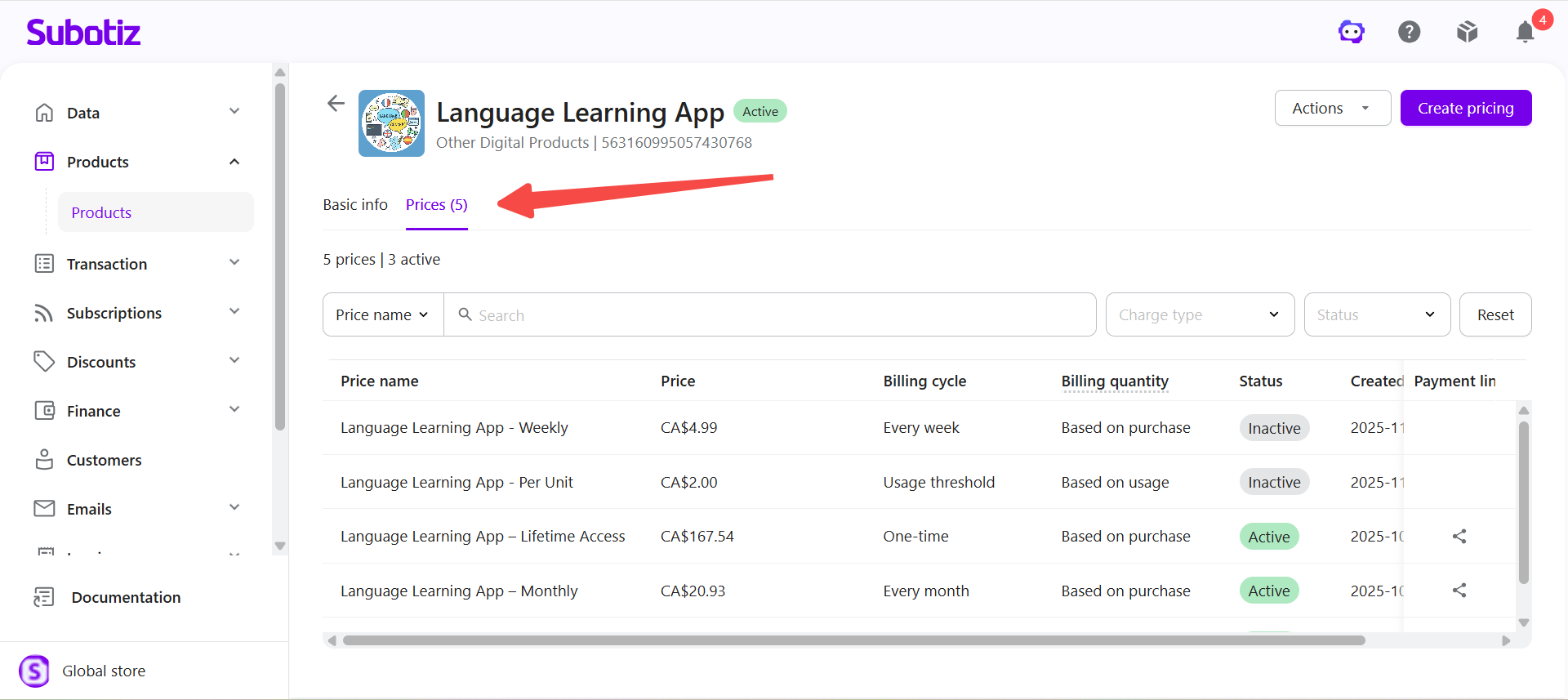
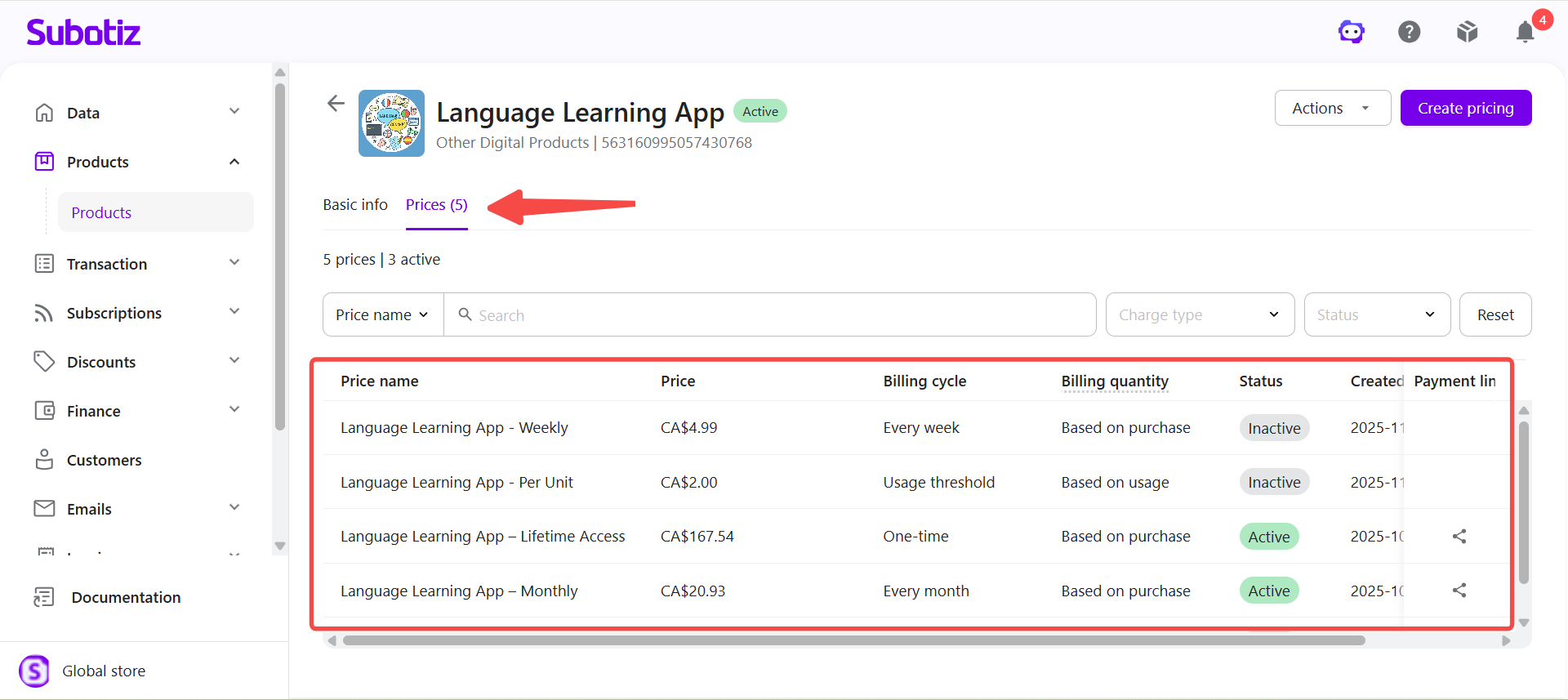
- Open a product: On the Products page, locate the product to view and click it to open the product detail page. The page opens on the Prices tab, where you can view the prices associated with the product.
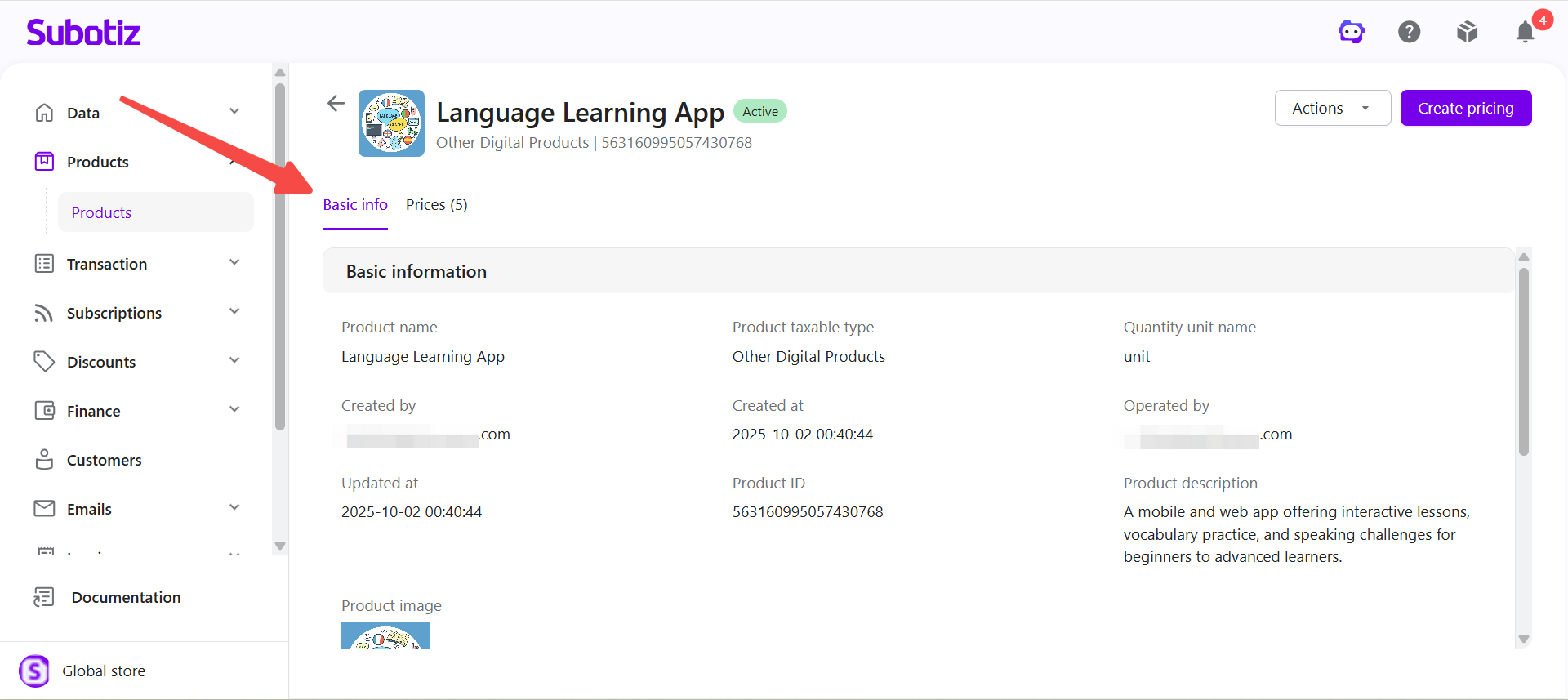
- View product information: Click the Basic info tab to view the Product name, Product taxable type, Product image, Product description, Quantity unit name, and Features.
Editing a Product
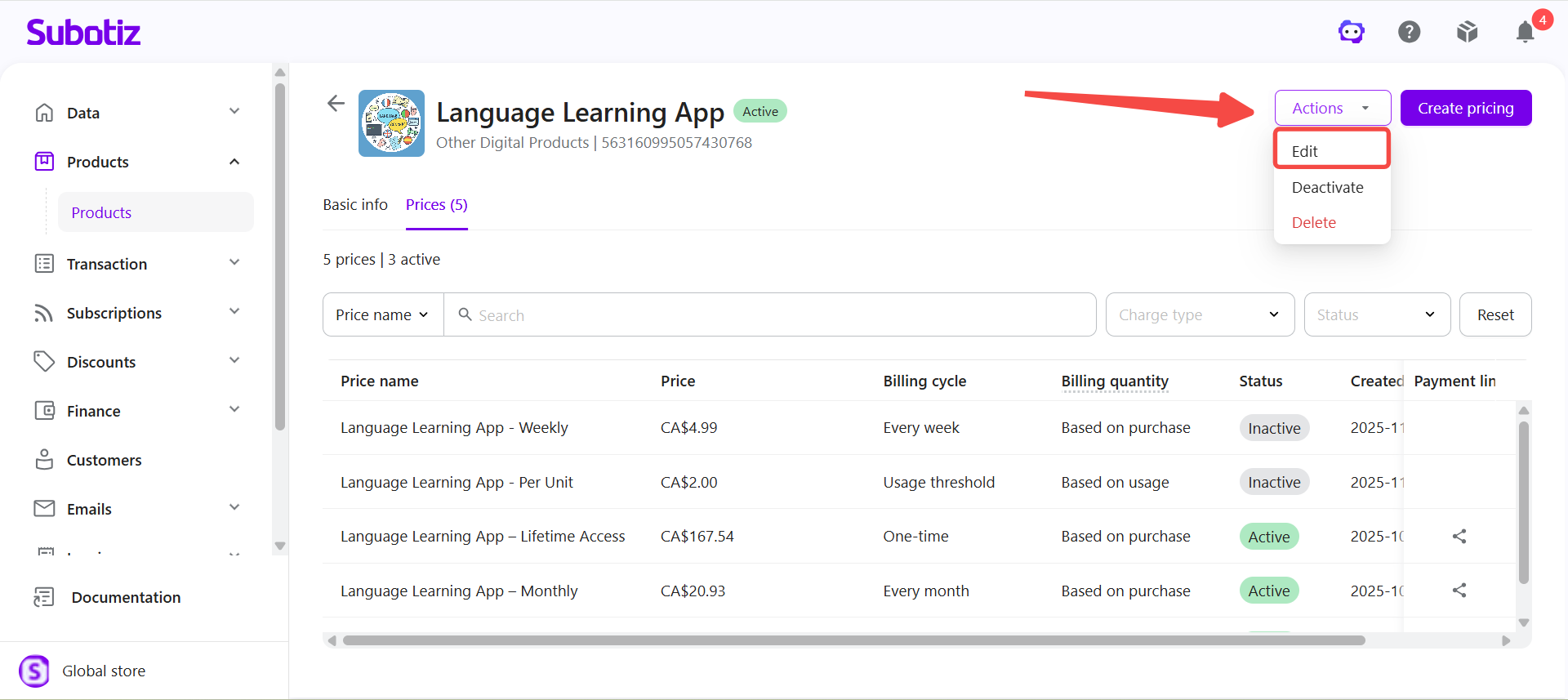
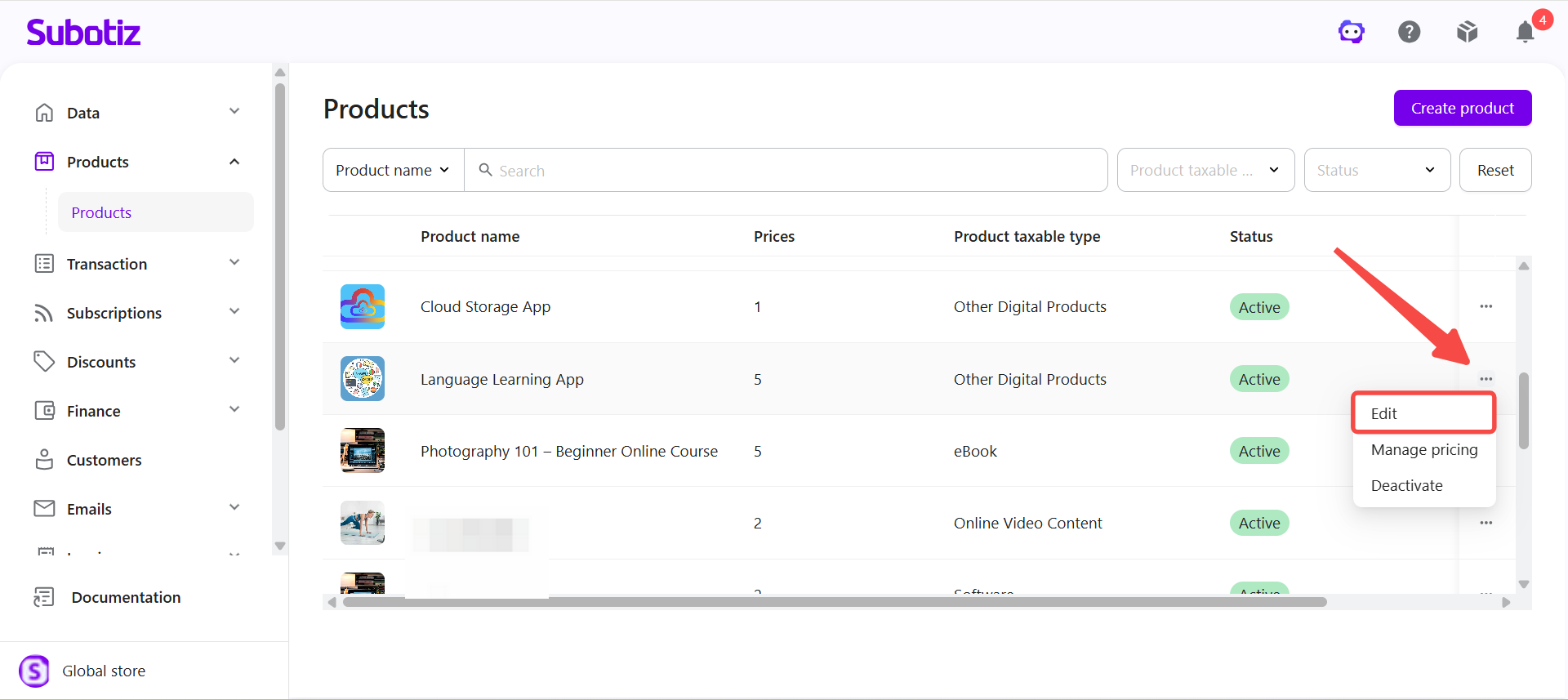
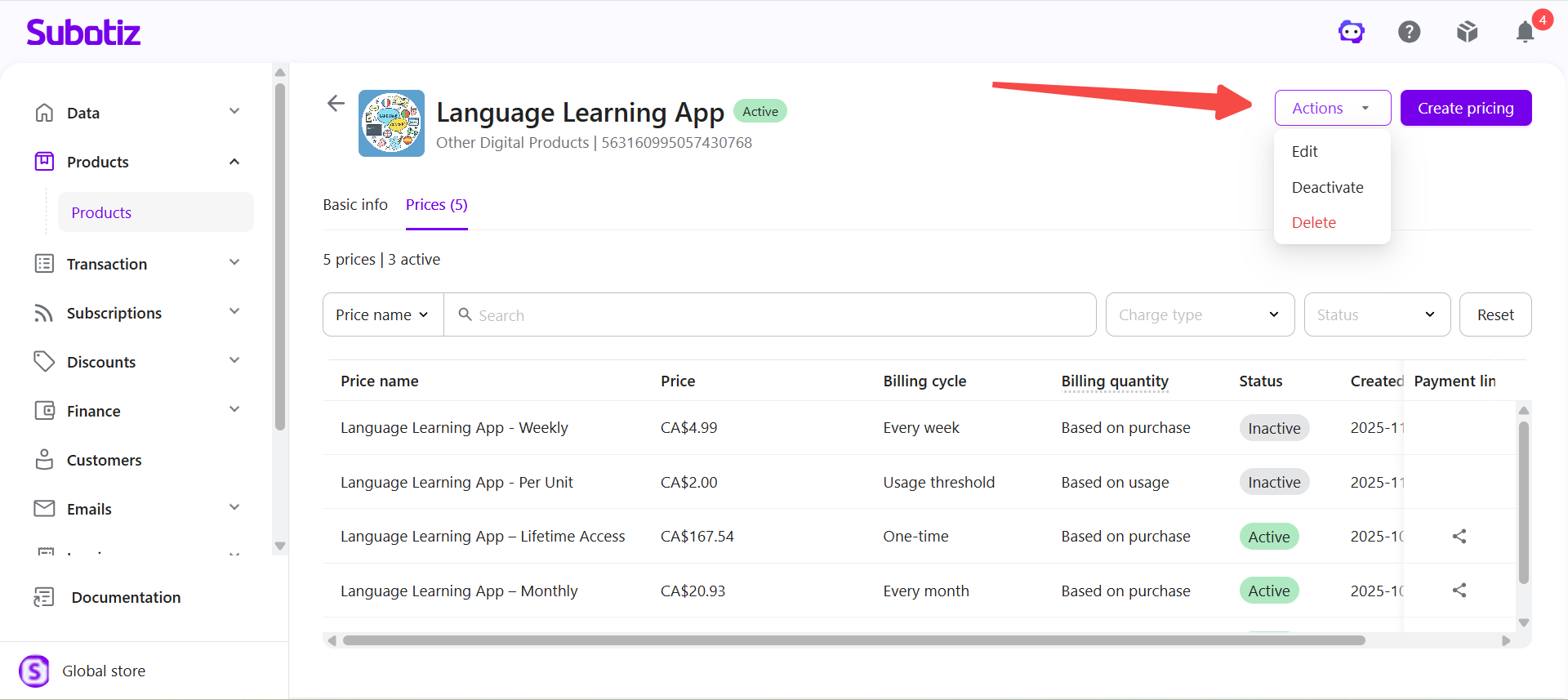
- Open the product edit page: On the product detail page, click Actions > Edit. Alternatively, on the Products page, click ... to the right of the product and select Edit.
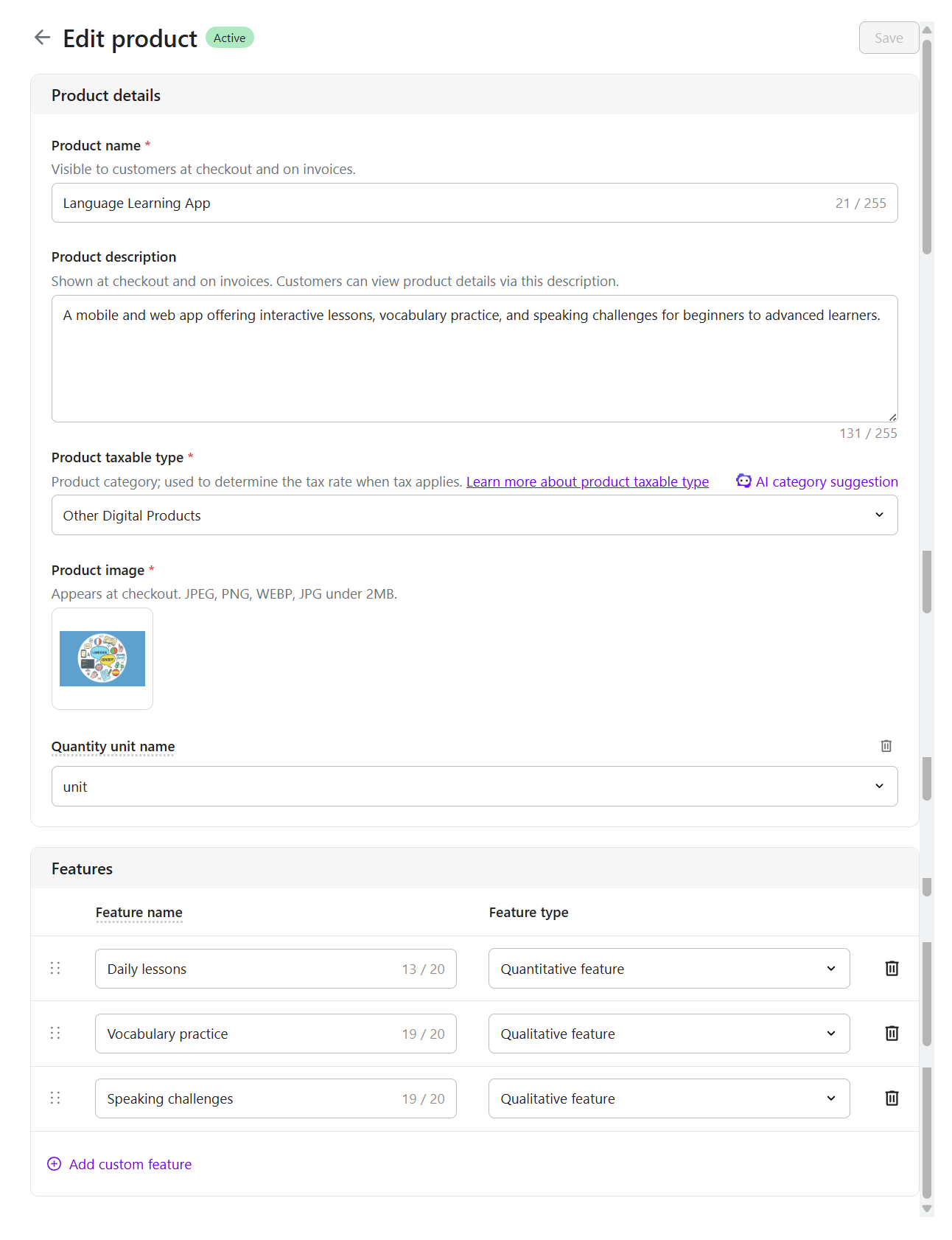
- Update product information: Modify the Product name, Product description, Product taxable type, Product image, Quantity unit name, or Features based on business needs.
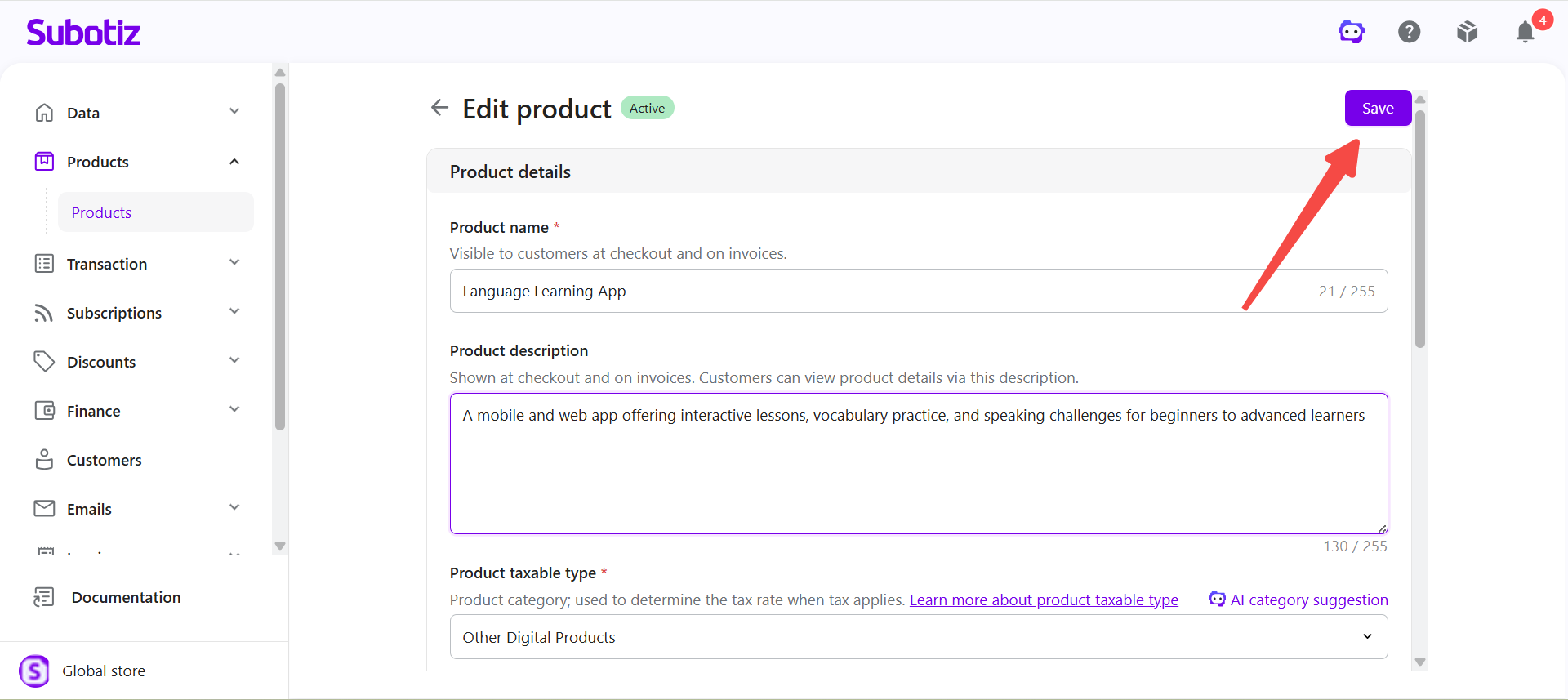
- Save changes: Click Save.
Activating a Product
Inactive products can be reactivated based on business needs.
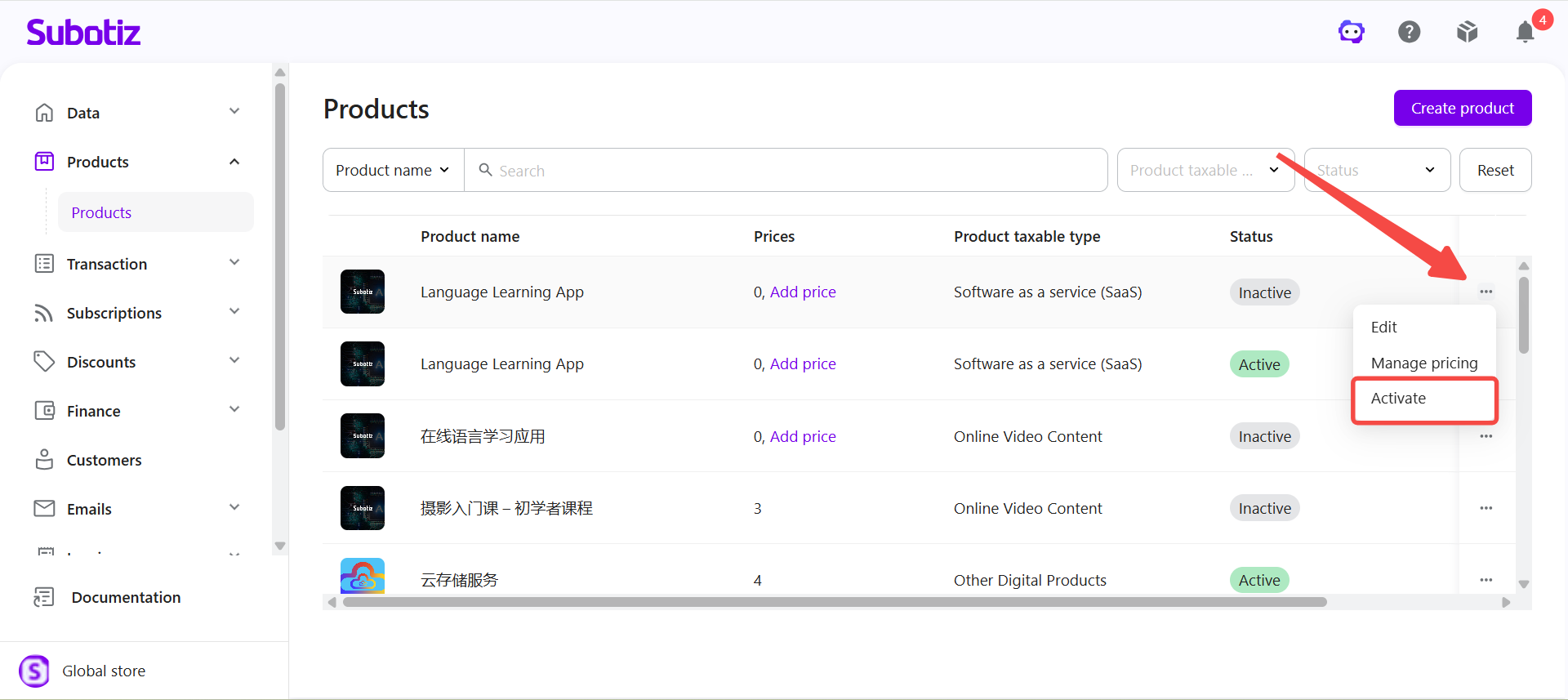
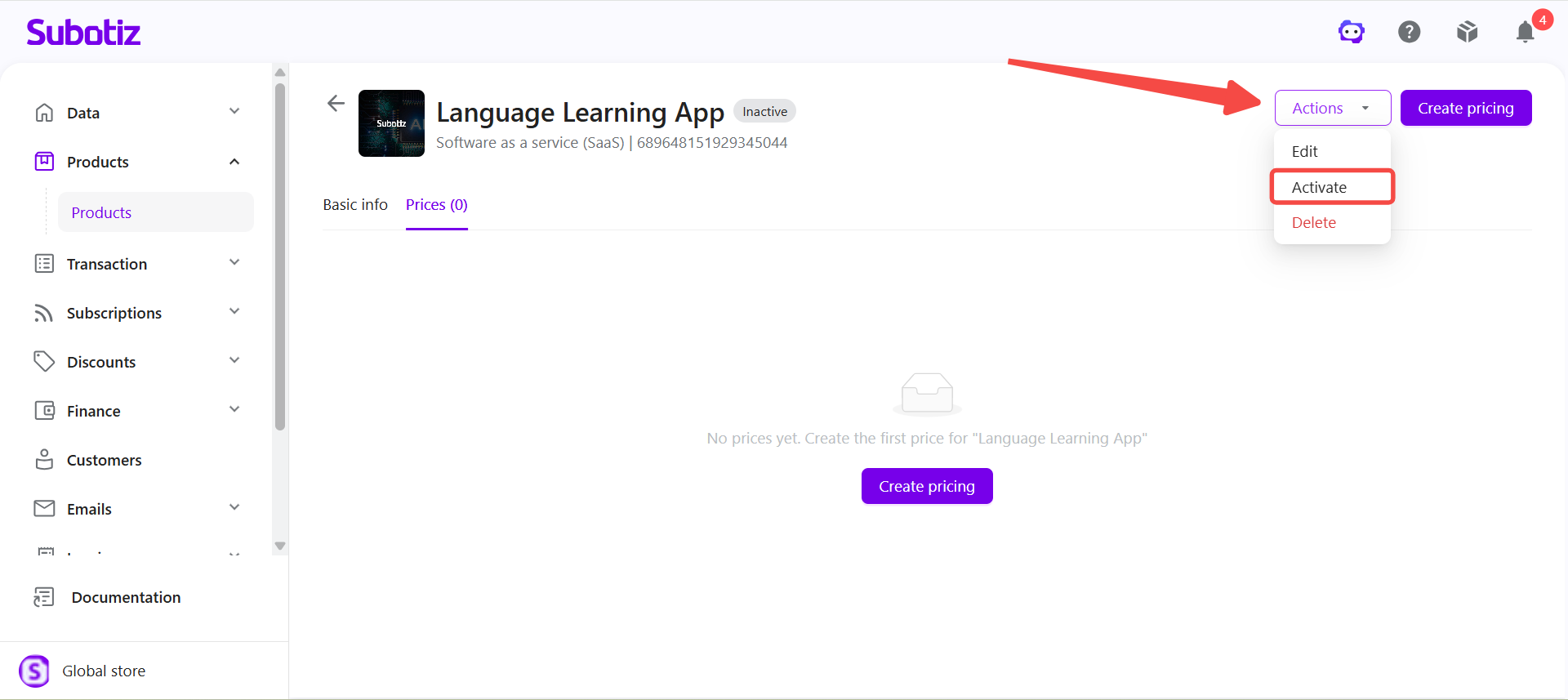
- Activate the product: On the Products page, locate the product, click ... to the right, and select Activate. Alternatively, open the product detail page and click Actions > Activate. The product is activated immediately and its status changes to Active.
Note: Whether a product can be used for new sales and checkout flows also depends on the status of its associated prices. A price can be used for new sales and checkout flows only when both the product and the associated price are Active.
Deactivating a Product
Deactivate a product when it is no longer needed for new sales and checkout flows. Deactivating a product also deactivates its associated prices, making the product and its prices unavailable for new sales and checkout flows.
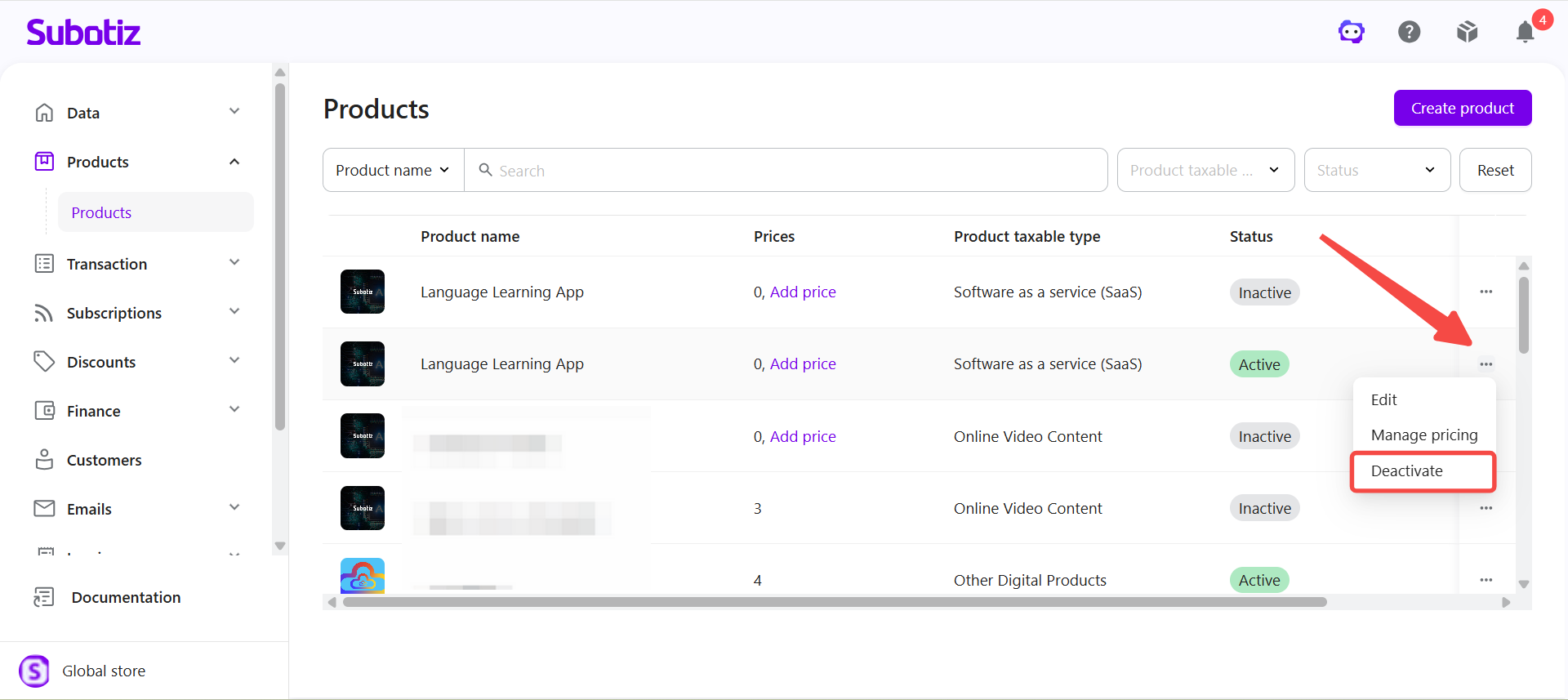
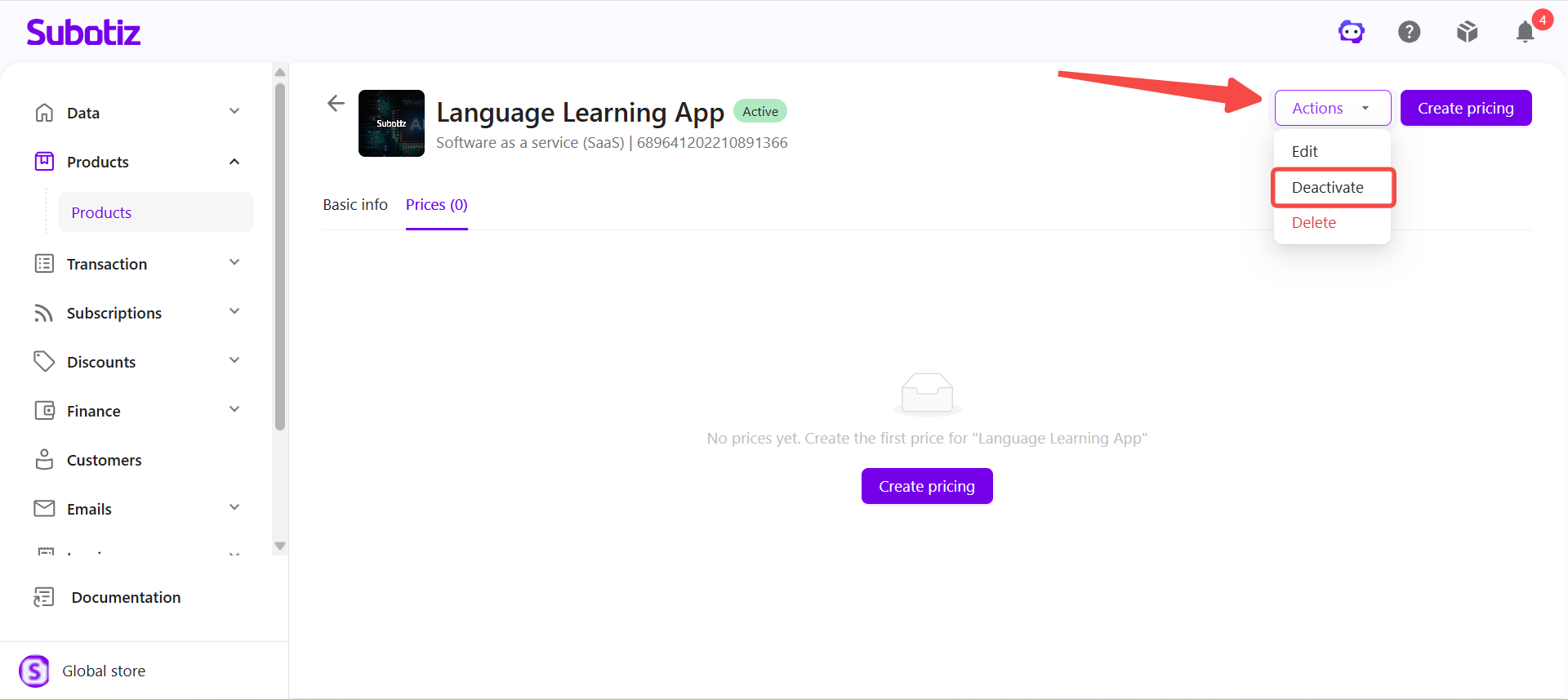
- Deactivate the product: On the Products page, locate the product, click ... to the right, and select Deactivate. Alternatively, open the product detail page and click Actions > Deactivate.
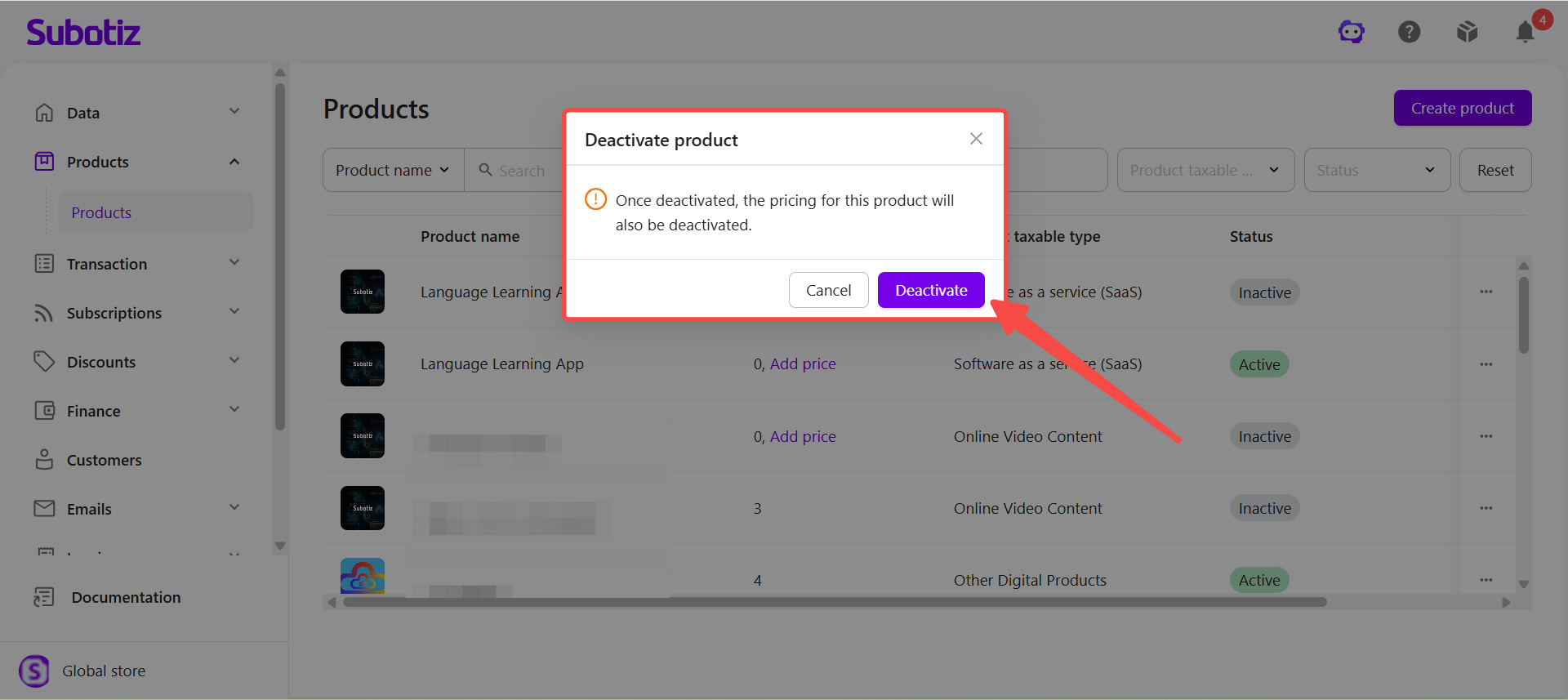
- Confirm deactivation: Review the impact in the Deactivate product dialog, then click Deactivate.
Note: Deactivating a product does not delete historical transaction data or affect existing subscriptions. Existing subscriptions continue to renew based on their original configuration.
Managing Associated Prices
All prices associated with a product can be viewed and managed from the product detail page.
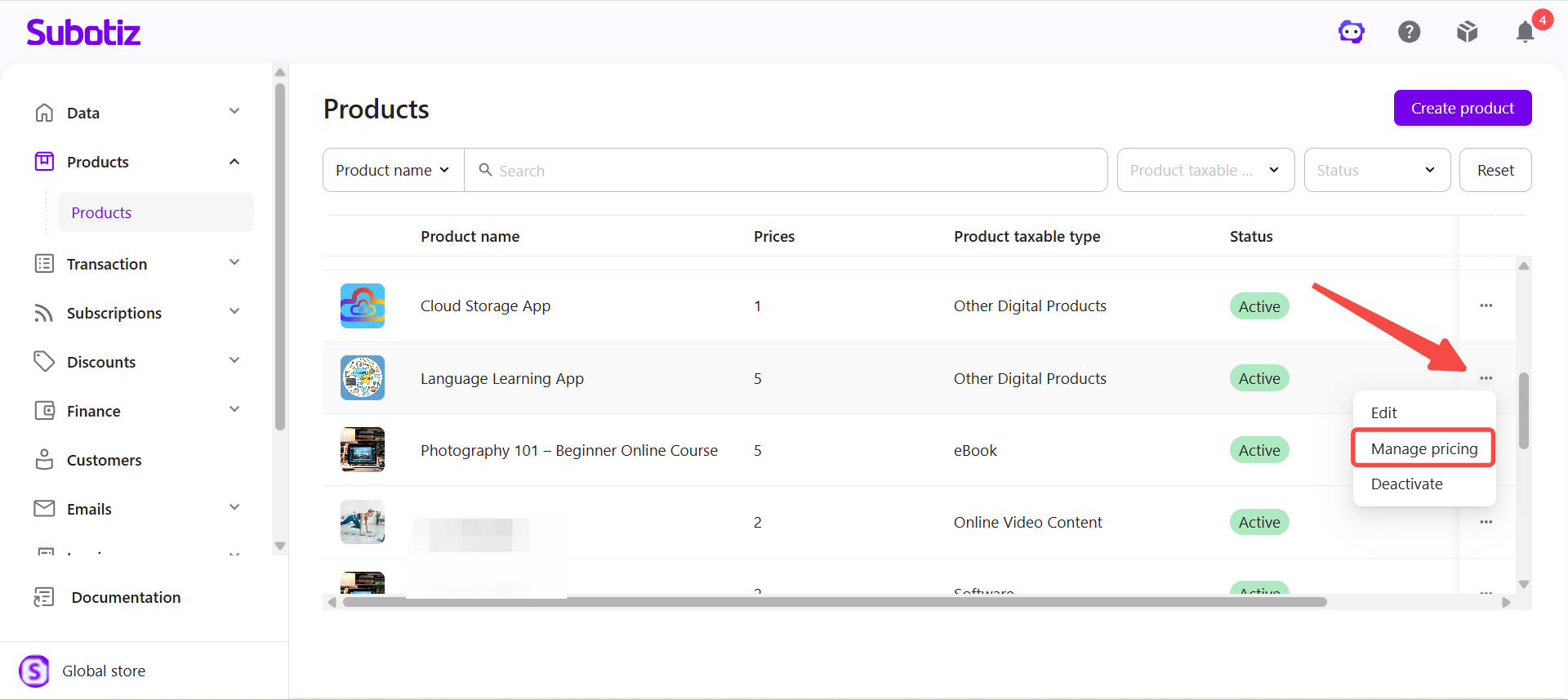
- Open Prices: On the Products page, locate the product, click ... to the right, and select Manage pricing.
- View prices: Review the Price name, Price, Billing cycle, Billing quantity, Status, Created at, and Payment link for the prices associated with the product.
- Manage prices: Create or manage prices associated with the product based on business needs. For details about searching, filtering, editing, and managing price status, see Products|Viewing and Managing Existing Pricing Plans.
Products in Subotiz can be managed from one centralized location, allowing merchants to update product information, manage product status, and review associated prices. Effective product and price status management helps ensure that only active products and prices are used for new sales and checkout flows.