The Products feature in Subotiz allows merchants to create and configure products, including the product name, product taxable type, quantity unit name, and features. After creating a product, merchants can add one or more prices to configure the amount, billing type, and billing cycle.
Note: A product defines what is being sold, while its associated prices define how customers are charged. For details about the relationship between products and prices, see Products|Products and Pricing.
Creating a Product
- Open Products: Log in to the Subotiz admin and go to Products > Products.
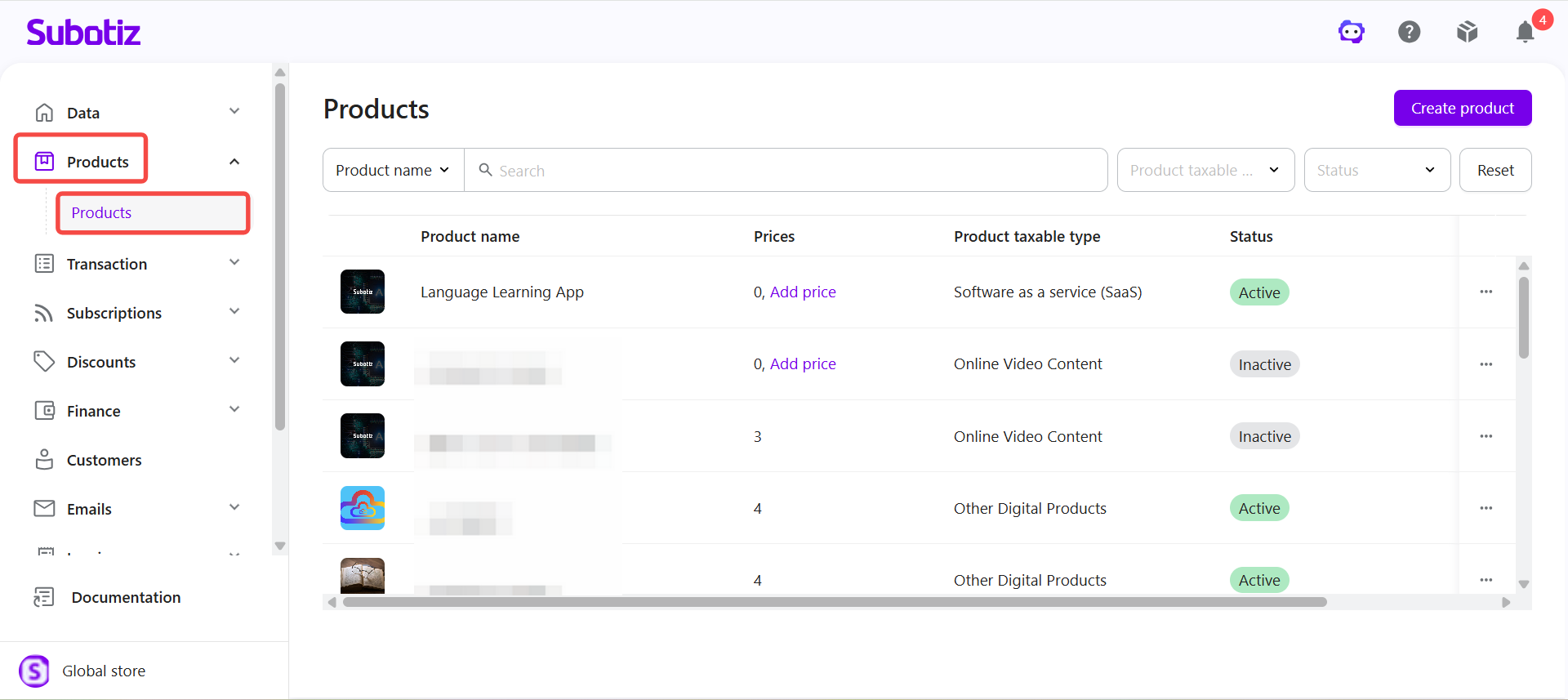
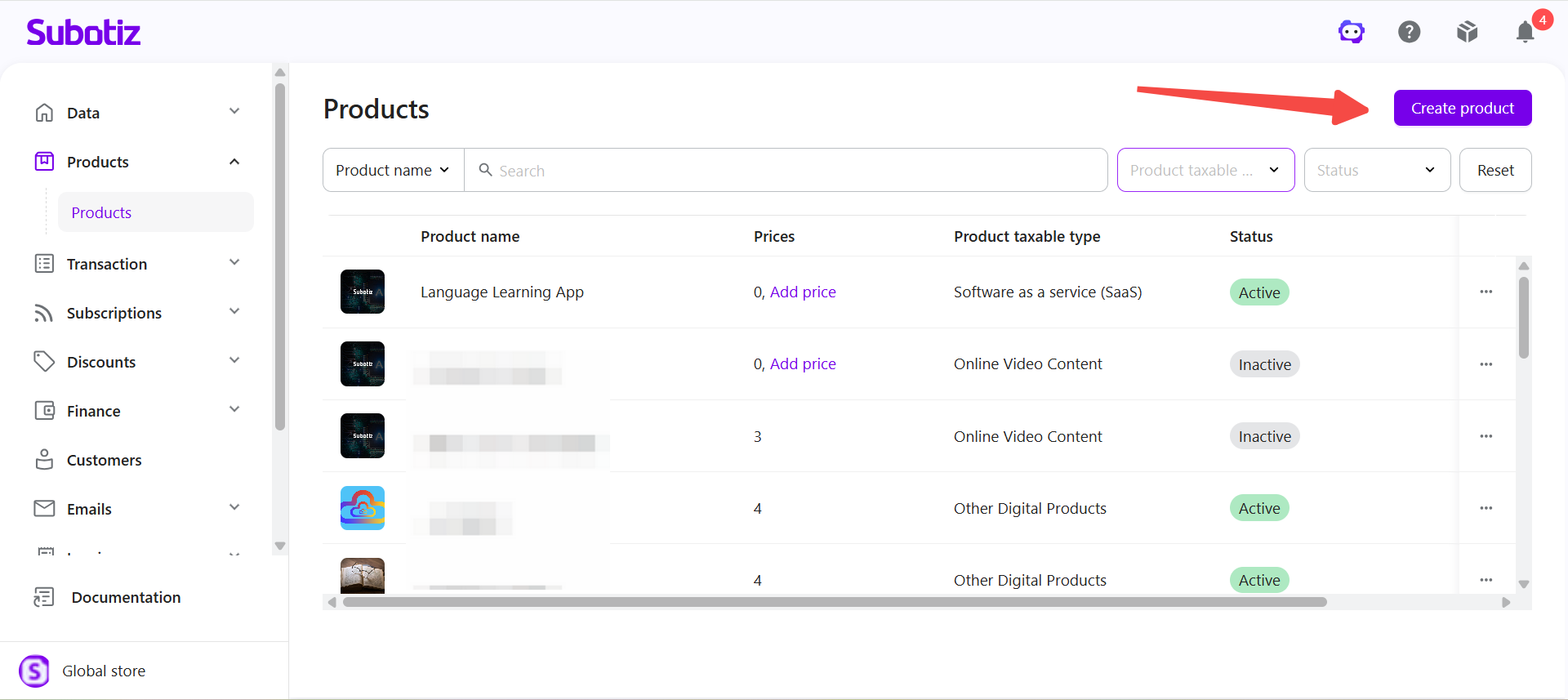
- Create a product: Click Create product in the upper-right corner.
-
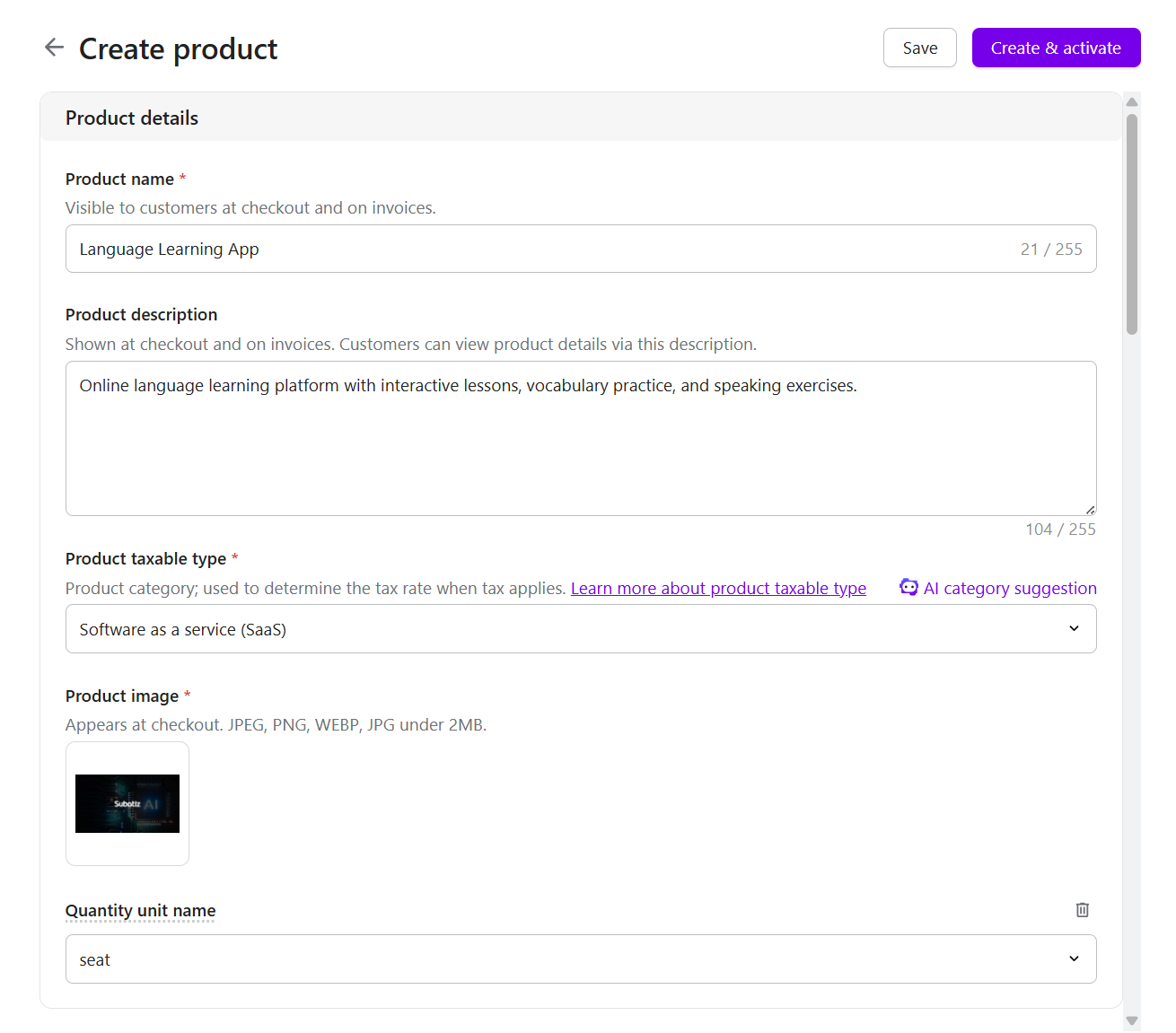
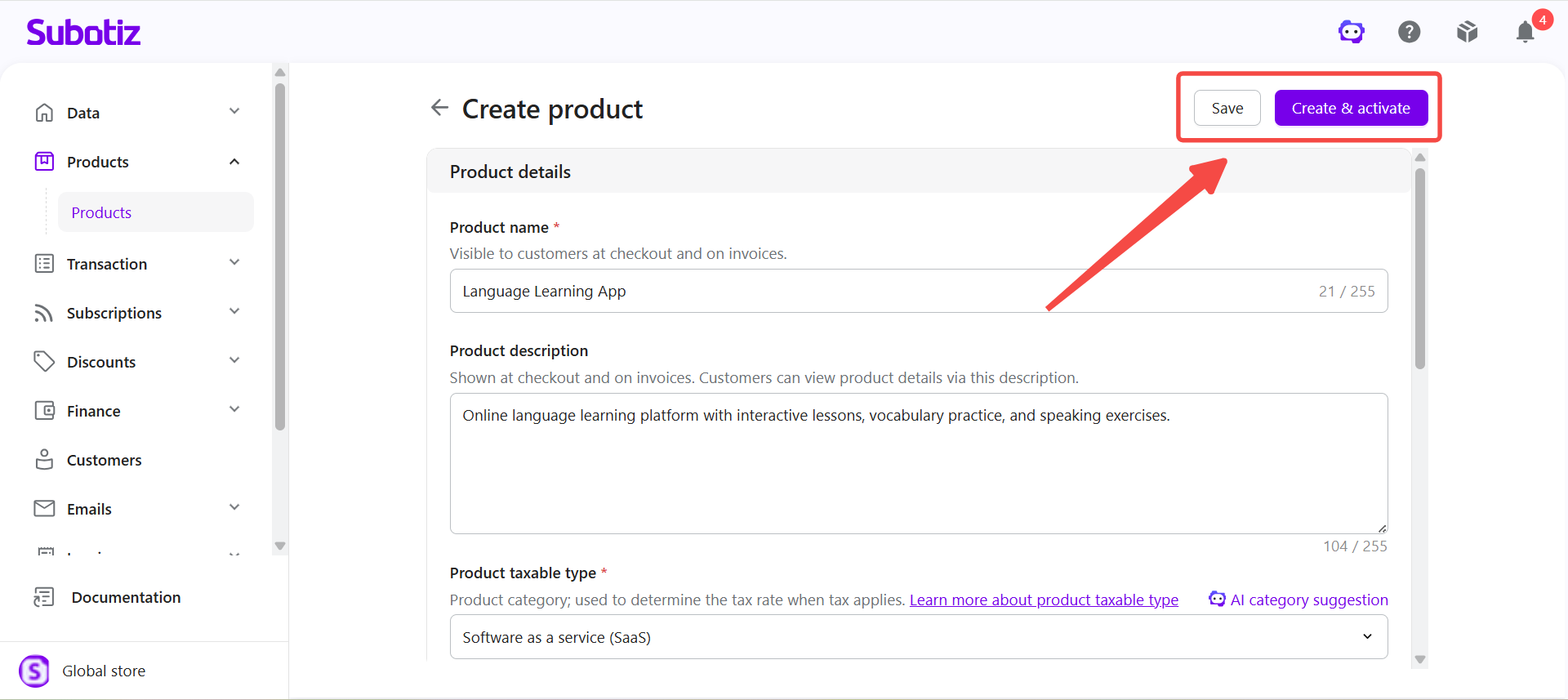
Enter product details: Configure the following fields based on the product or service you sell:
- Product name: Enter the customer-facing product name. The product name is displayed at checkout and on invoices.
- Product description: Enter a description of the product or service to help customers understand what they are purchasing. The description is displayed at checkout and on invoices.
- Product taxable type: Select the product category used to determine the applicable tax rate when tax applies. For details about available product taxable types and their applicable use cases, see Products|Understanding Product Types.
- Product image: Upload the product image displayed at checkout. Supported formats include JPEG, PNG, WEBP, and JPG. The file must be under 2 MB.
- Quantity unit name: Select the unit used to measure product quantity, such as unit, seat, token, call, image, GB, or credit. If the available options do not meet your needs, select Custom and enter a custom unit name.
Configuring Product Features
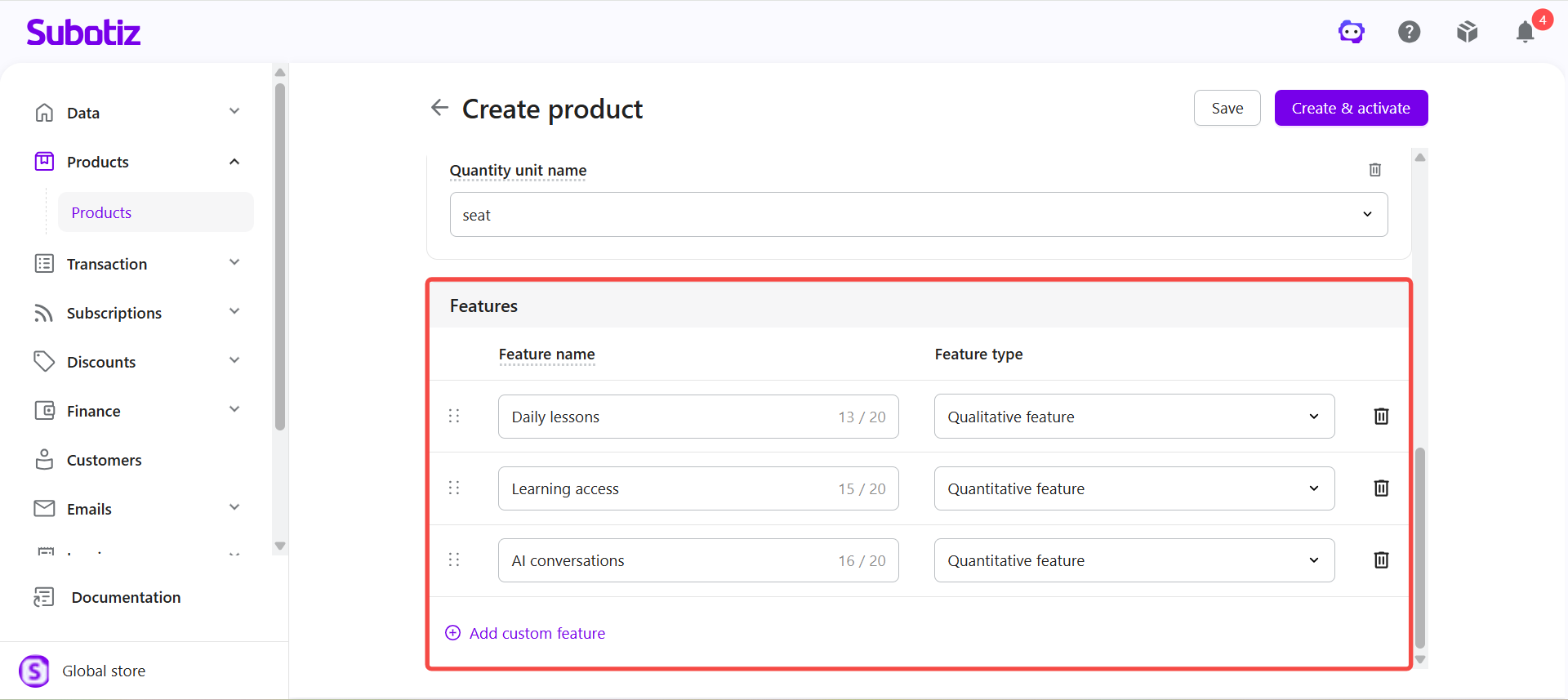
Product features define what customers receive after purchasing the product. Merchants can add Quantitative features or Qualitative features based on whether the feature is measured by quantity or provides access to a service or capability.
- Add a feature: On the Create product page, locate the Features section and click Add custom feature.
-
Select a feature type: Select the feature type based on how the feature is provided to customers.
- Quantitative feature: Use for features with a defined quantity or usage allowance. For example, API calls can be measured by the number of calls, while credits can be measured by the available credit balance.
- Qualitative feature: Use for features that provide access to a service or capability without being measured by quantity. For example, course access can provide access to specific online courses, while premium feature access can provide access to specific functionality.
- Add additional features: If the product includes multiple features, click Add custom feature again to configure each additional feature.
Saving or Activating a Product
After configuring the product details and features, save the product or activate it immediately based on your business needs.
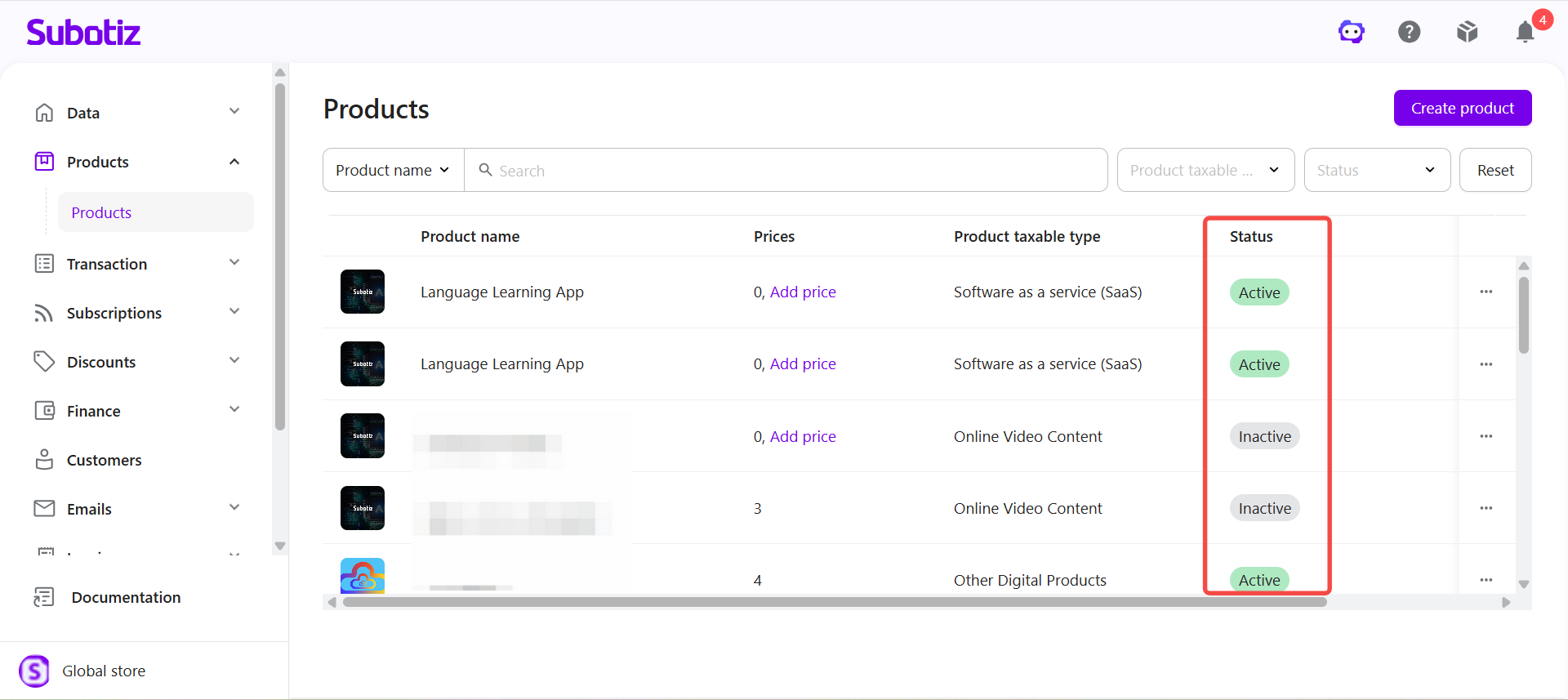
- Save a product: Click Save. The product is created with Inactive status and cannot be used for new sales or checkout flows.
- Create and activate a product: Click Create & activate to create the product and set its status to Active. After the product is created, you can add prices to configure how customers are charged.
Creating Prices for a Product
After creating a product, you can add prices to configure the amount, billing type, and billing cycle. A product can have multiple prices to support different billing options. A price can be used for new sales and checkout flows only when both the product and the associated price are Active.
For details about billing types, pricing models, and other pricing configuration options, see Products|Understanding Product Pricing.
Products define the goods or services merchants sell in Subotiz. By configuring product details and features, merchants can clearly define each offering and add one or more prices to support different billing options and sales scenarios.