The Multi-Platform Management feature in Subotiz allows merchants to create and manage multiple stores under a single account, enabling centralized store management, clear brand separation, and flexible ownership control. This feature is designed for businesses operating multiple brands, business lines, or partner-driven models, helping improve operational efficiency while maintaining data security.
Feature
With Multi-Platform Management, merchants can:
- Expand business structure: Create multiple independent stores under one account for different brands or business lines.
- Operate stores independently: Each store maintains its own products, payment settings, and data without interference.
- Manage access centrally: Use a single account to access and manage multiple stores without needing to log in multiple times.
- Transfer ownership: Assign store ownership to other users when needed, supporting partner and delegation scenarios.
Store Panel and Access
The store panel provides access to store switching, store management, and basic account settings.
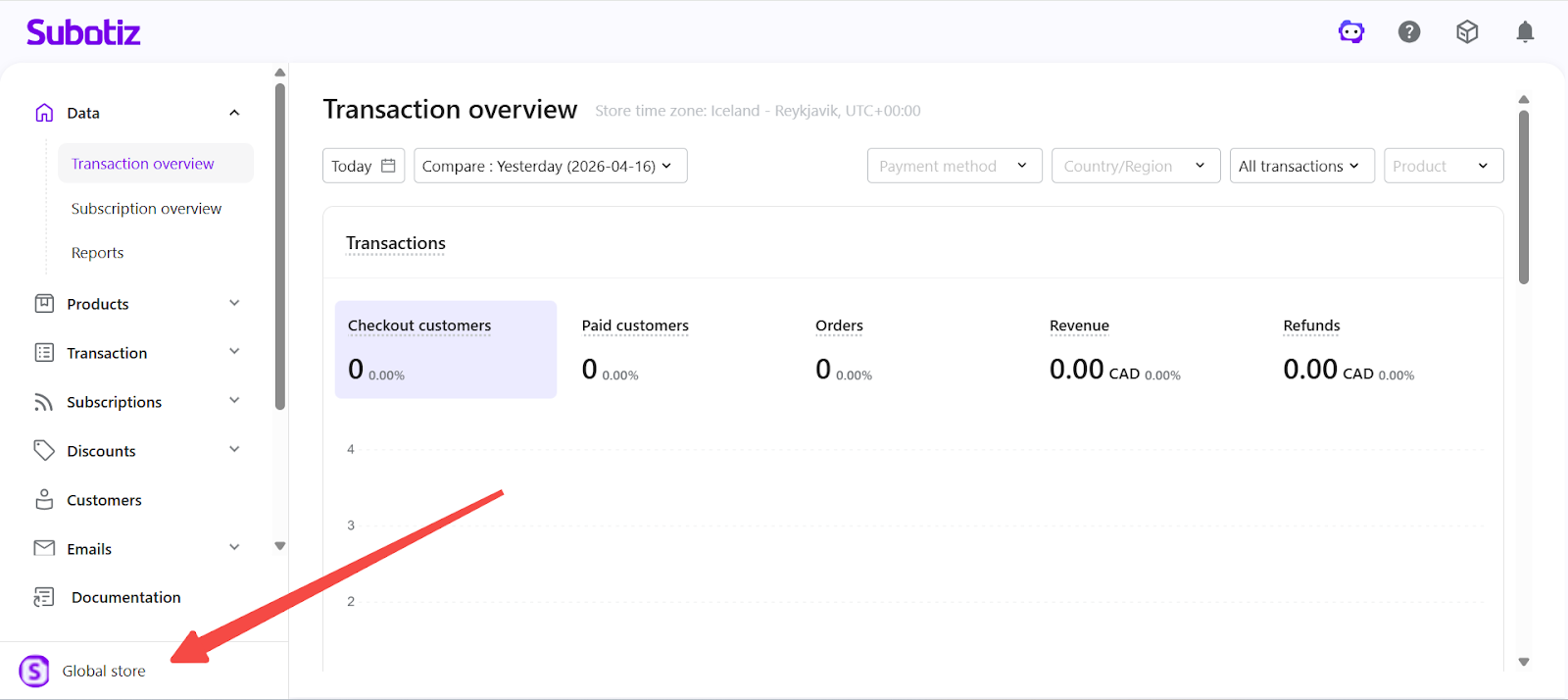
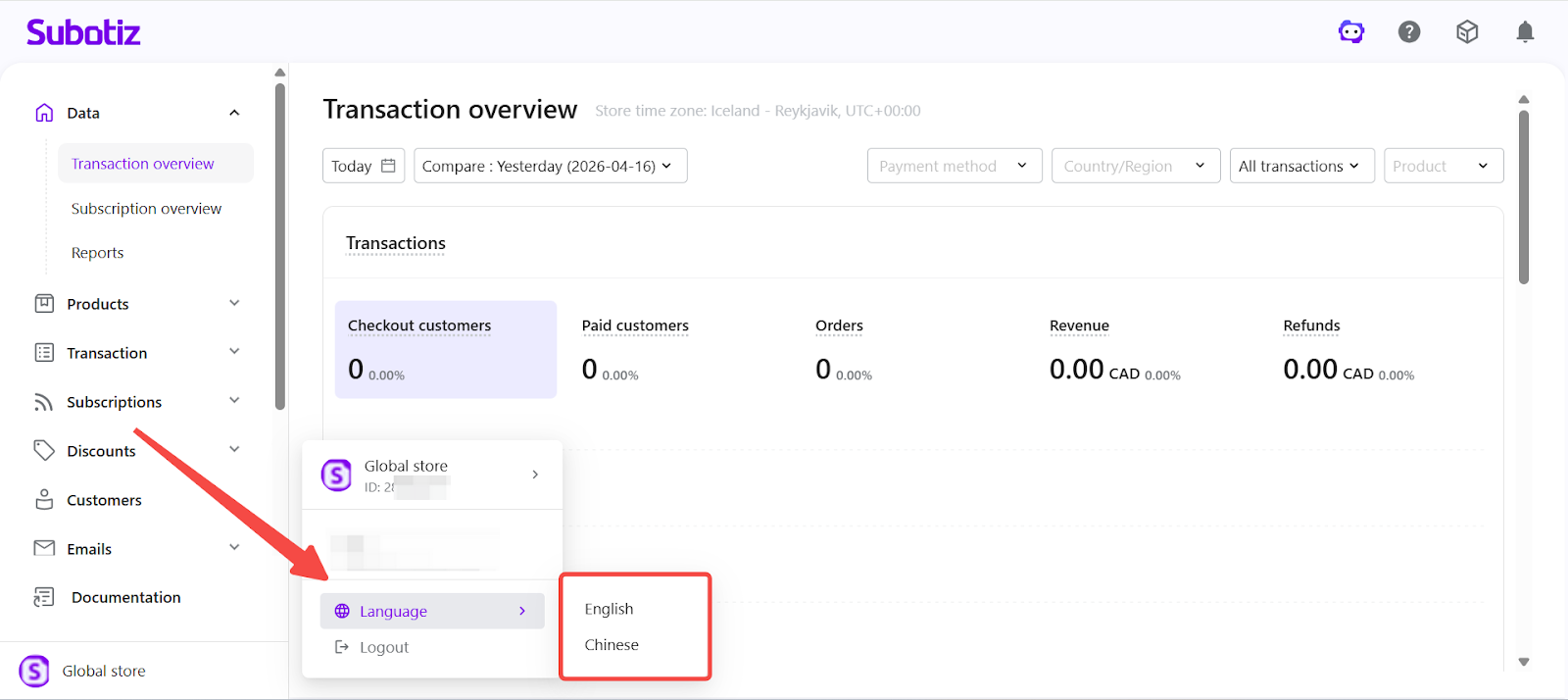
- Open the store panel: Click the current store name or logo in the bottom-left corner of the Subotiz admin.
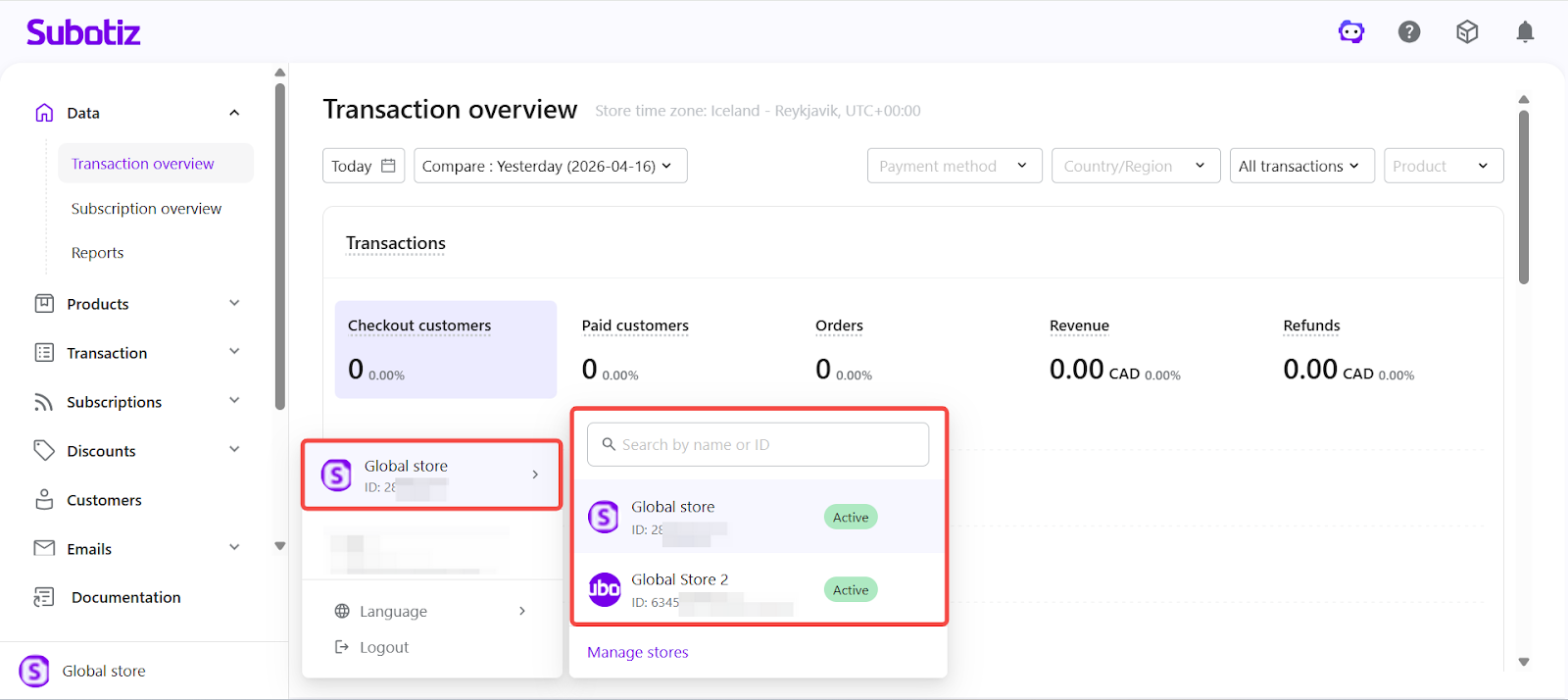
- View store list: View all stores associated with the current account.
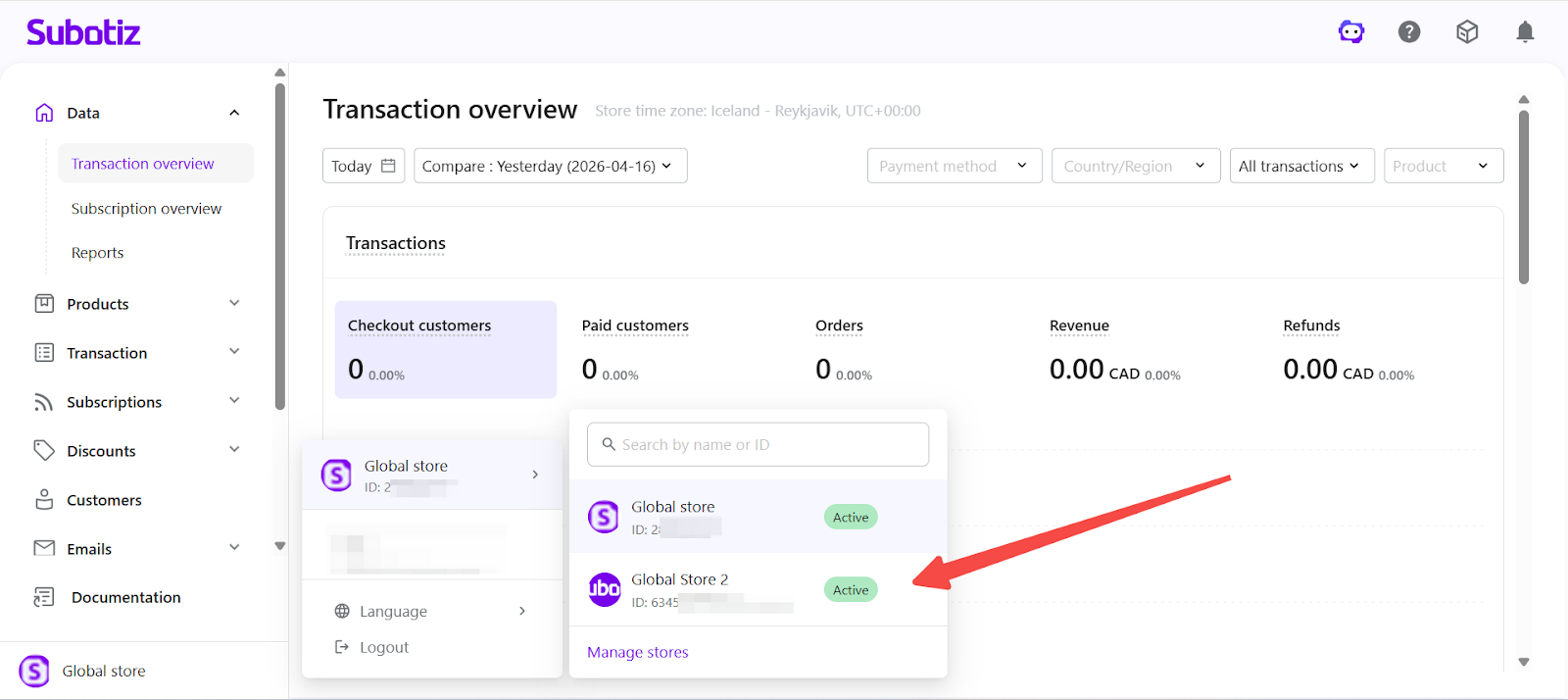
- Switch stores: Click a store from the list to open its admin dashboard.
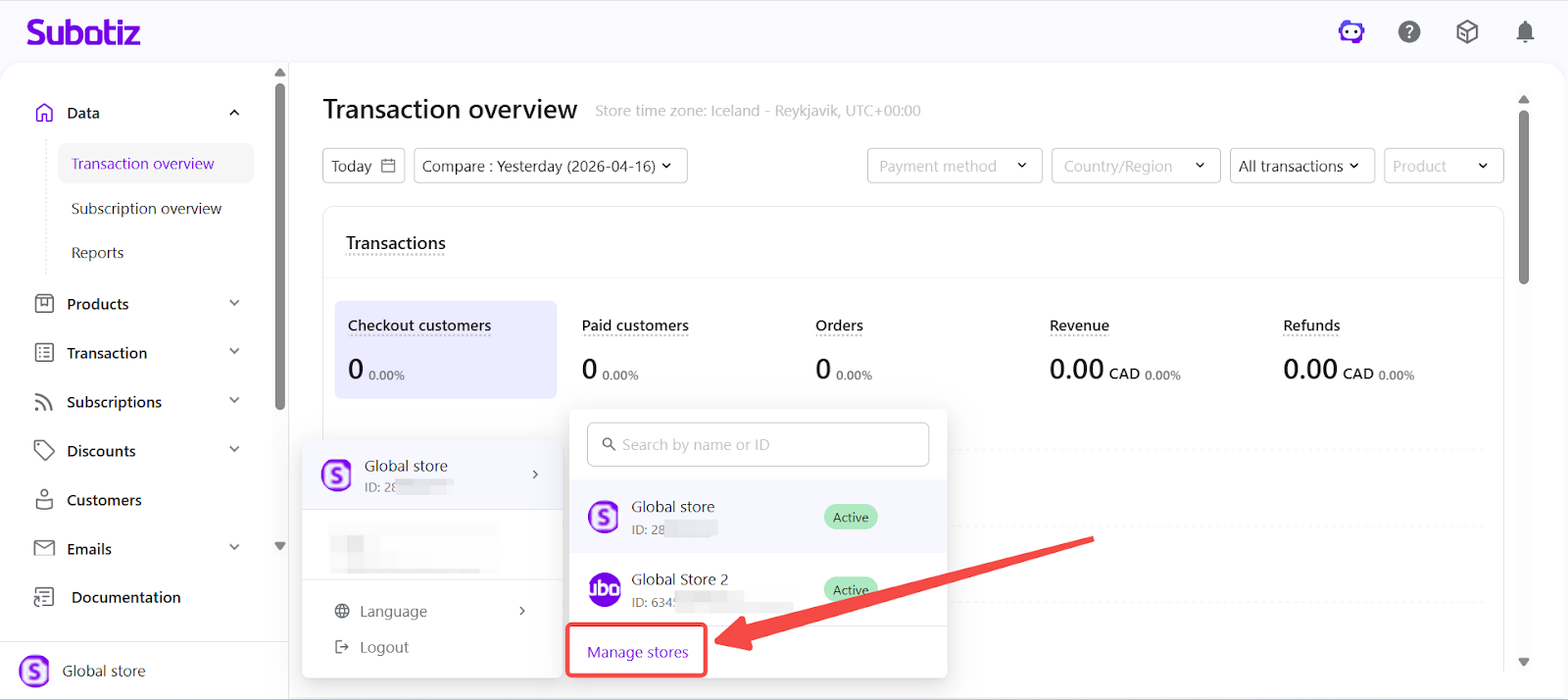
- Open store management: Click Manage stores to open the Store Management page in a new tab.
- Change admin language: Click Language and select English or Simplified Chinese. Language settings apply only to the admin interface and do not affect storefront content.
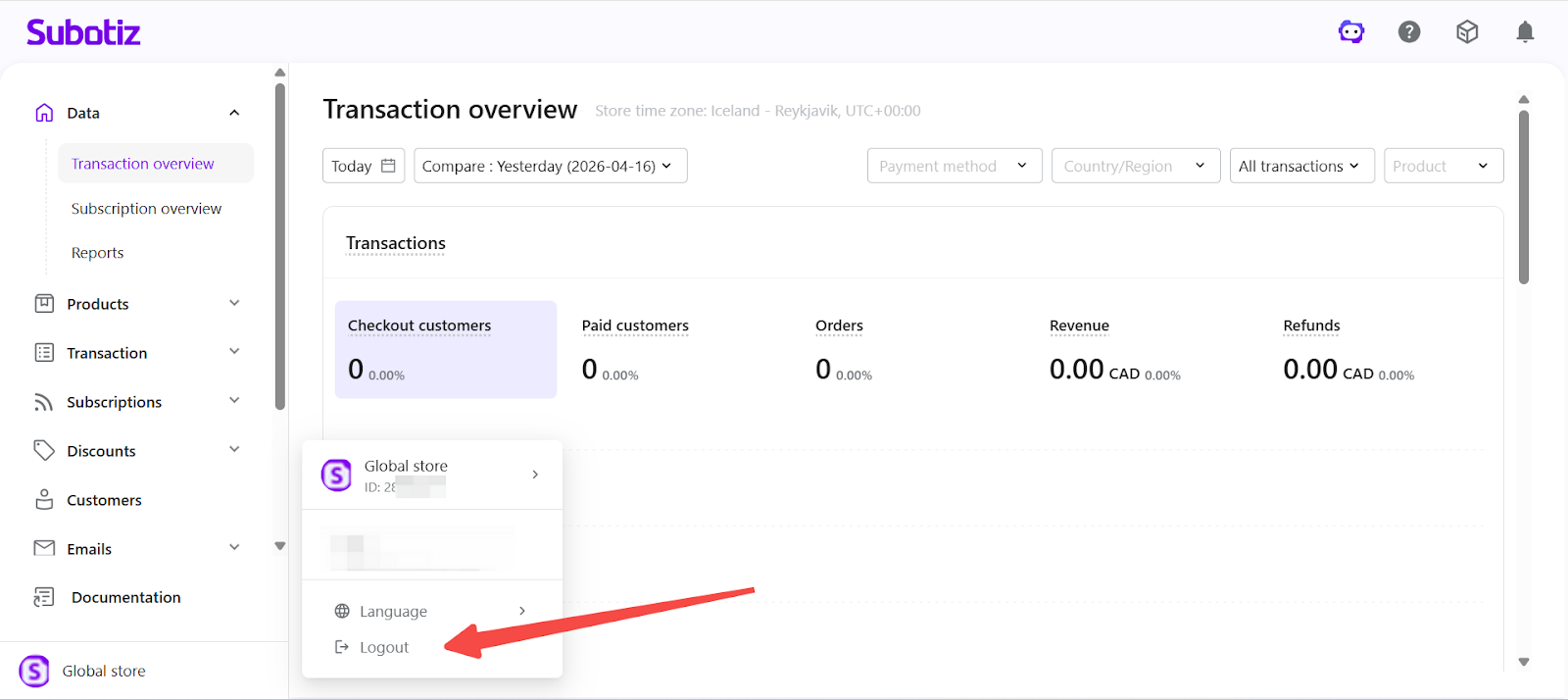
- Log out: Click Log out to sign out of the current account.
Store Management Page Overview
The Store Management page provides a centralized workspace to view and manage all stores.
- Overview
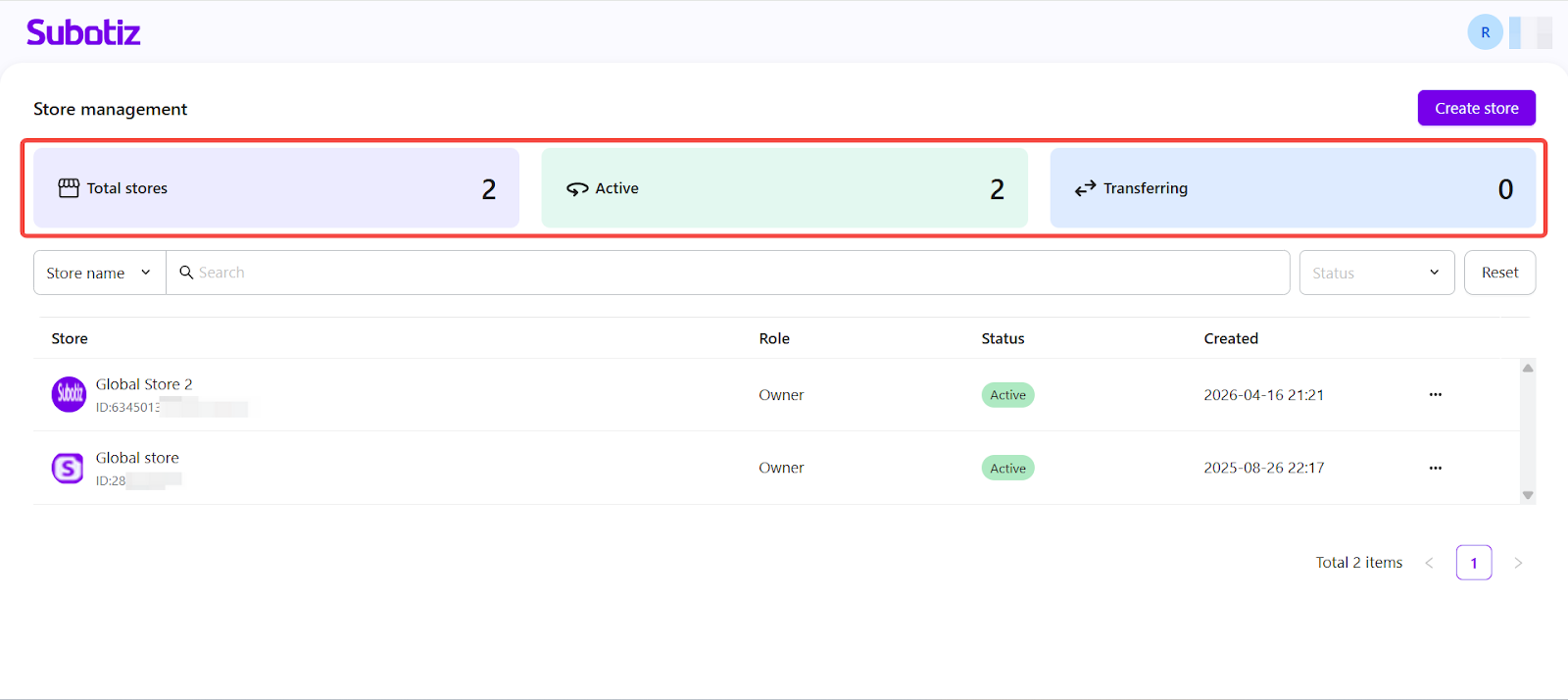
- View total stores: Displays the total number of stores accessible under the current account.
- View status distribution: Shows the number of stores by status (such as Active and Transferring).
Store List
- View store details: Includes store name, Store ID, role, status, and creation time.
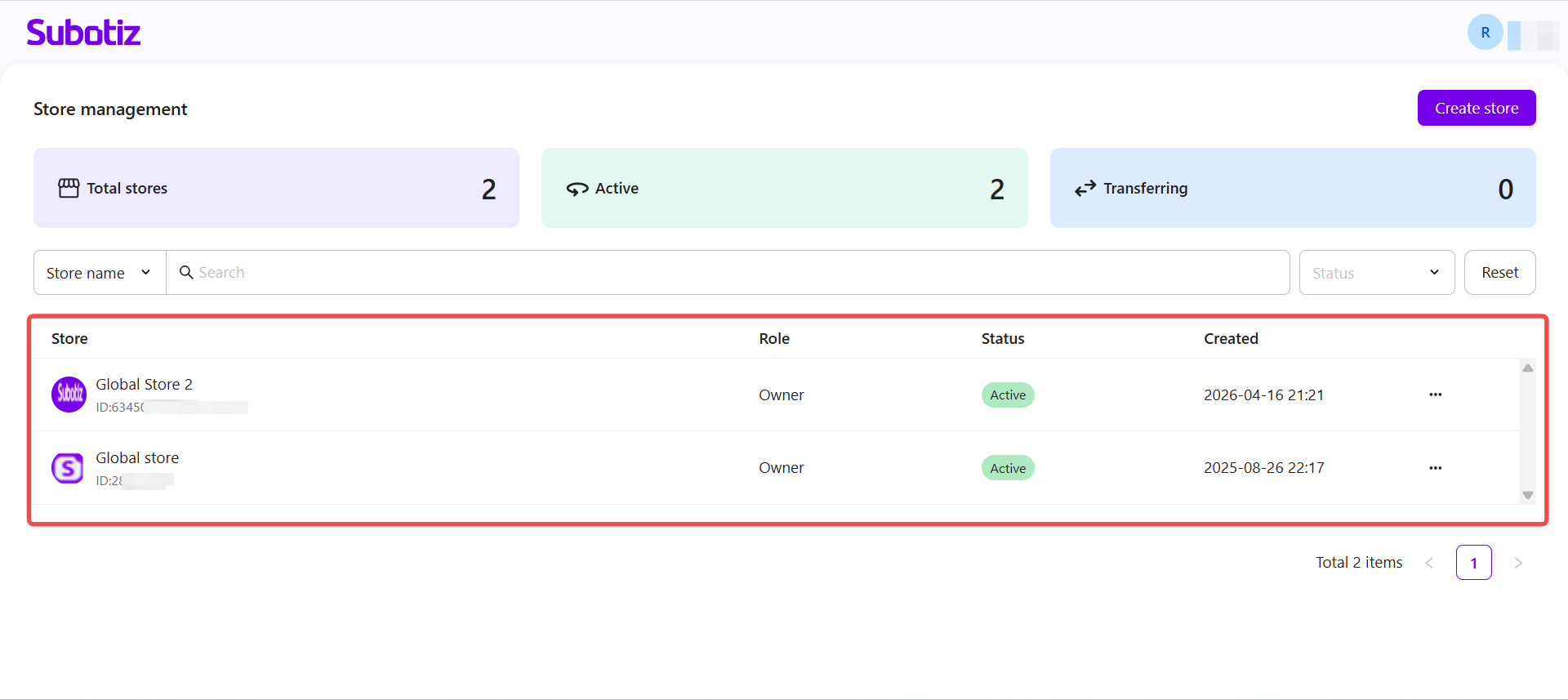
- Search stores: Enter a store name or Store ID in the search bar to quickly locate a store.
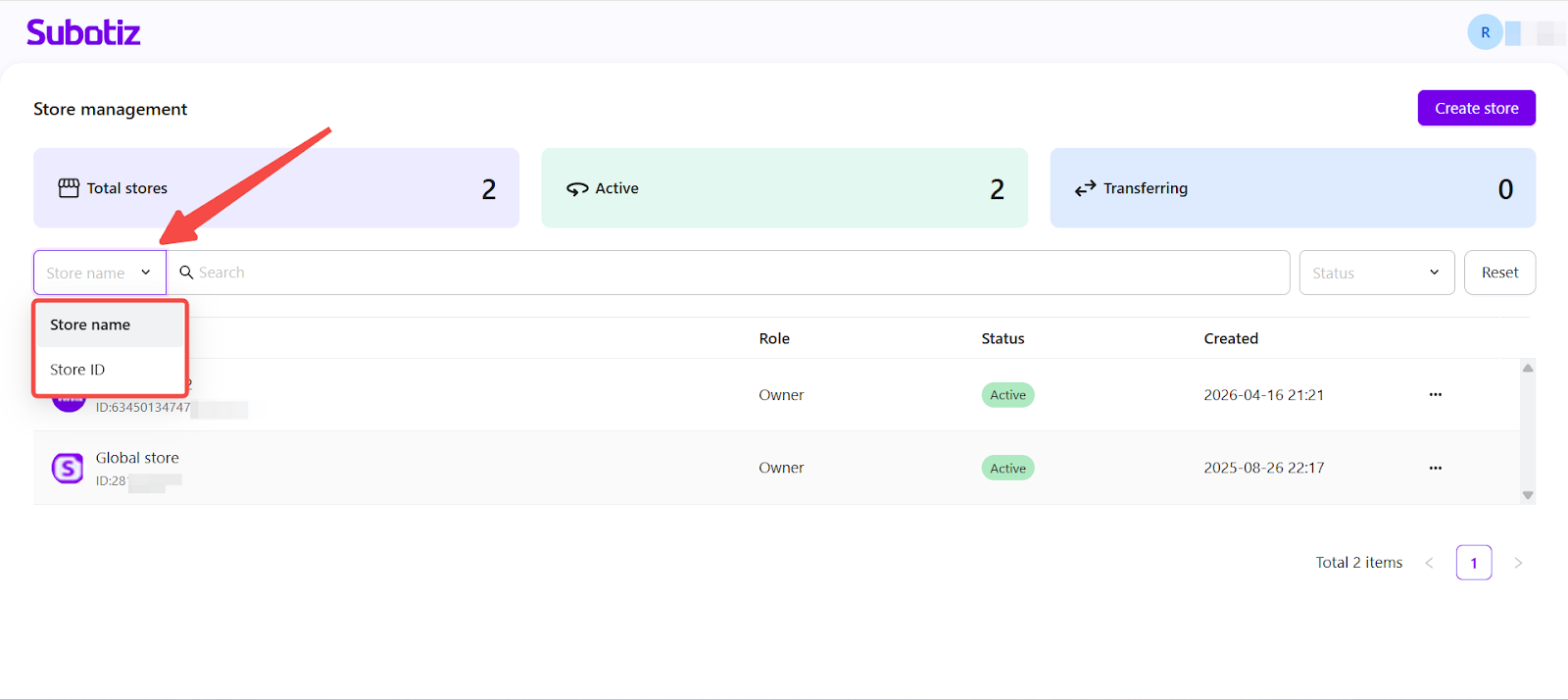
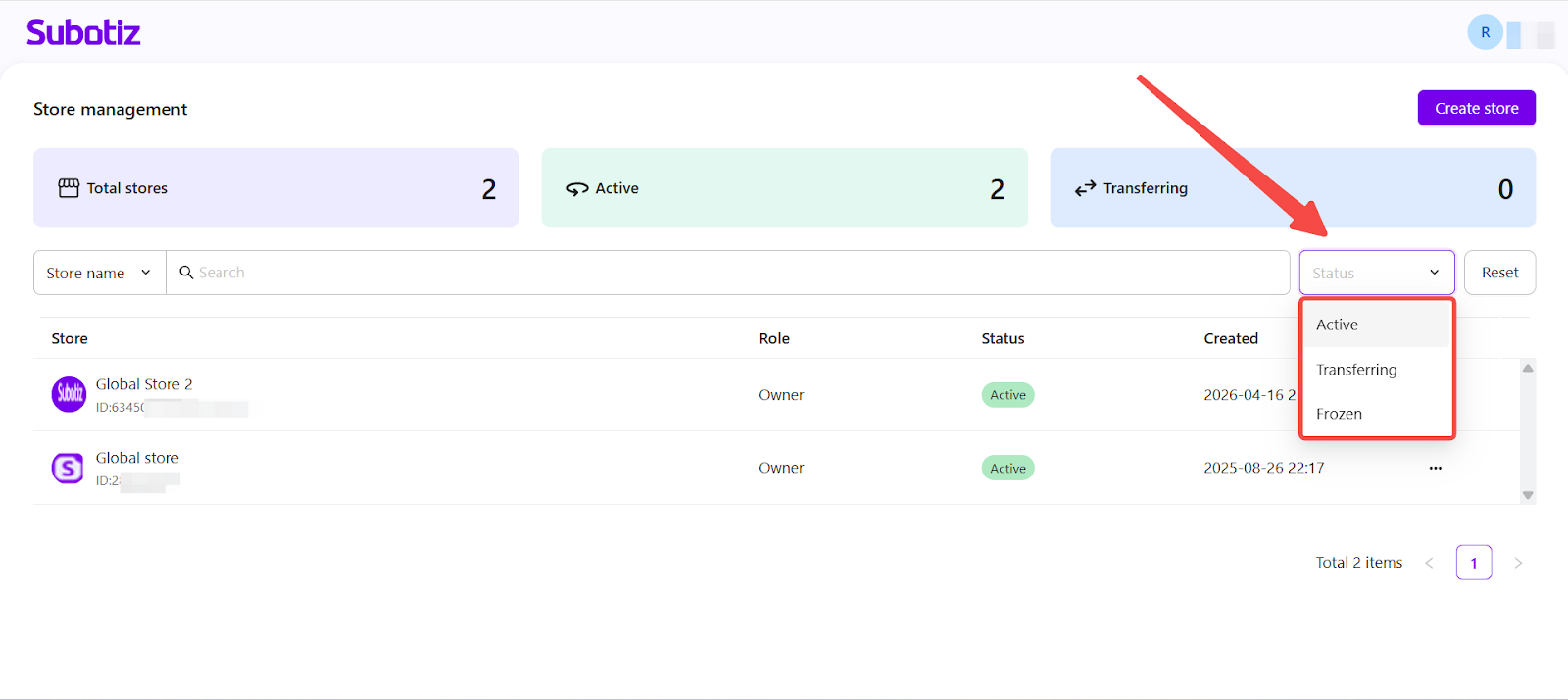
- Filter by status: Use the Status dropdown to filter stores by different states.
- Active: Store is fully operational.
- Transferring: Ownership transfer is in progress without affecting operations.
- Frozen: Only billing actions are available; all other sections are view-only.
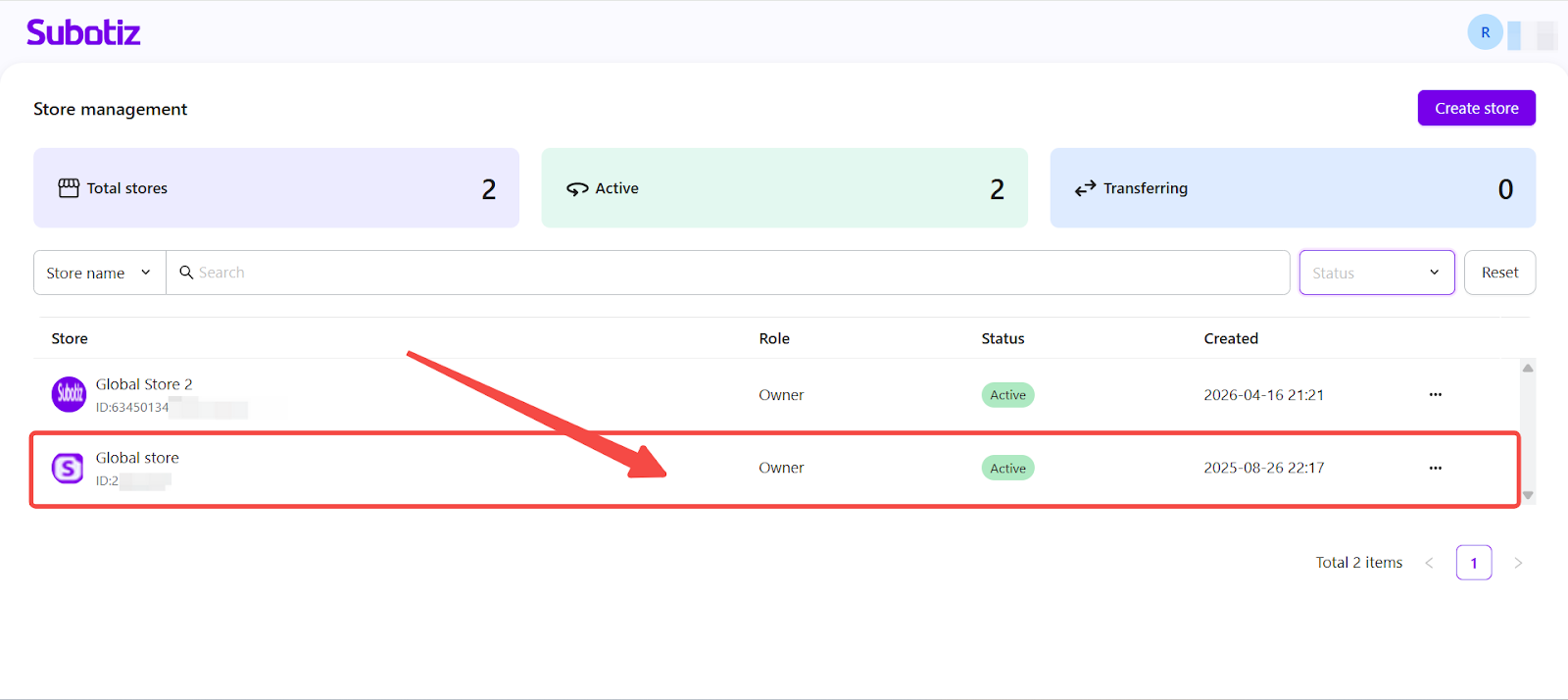
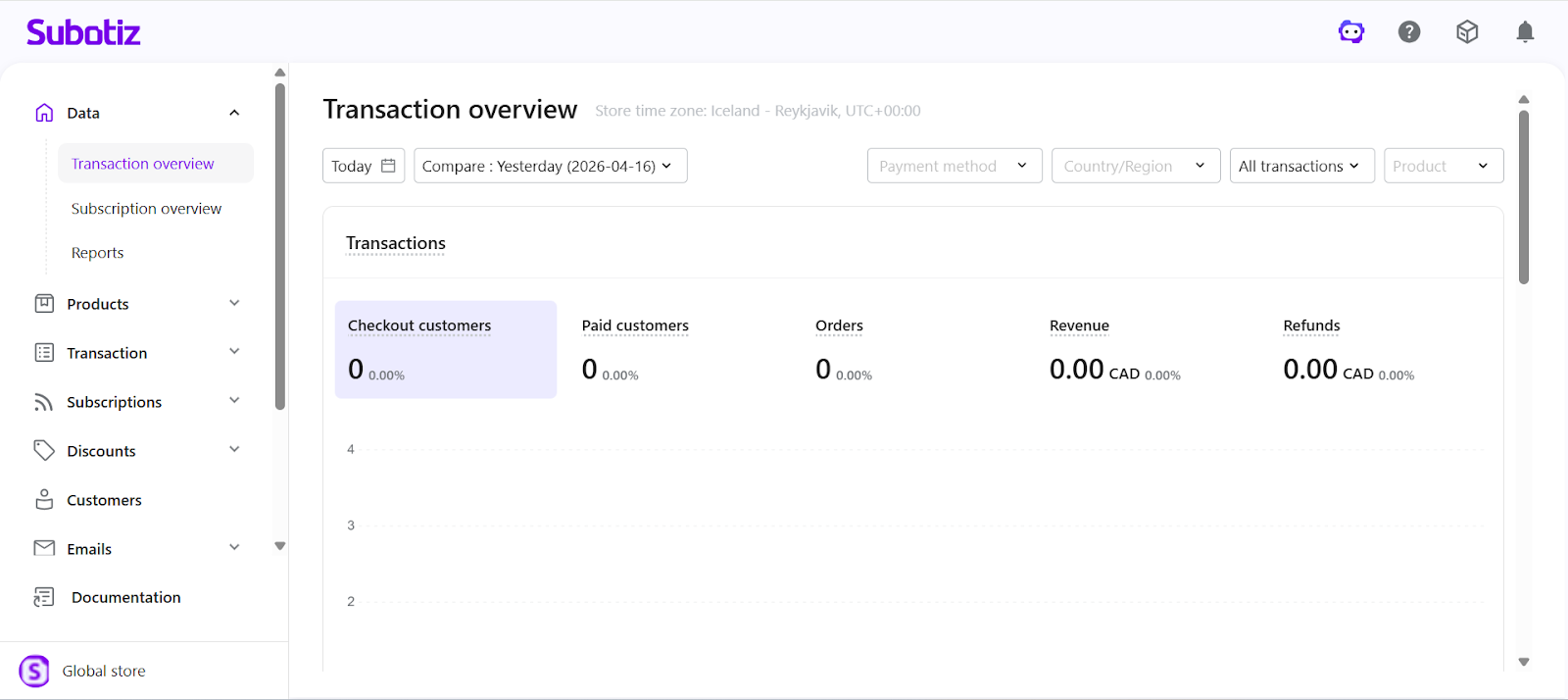
- Open a store: Click any store row to open the corresponding store admin in a new tab.
Best Practices
- Separate business lines: Create independent stores for different brands or audiences to maintain clear operations.
- Use clear store identities: Assign distinct names and logos for easier recognition.
- Review permissions regularly: Ensure staff only have access to the stores they manage to reduce operational risk.
- Monitor store status: Track frozen stores to avoid disruptions.
Multi-Platform Management enables merchants to operate multiple stores within a single account while maintaining clear separation of data, permissions, and configurations. This structure supports scalable growth across brands and business lines while maintaining operational efficiency and clarity.