The Multi-Store Management feature in Subotiz allows merchants to create and manage multiple stores under a single account. Each store maintains its own products, payment settings, and business data, while merchants can switch between stores, manage access, and transfer store ownership from a centralized interface.
Key Features
With Multi-Store Management, merchants can:
- Create multiple stores: Set up separate stores for different brands, business lines, or operating models.
- Operate stores independently: Each store maintains its own products, payment settings, and data without interference.
- Access stores from one account: Switch between authorized stores without signing in separately.
- Transfer ownership: Assign store ownership to other users when needed, supporting partner and delegation scenarios.
Store Panel and Access
The store panel provides access to store switching, store management, and basic account settings.
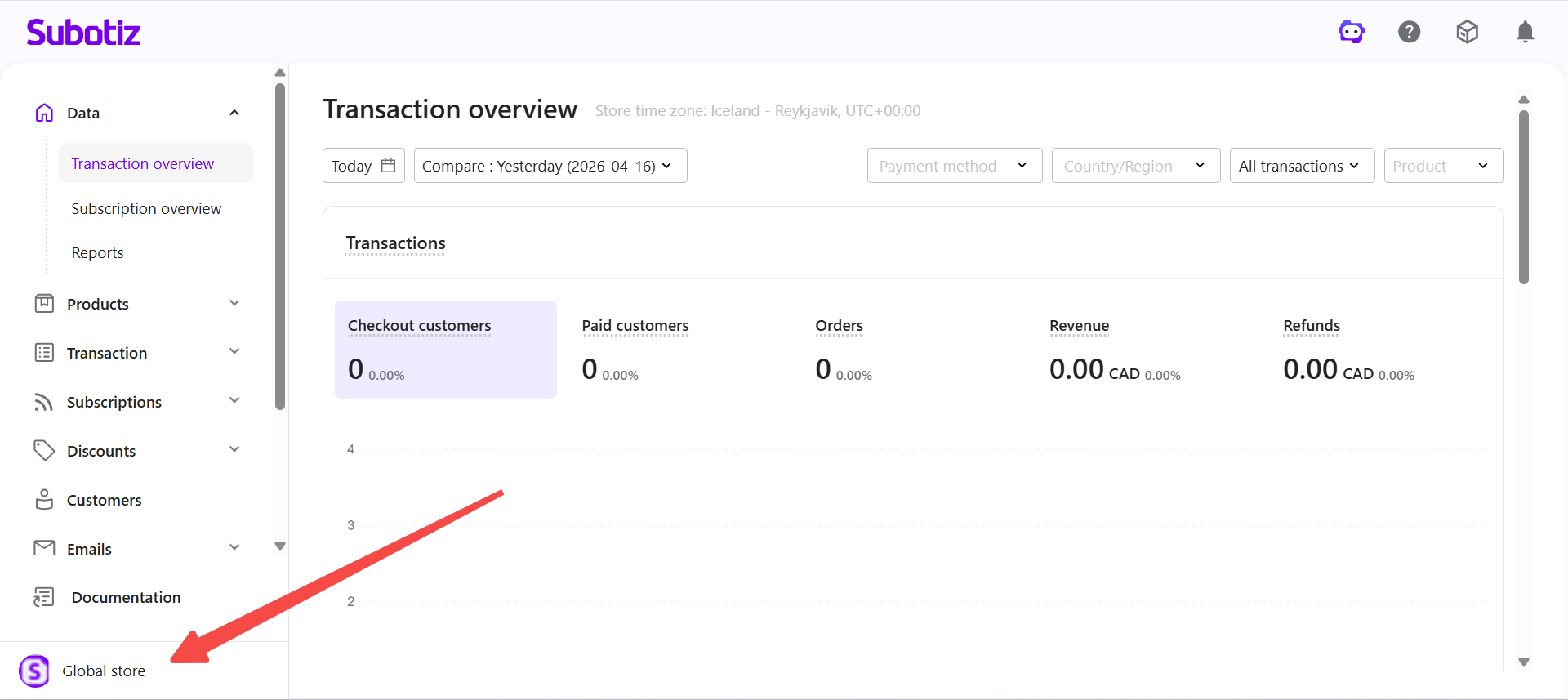
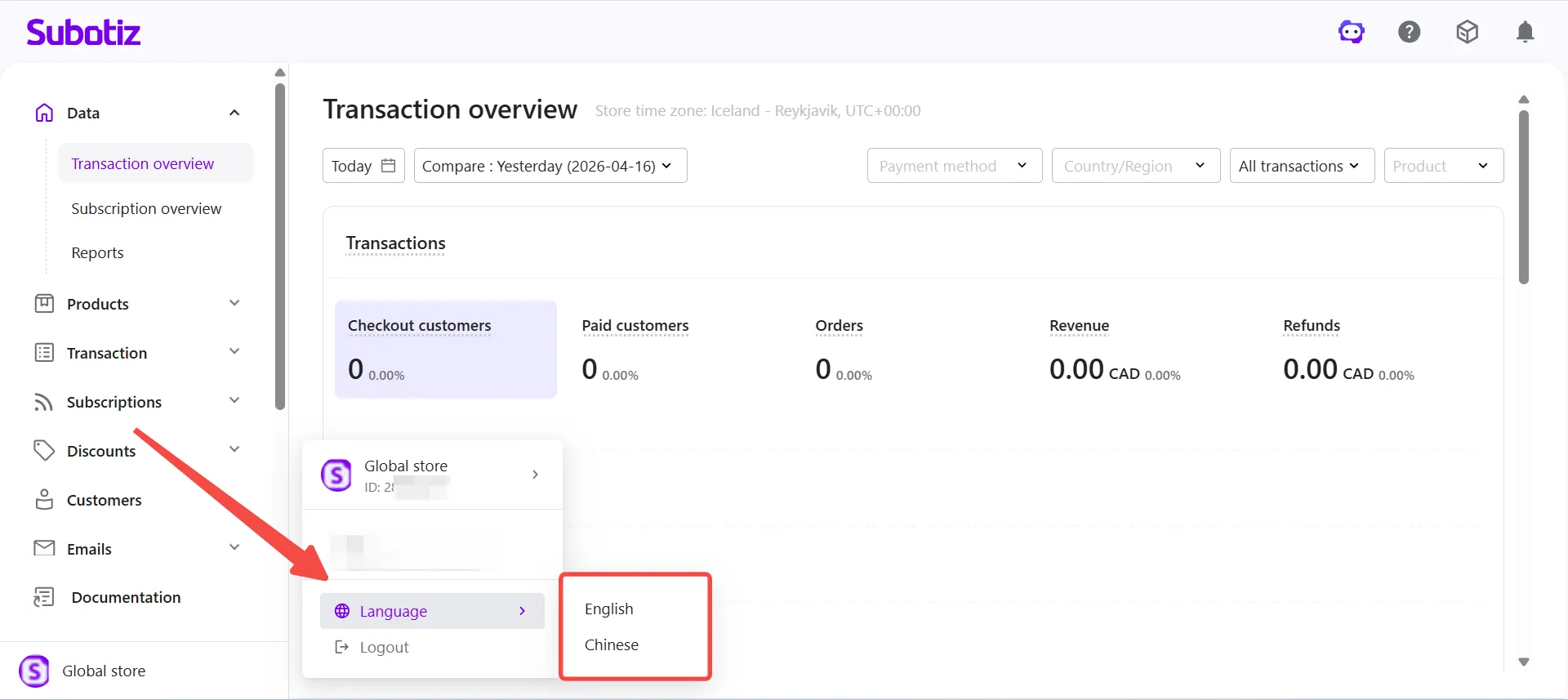
- Open the store panel: Click the current store name or logo in the bottom-left corner of the Subotiz admin.
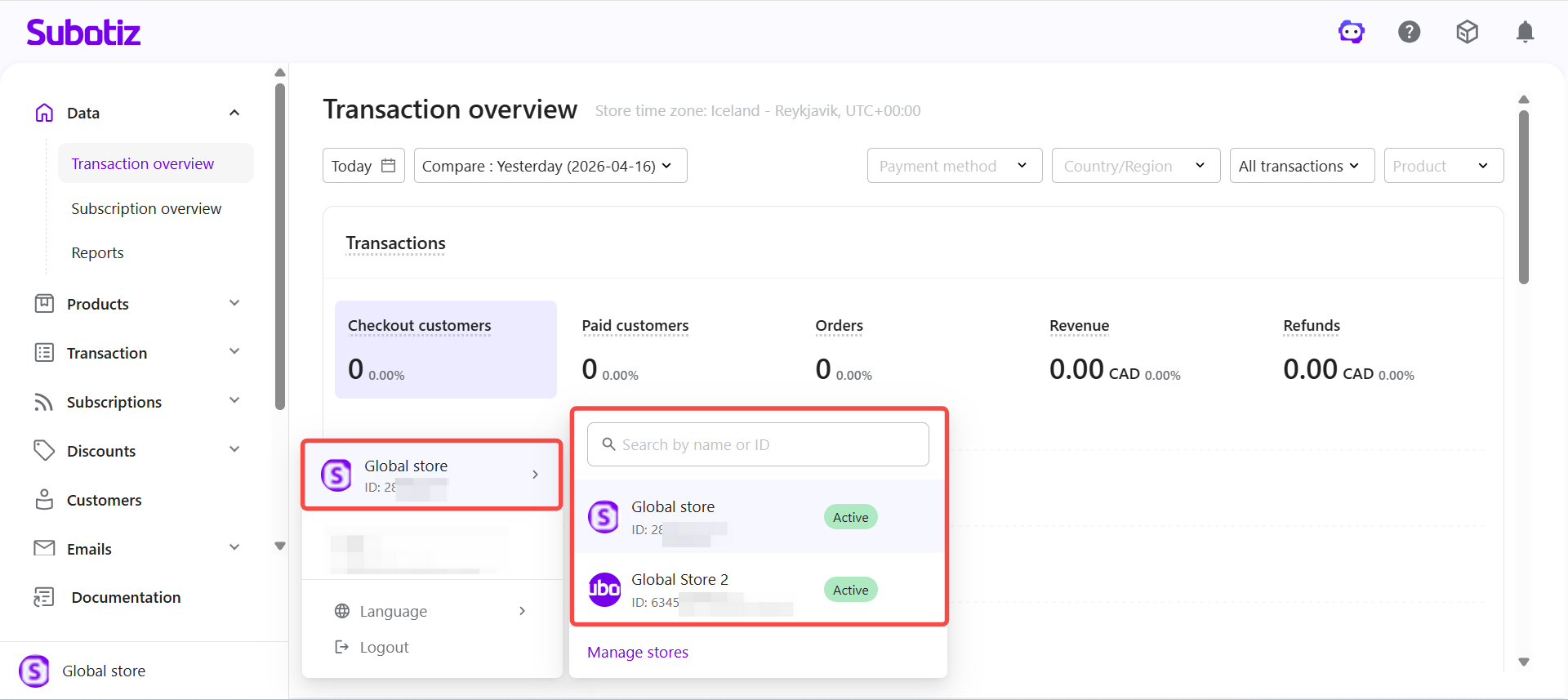
- View available stores: Review the stores accessible to the current account.
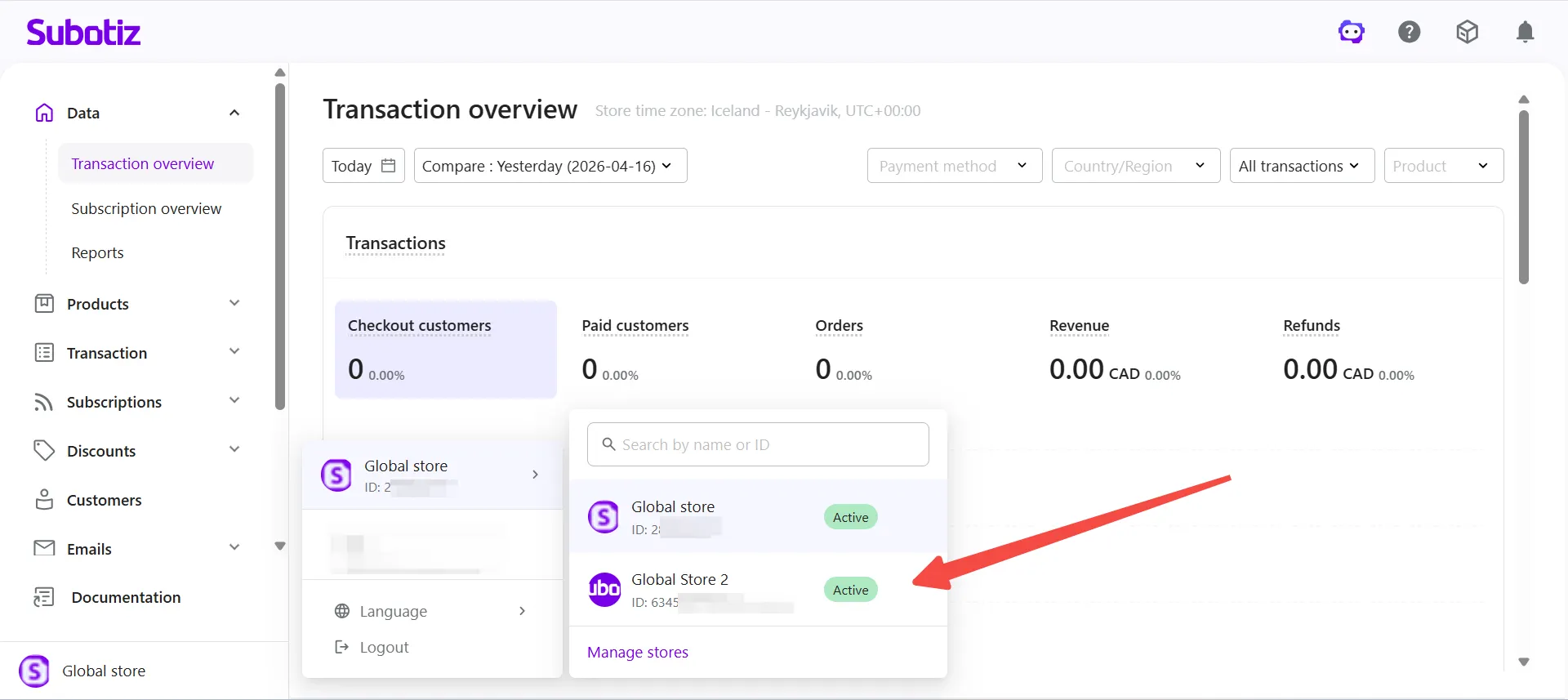
- Switch stores: Click a store from the list to open its admin dashboard.
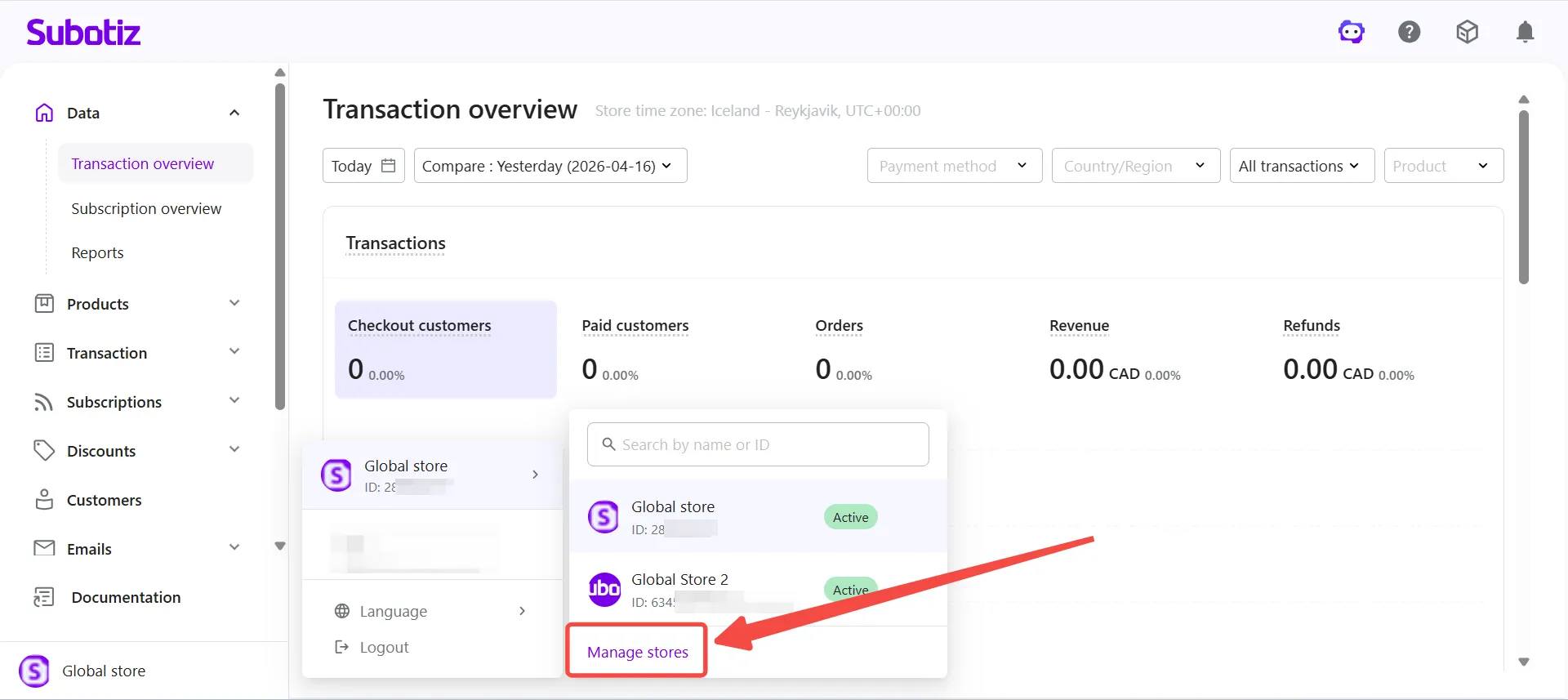
- Access Store Management: Click Manage stores to open the Store Management page in a new tab.
- Change admin language: Click Language and select English or Simplified Chinese. Language settings apply only to the admin interface and do not affect storefront content.
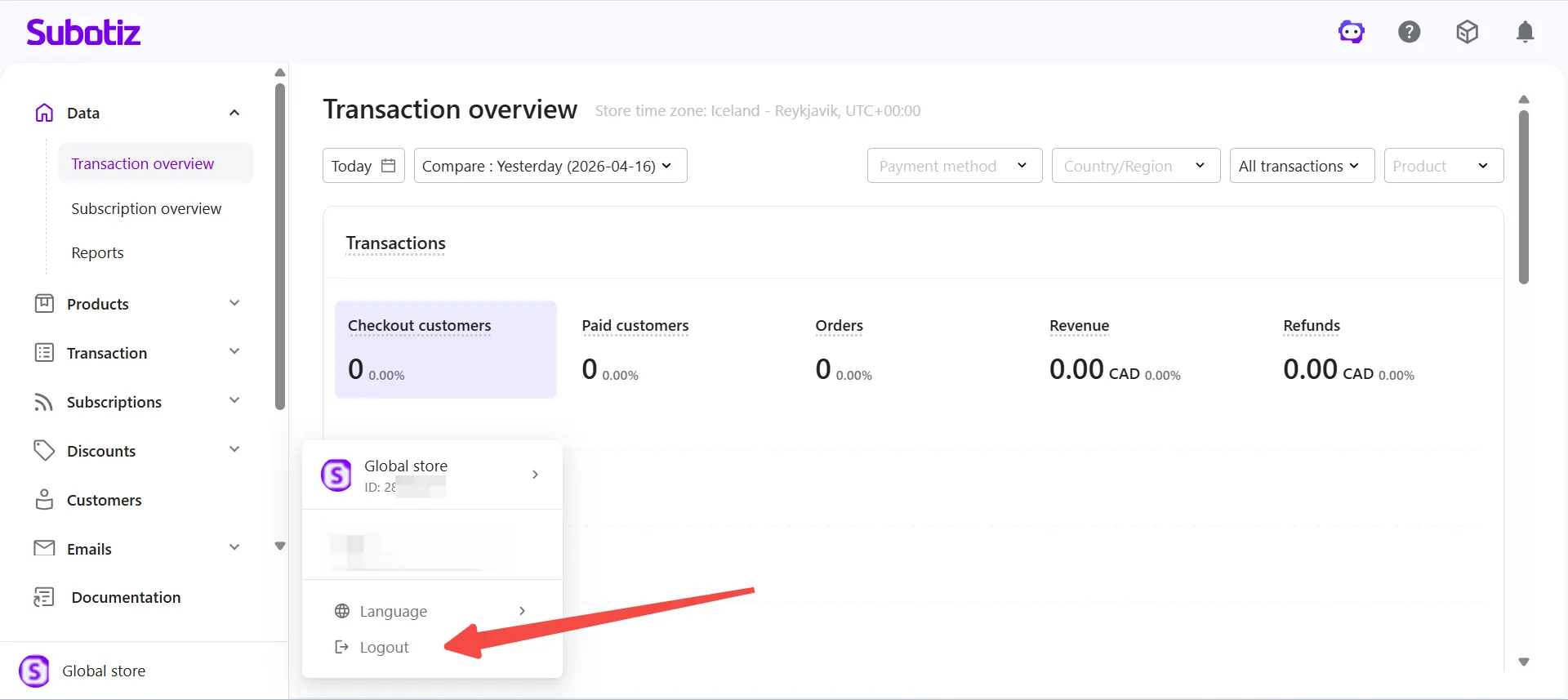
- Log out: Click Log out to sign out of the current account.
Managing Stores
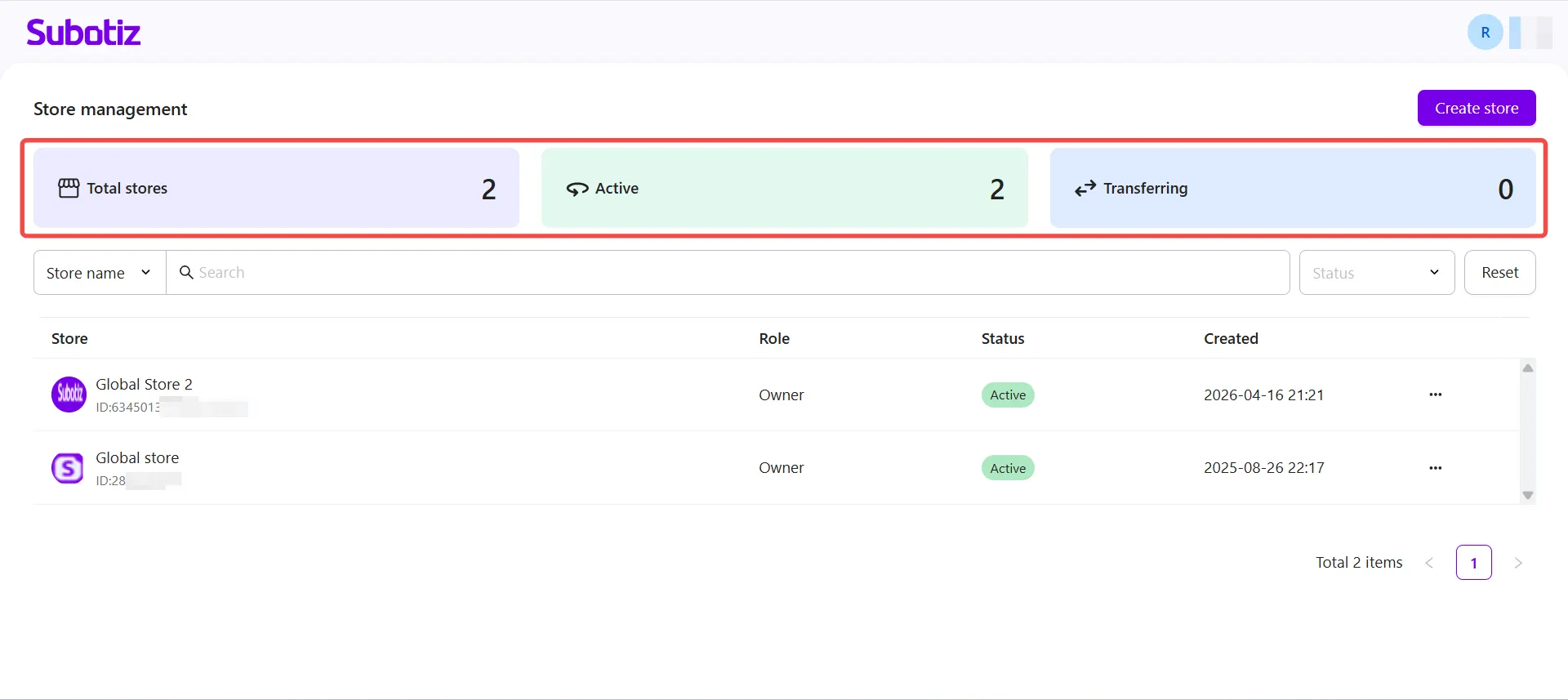
The Store Management page provides a centralized workspace to view and manage all stores.
Store Overview
- View total stores: Displays the total number of stores accessible under the current account.
- View status distribution: Shows the number of stores by status (such as Active and Transferring).
Store List
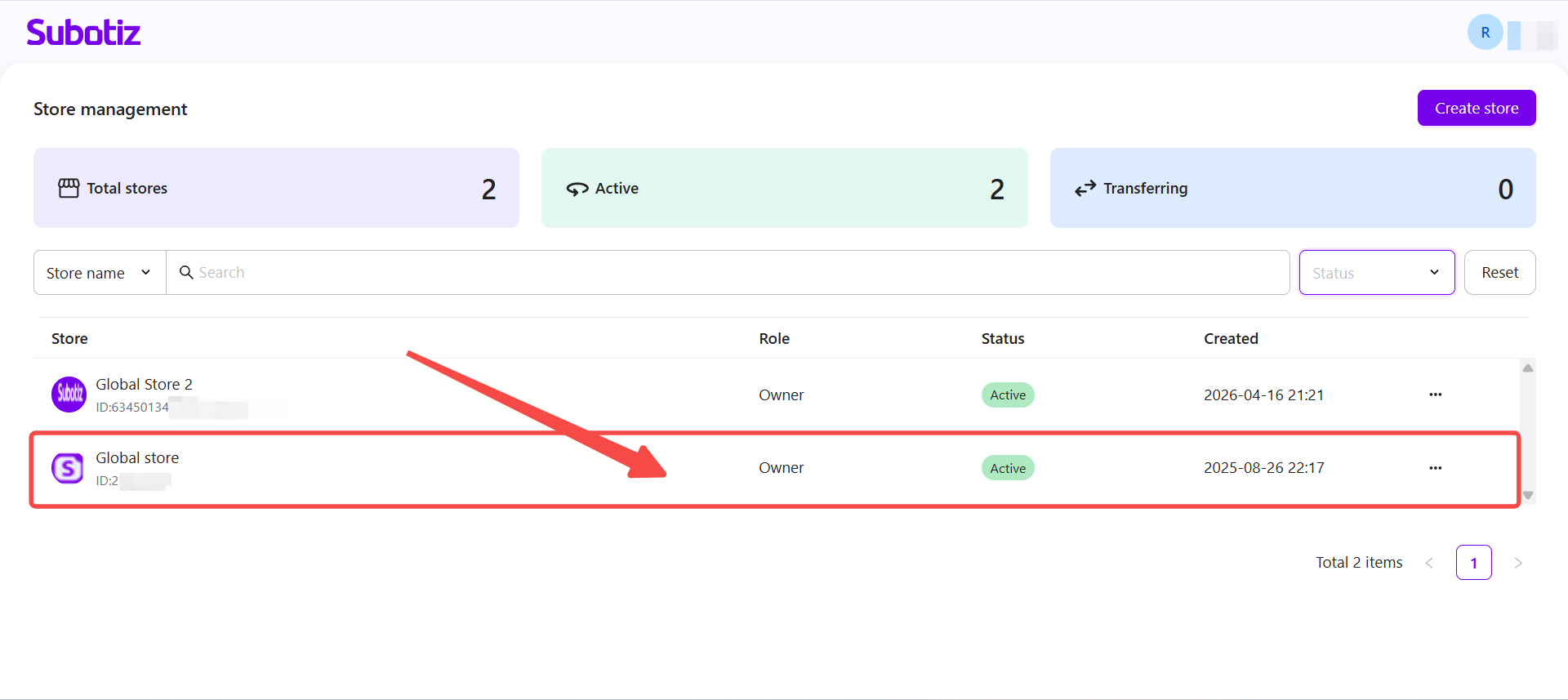
- View store details: Includes store name, Store ID, role, status, and creation time.
- Search stores: Enter a store name or Store ID in the search bar to quickly locate a store.
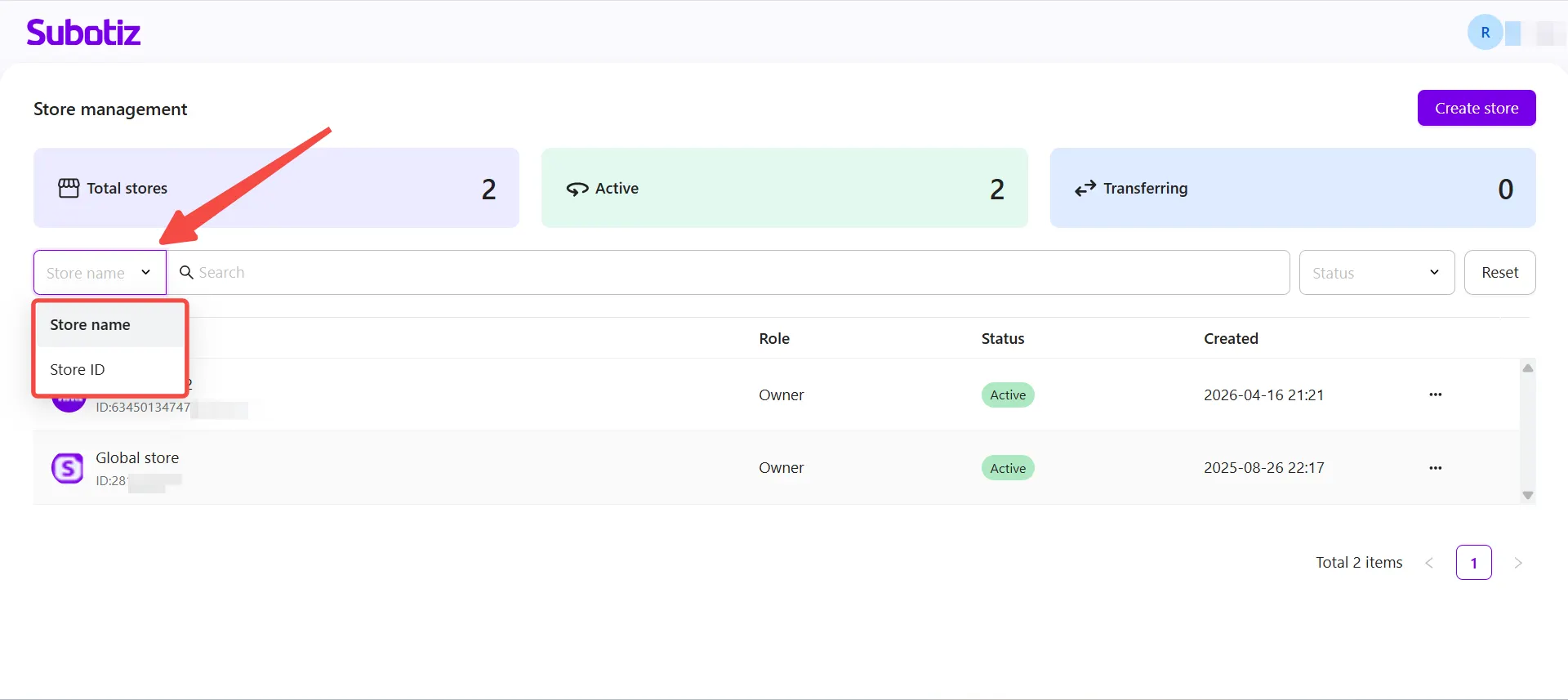
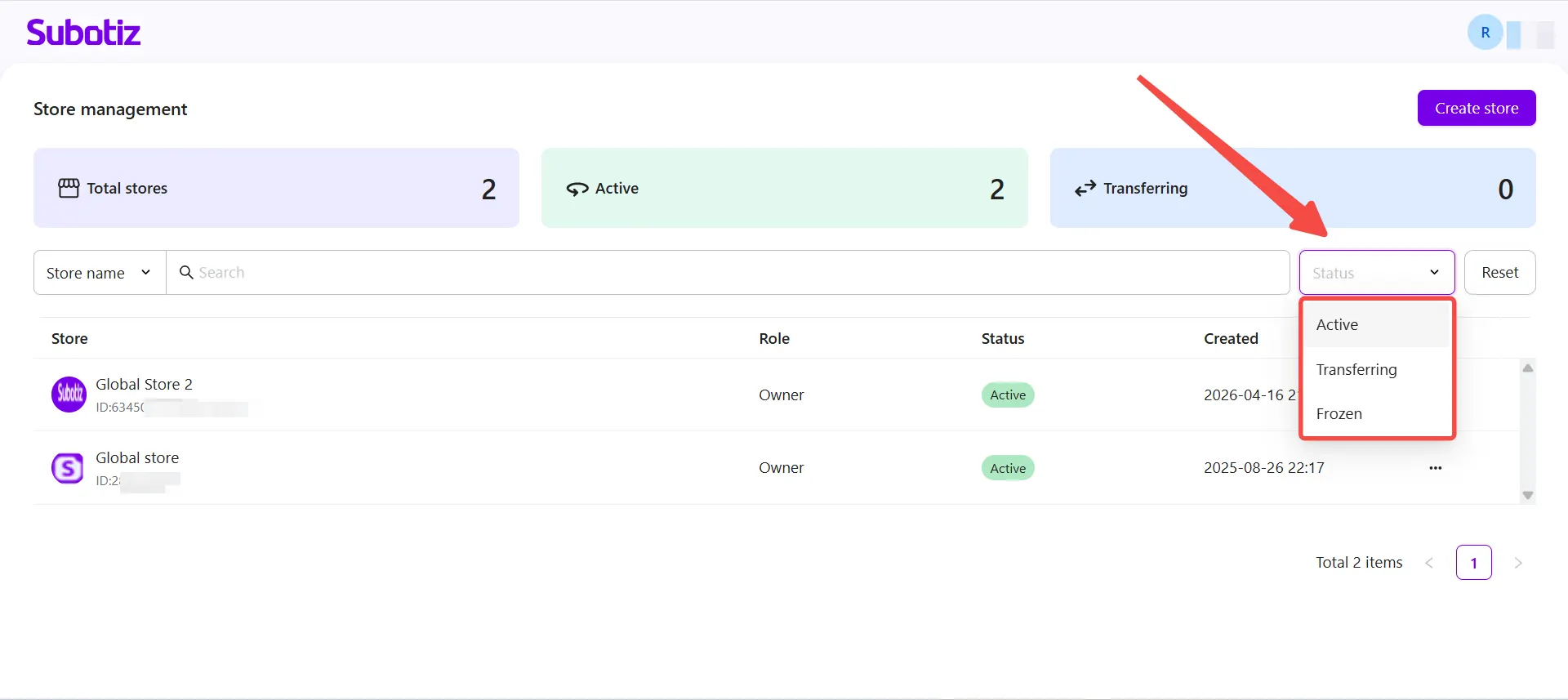
- Filter by status: Use the Status dropdown to filter stores by different states.
- Active: Store is fully operational.
- Transferring: A store ownership transfer is in progress. Store operations remain available during the transfer.
- Frozen: The store is restricted to billing-related actions. Other sections remain view-only.
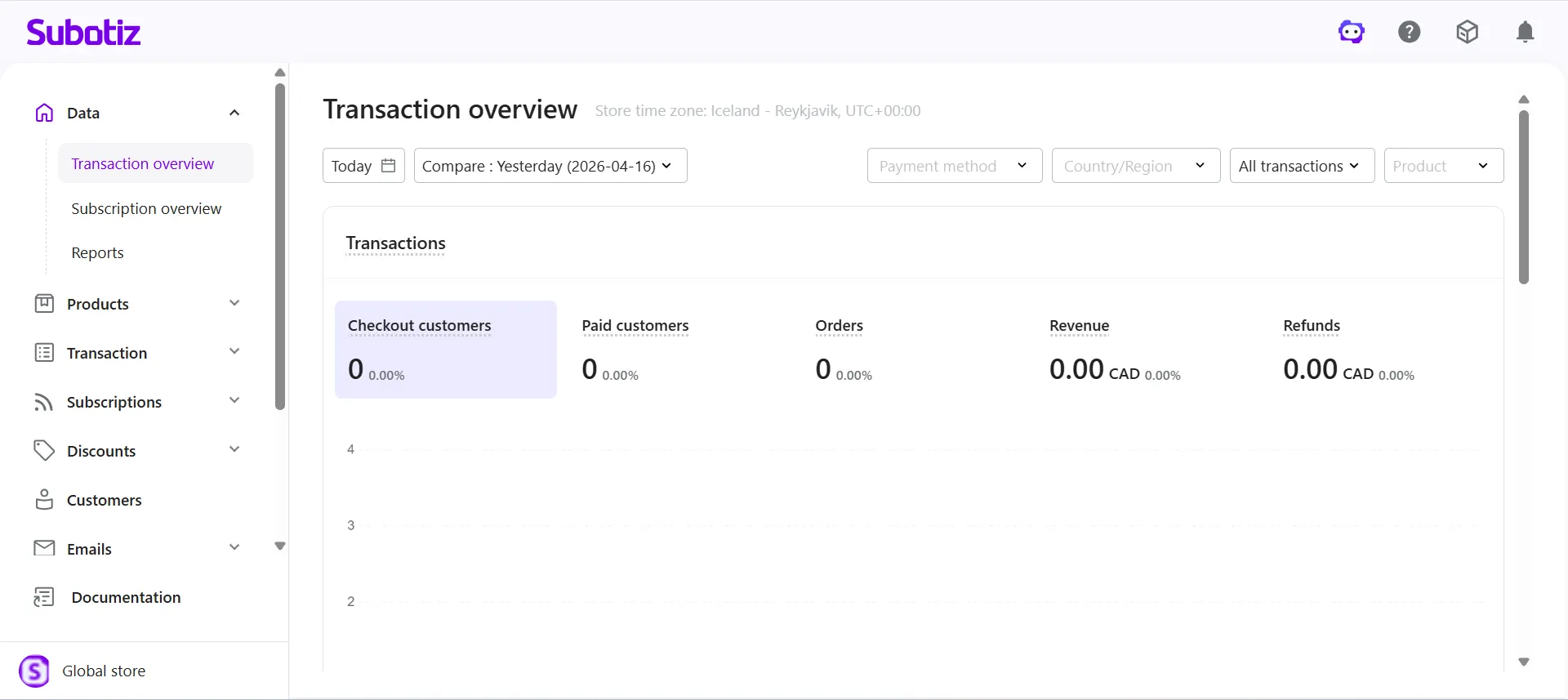
- Open a store: Click any store row to open the corresponding store admin in a new tab.
Best Practices
- Separate business lines: Create independent stores for different brands or audiences to maintain clear operations.
- Use clear store identities: Assign distinct names and logos for easier recognition.
- Review permissions regularly: Ensure staff only have access to the stores they manage to reduce operational risk.
- Monitor store status: Review store statuses regularly and address restrictions that may affect operations.
Multi-Store Management allows merchants to manage multiple stores under a single account while keeping store data, permissions, and configurations separate. This centralized approach supports efficient operations across multiple brands and business lines.