The account registration process in Subotiz enables merchants to create a verified business account and access all platform features. Once registration is complete, you can begin setting up products, configuring payments, and managing subscriptions in a secure, unified environment.
Creating Your Account
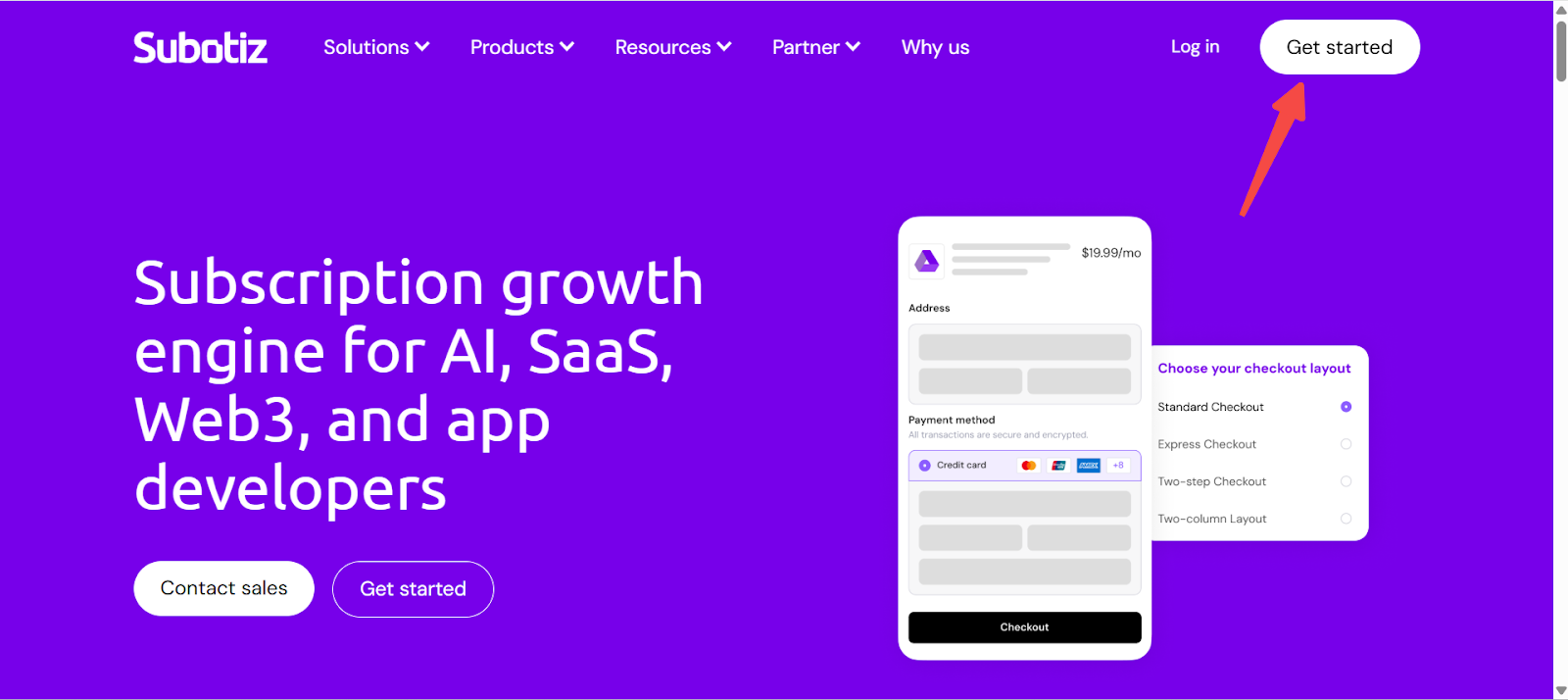
- Access the registration page: Go to www.subotiz.com and click Get started.
-
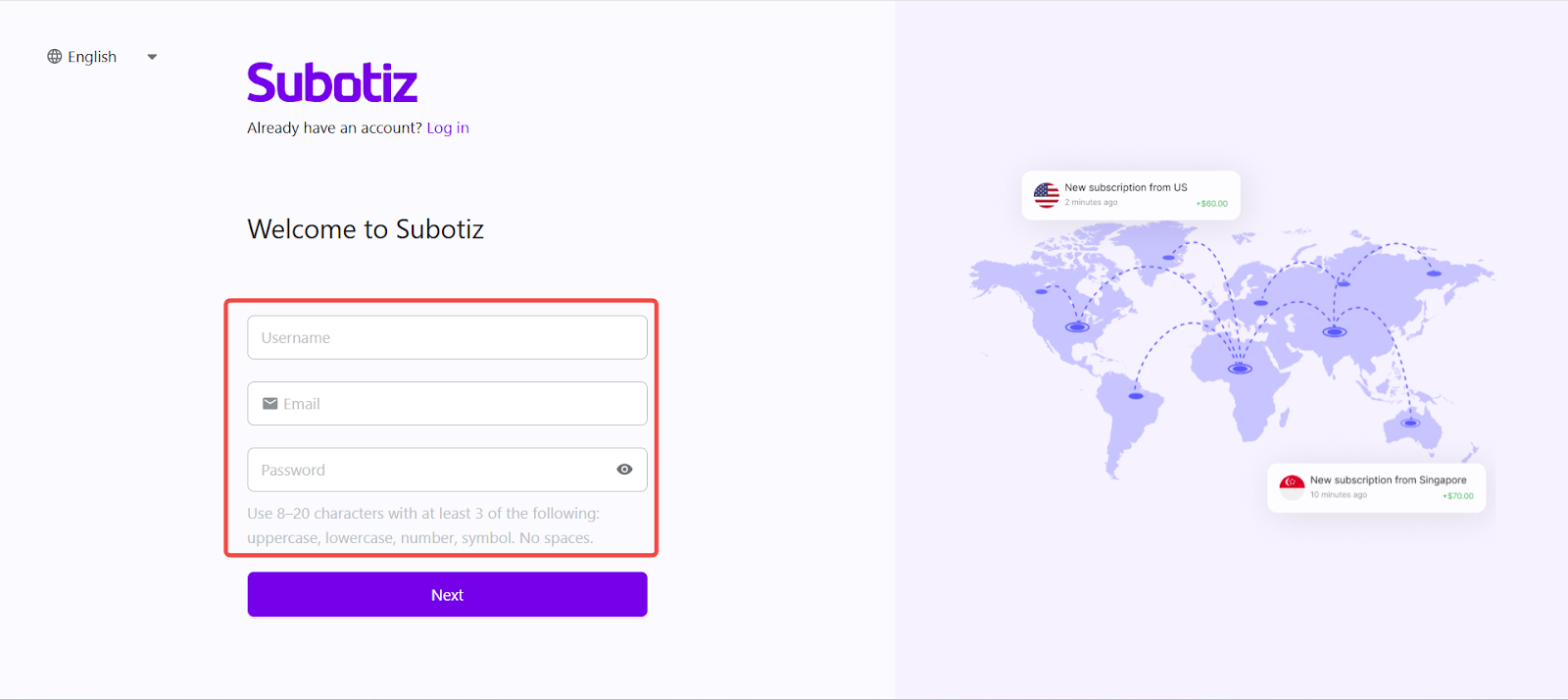
Enter login credentials: Enter a Username, Email, and Password.
- Passwords must be 8–20 characters and include at least three of the following: an uppercase letter, a lowercase letter, a number, or a symbol (no spaces).
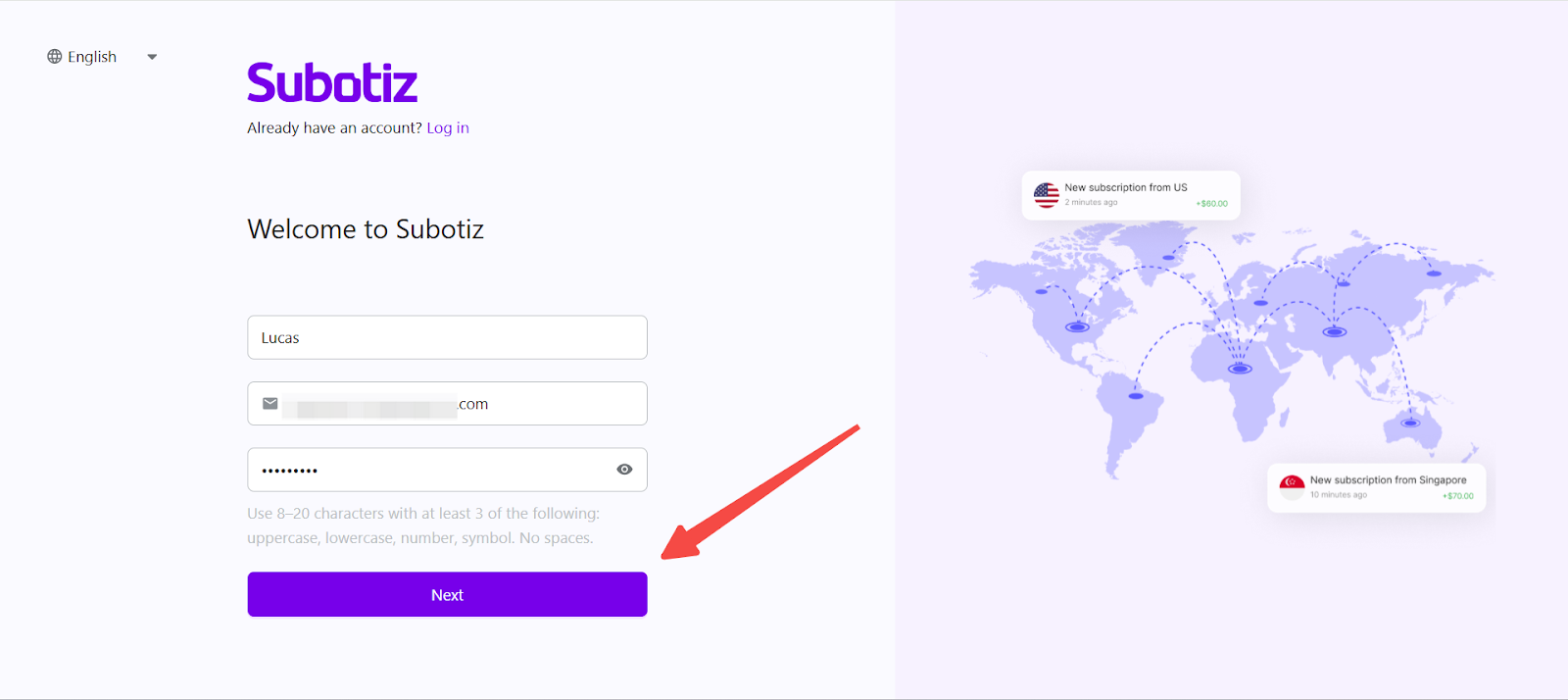
- Confirm and continue: Click Next to proceed.
-
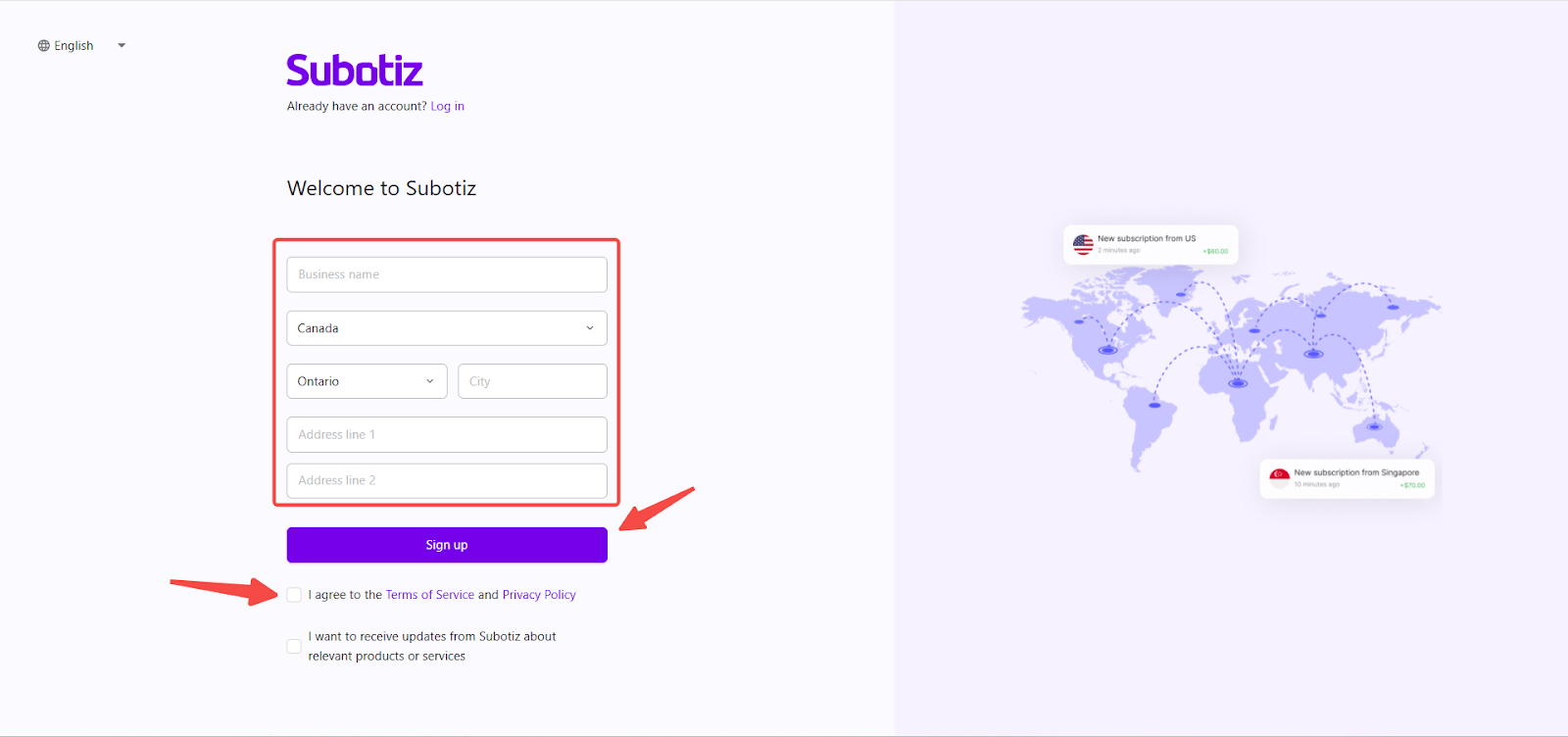
Add business information:
- Enter business name: Provide the official business name.
- Select location: Choose Country/Region, Province/State, and City.
- Complete address: Fill in all Business address fields.
- Accept terms: Check I agree to the Terms of Service and Privacy Policy.
- Marketing emails (optional): Select this if you would like to receive Subotiz product updates and promotional news.
- Submit registration: Click Sign up to create your account.
-
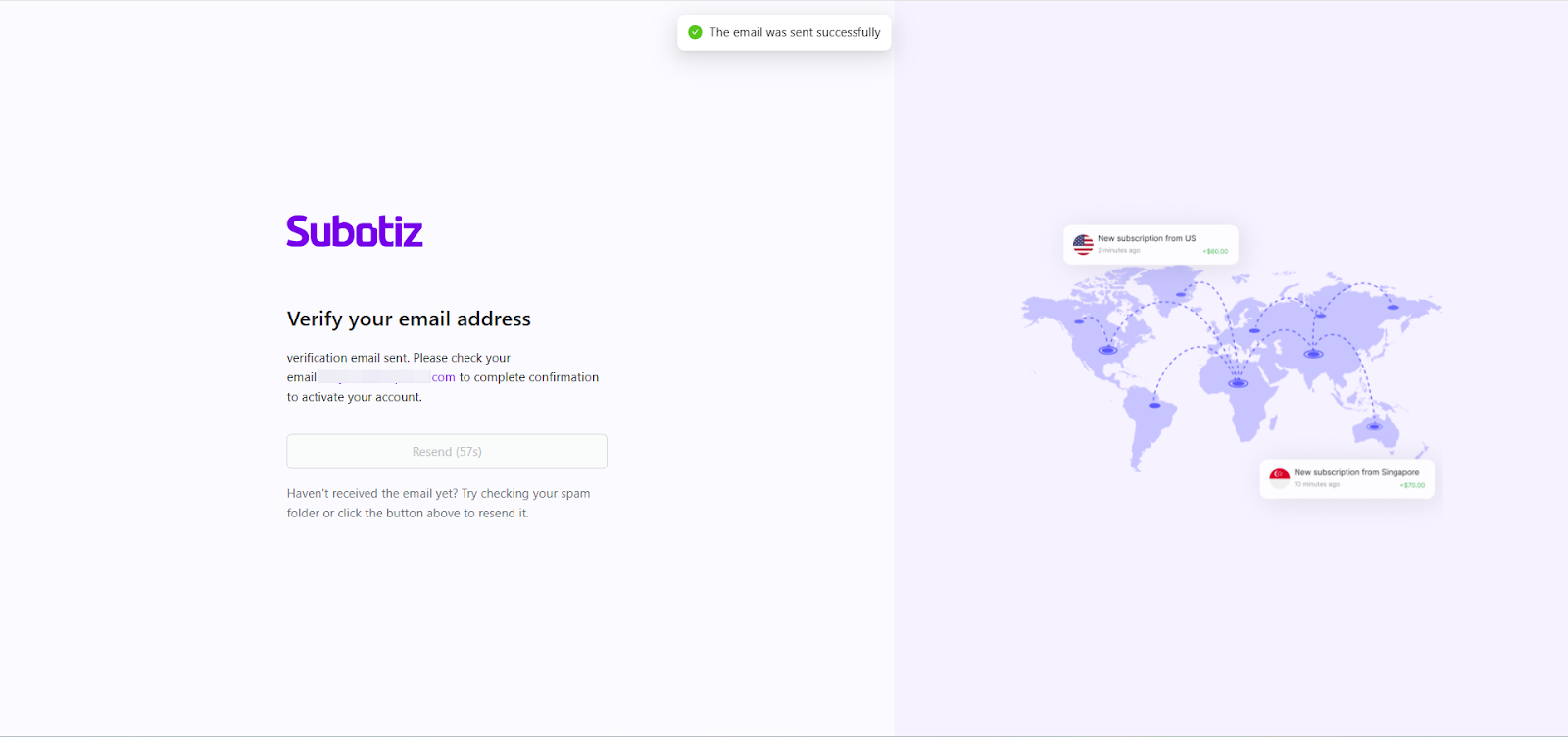
View verification notice: After submitting the form, a verification notice will appear in Subotiz.
-
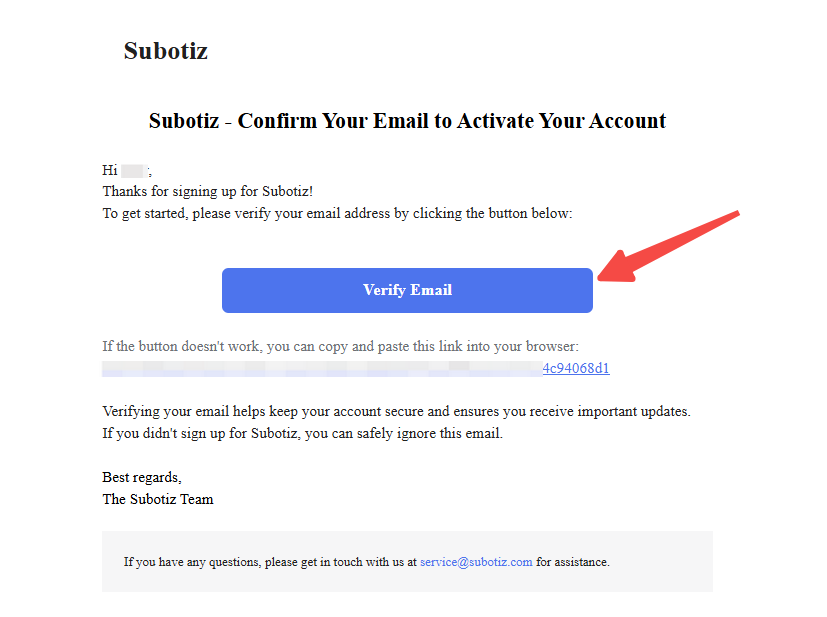
Verify email address: Open the verification email sent to your registered address and click Verify Email to activate the account.
- Verification links are valid for 24 hours. If expired or already used, request a new verification email.
-
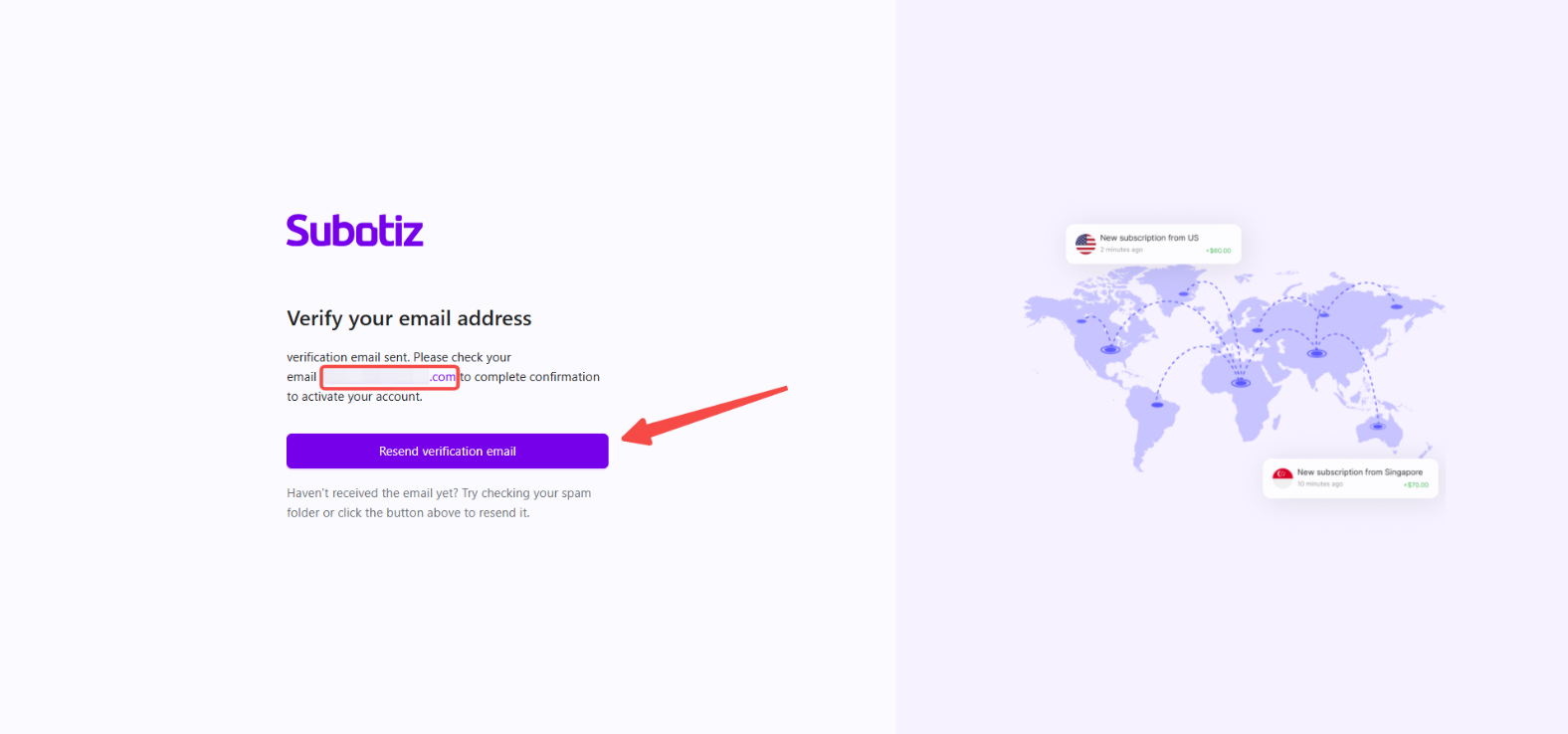
If the email is not received: Confirm the email address is correct, check the spam/junk folder, and click Resend verification email on the verification page.
- If multiple emails are requested, only the most recent link will remain valid.
Complete Quick Setup (Optional)
After verifying your email, Subotiz guides you through a short Quick Setup process to collect basic business information and support your initial workspace setup.
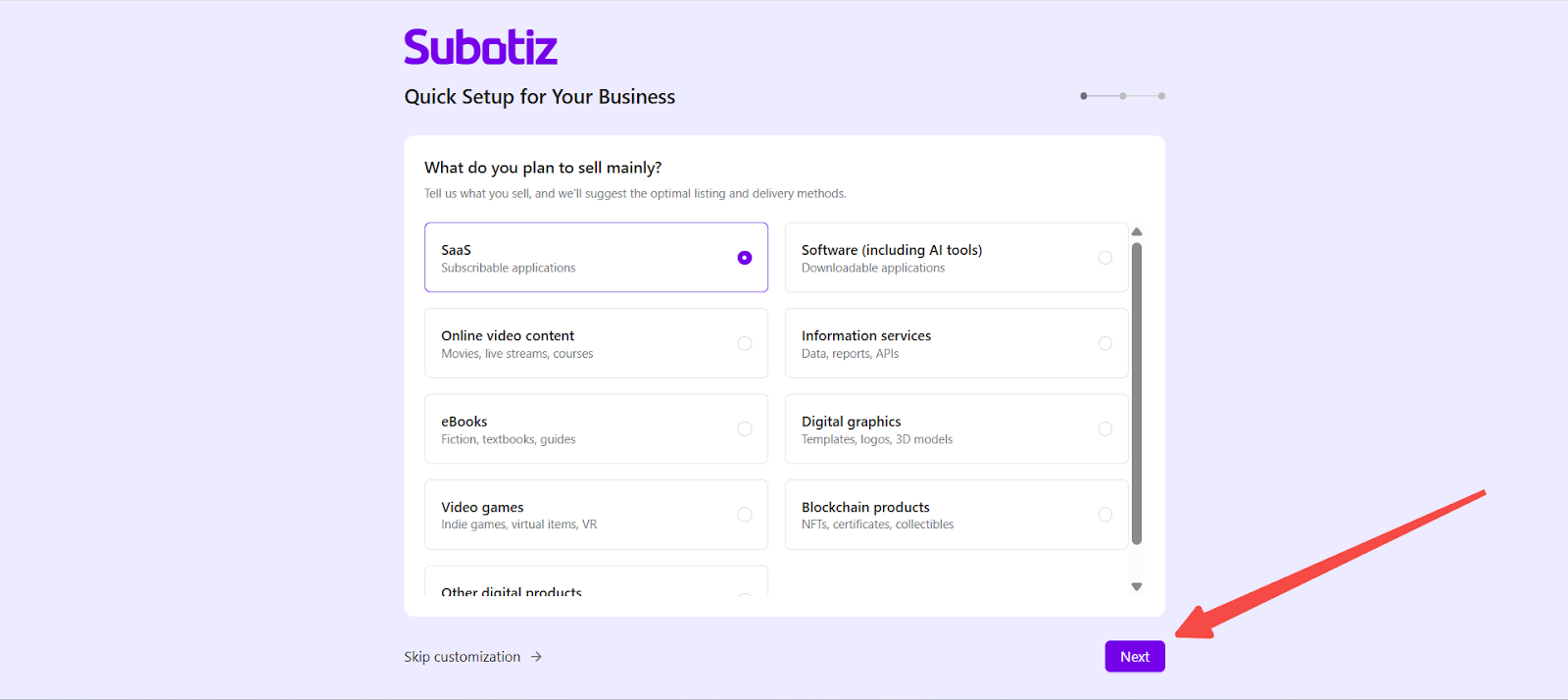
- Select your primary product type: Choose the main type of digital product your business sells (e.g., SaaS, Software, Online video content, Information services, eBooks). Click Next to continue.
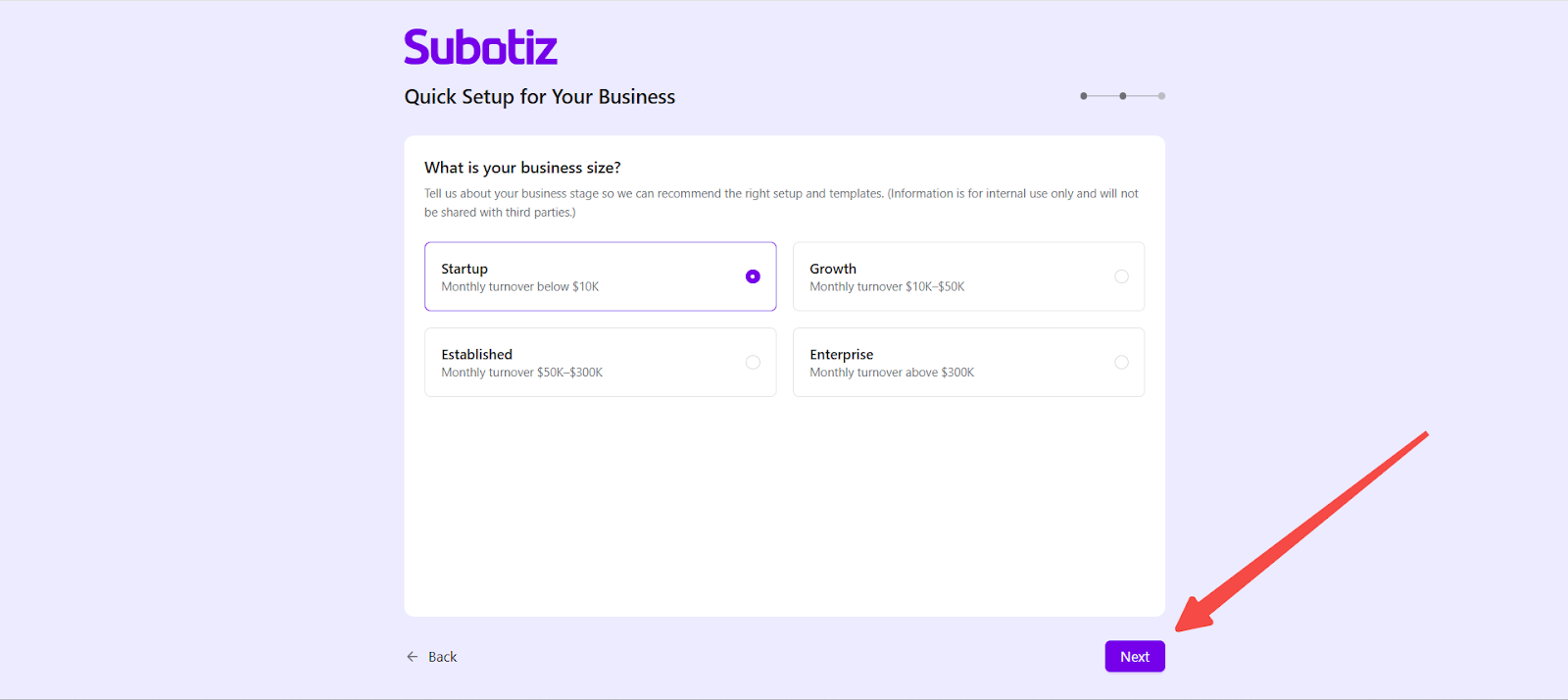
- Select your business size: Choose the option that best reflects your monthly revenue range (e.g., Startup, Growth, Established, Enterprise). This information is used only for internal setup suggestions and will not be shared externally. Click Next to proceed.
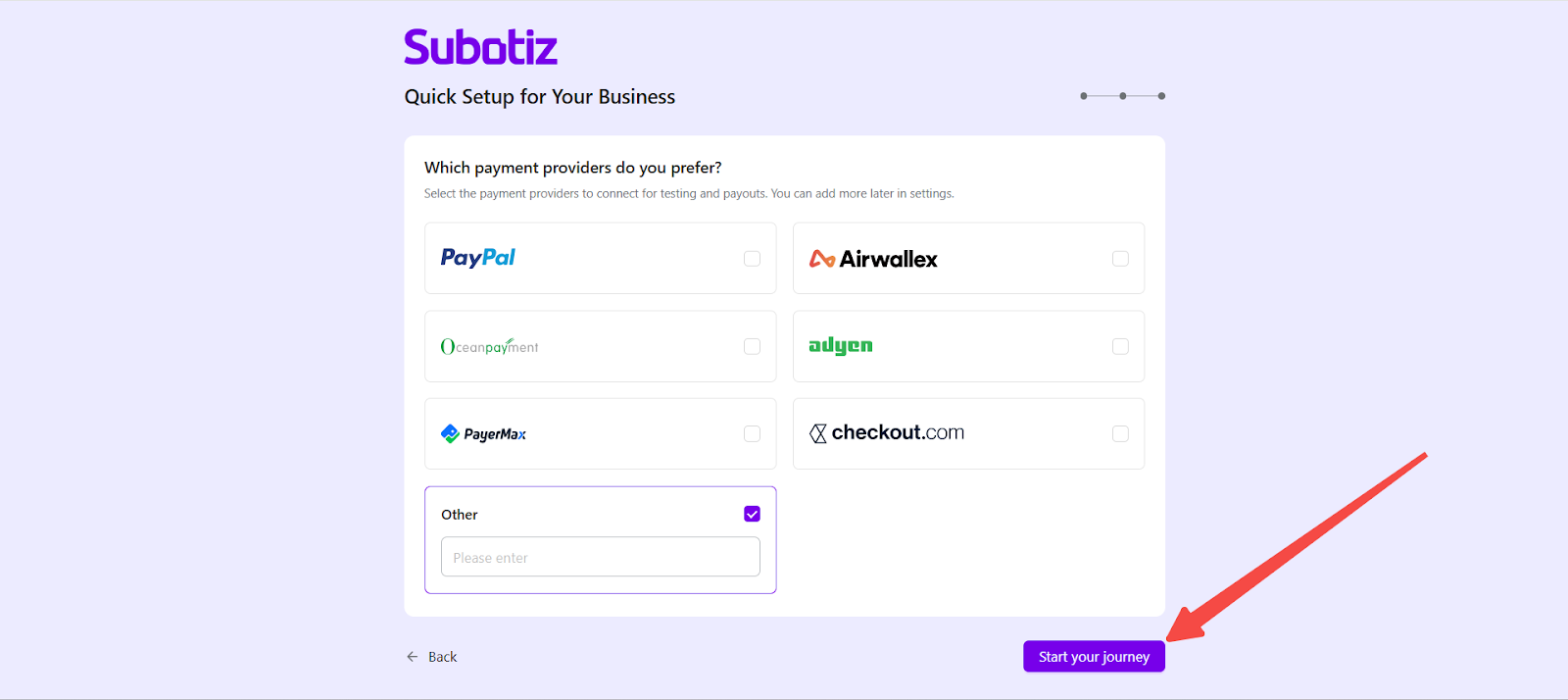
- Select preferred payment providers: Choose the payment providers you plan to connect for processing and payouts (e.g., PayPal, Airwallex, Adyen, Checkout.com, Oceanpayment, PayerMax). If you use another provider, select Other and enter the name. Click Start your journey to finish setup and enter the Subotiz admin.
Finalizing Your Setup
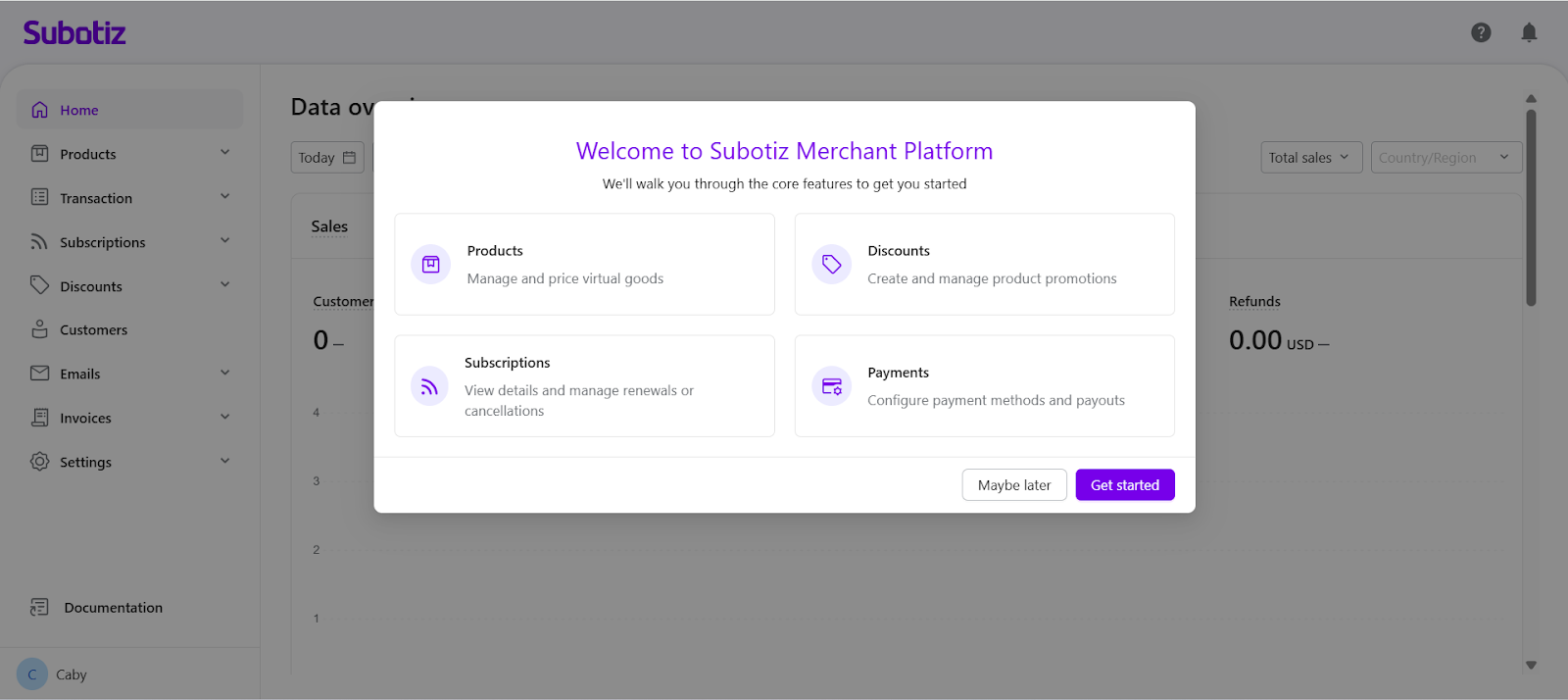
After your email is verified and the Quick Setup steps are completed, your Subotiz account is fully created. When you enter the Subotiz admin for the first time, a short feature walkthrough may appear to highlight key areas such as Products, Subscriptions, Discounts, and Payments. You can click Get started to view the guide or Maybe later to skip it.
Registering with Subotiz creates a secure business account ready for subscription growth. With a verified account, you can seamlessly access product setup, payment configuration, and subscription management in one integrated platform.